
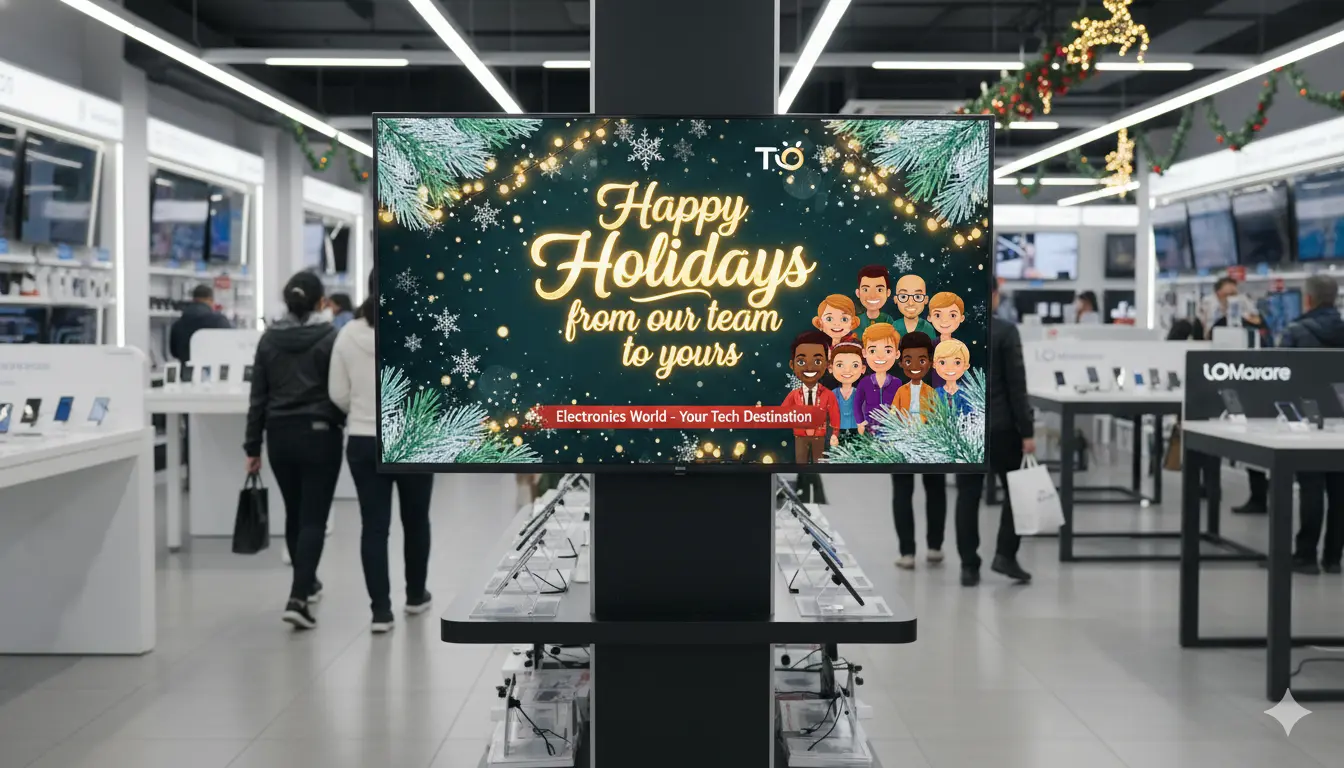
You turn a TV into a holiday display screen by connecting it to a media player, installing a digital signage app, uploading your holiday themed content, creating a playlist, and assigning that playlist to the TV. Once set up, the TV will display festive visuals, seasonal promotions, countdowns, greetings, or ambient loops that enhance the holiday atmosphere in your business or home.
Below is a detailed, step by step guide that explains exactly how to transform any TV into a complete holiday display screen.
Table Of Contents
- Step 1: Prepare the Requirements
- Step 2: Decide What Holiday Theme You Want to Display
- Step 3: Create or Download Your Holiday Content
- Step 4: Connect Your TV to a Media Player
- Step 5: Install PosterBooking on Your Media Player
- Step 6: Add Your TV to the PosterBooking Dashboard
- Step 7: Upload Your Holiday Images or Videos
- Step 8: Create a Holiday Playlist
- Step 9: Assign Your Holiday Playlist to the TV
- Step 10: Schedule Your Holiday Display for the Season
- Step 11: Test Your Holiday Display Before Launching It
- Step 12: Update Your Holiday Display Throughout the Season
- Final Thoughts
Step 1: Prepare the Requirements
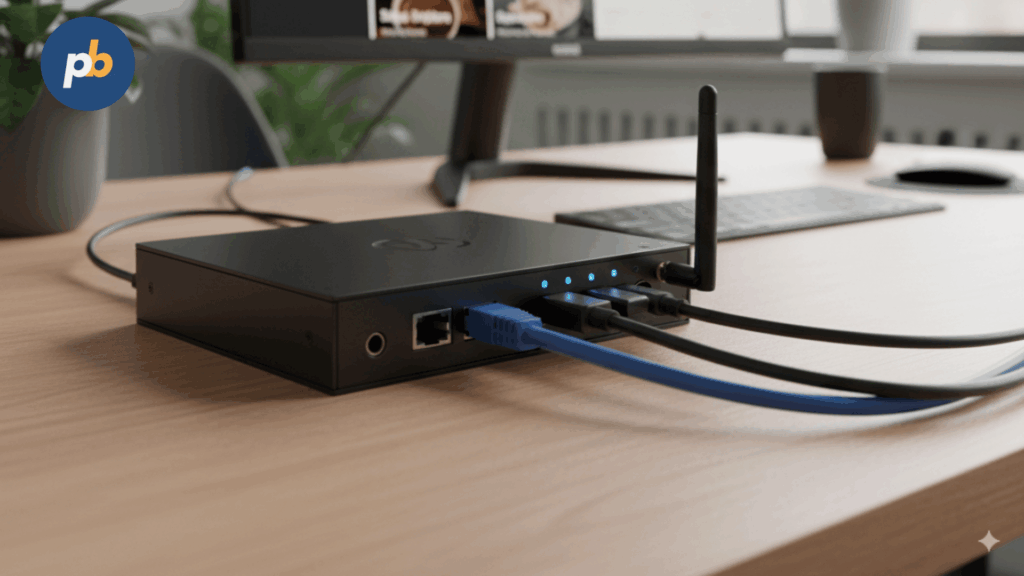
Before setting up your holiday display, gather everything you need. Preparing these items first ensures a smooth and easy installation process.
You will need:
• A TV with an HDMI port
• A media player such as a Fire TV Stick, Android TV device, Raspberry Pi, or Amazon Signage Stick
• A PosterBooking account with your screen ready to be added
• Holiday themed content such as Christmas slides, New Year greetings, winter ambience videos, or seasonal promotions
• A stable internet connection
• A clear plan for the type of holiday display you want to create
Once you have everything ready, you can begin the setup.
Step 2: Decide What Holiday Theme You Want to Display
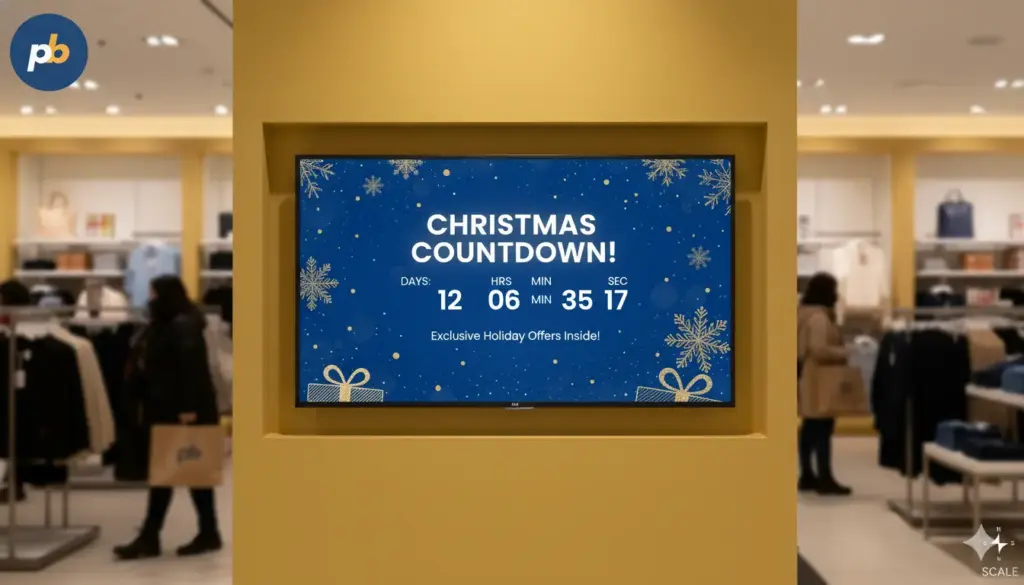
Holiday displays come in many styles. Deciding your theme early ensures your content matches the mood you want to create.
Common holiday display themes include:
• Christmas slides with ornaments, snow, and festive greetings
• New Year countdowns and fireworks animations
• Winter themed ambience such as snowfall loops or cozy fireplace visuals
• Seasonal promotions for restaurants, retail stores, gyms, and salons
• Holiday event announcements for schools or churches
• A combination of festive decorations and product highlights
Choosing the theme helps you design content that fits your environment perfectly.
Step 3: Create or Download Your Holiday Content
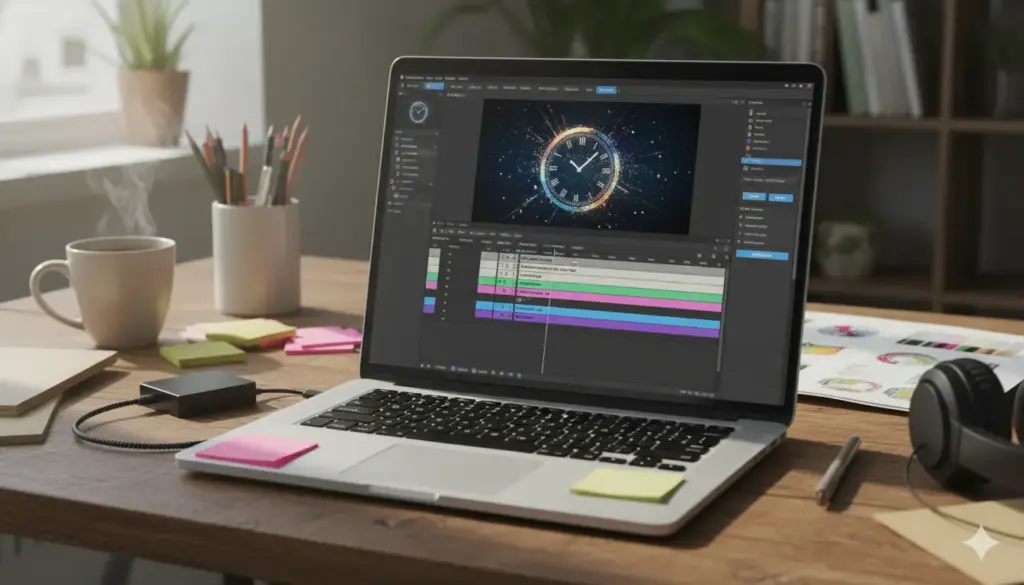
Once you know your theme, create or collect the holiday visuals you want to display. You can design your own content using tools such as Canva, Adobe Express, Photoshop, or any design program you prefer. You can also download festive templates and animations from online resources.
Holiday content can include:
• JPG or PNG images with Merry Christmas or Happy Holidays messages
• MP4 loops showing snowfall or glowing lights
• Promotional slides for seasonal offers
• Animated countdowns for Christmas or New Year
• Winter scenic videos for ambience
Use full HD resolution like 1920 x 1080 or 4 K resolution such as 3840 x 2160 to keep your display crisp and professional.
Step 4: Connect Your TV to a Media Player
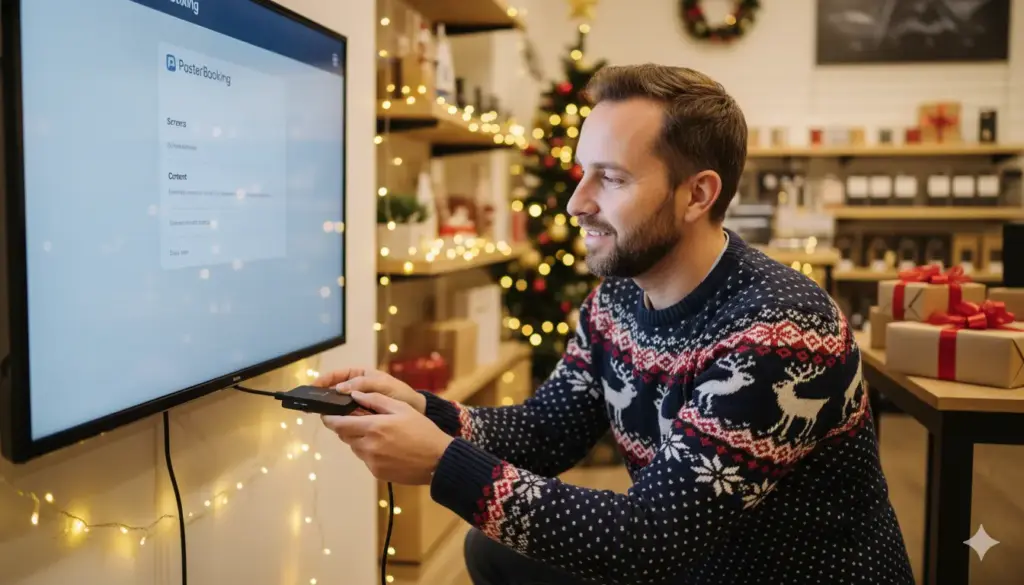
To turn your TV into a digital display, connect a media player to it.
Follow these steps:
- Plug the media player into the HDMI port of your TV.
- Connect the media player to a power source.
- Switch the TV to the correct HDMI input.
- Connect the media player to Wi Fi or Ethernet.
Your TV is now ready to run digital signage software.
Step 5: Install PosterBooking on Your Media Player
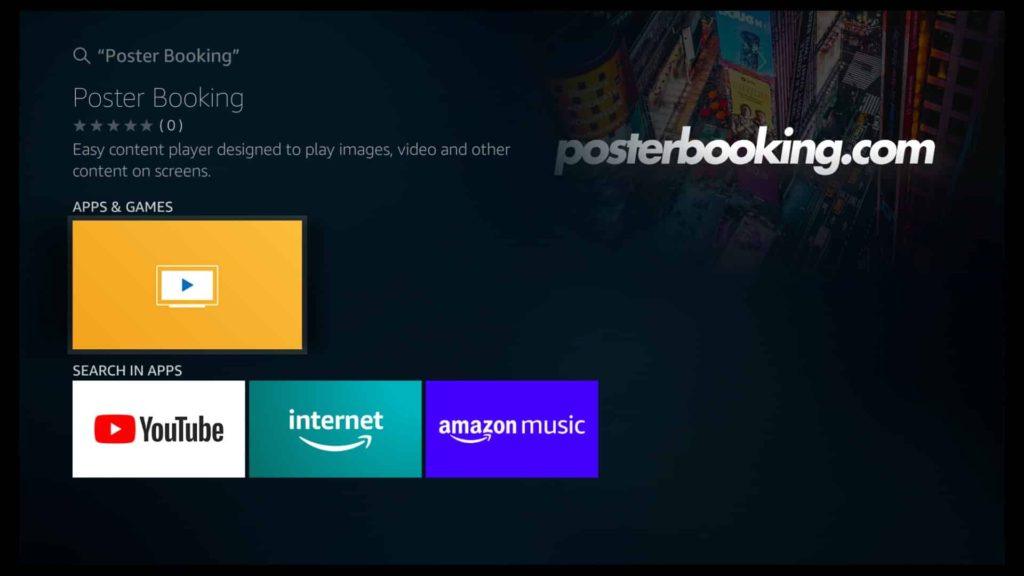
PosterBooking allows you to turn your TV into a holiday display controlled from any device.
To install the app:
- Open the app store on your media player.
- Search for the PosterBooking app.
- Download and install it.
- Open the app.
- A unique pairing code will appear on the screen.
You will use this code to link your TV to your PosterBooking dashboard.
Step 6: Add Your TV to the PosterBooking Dashboard
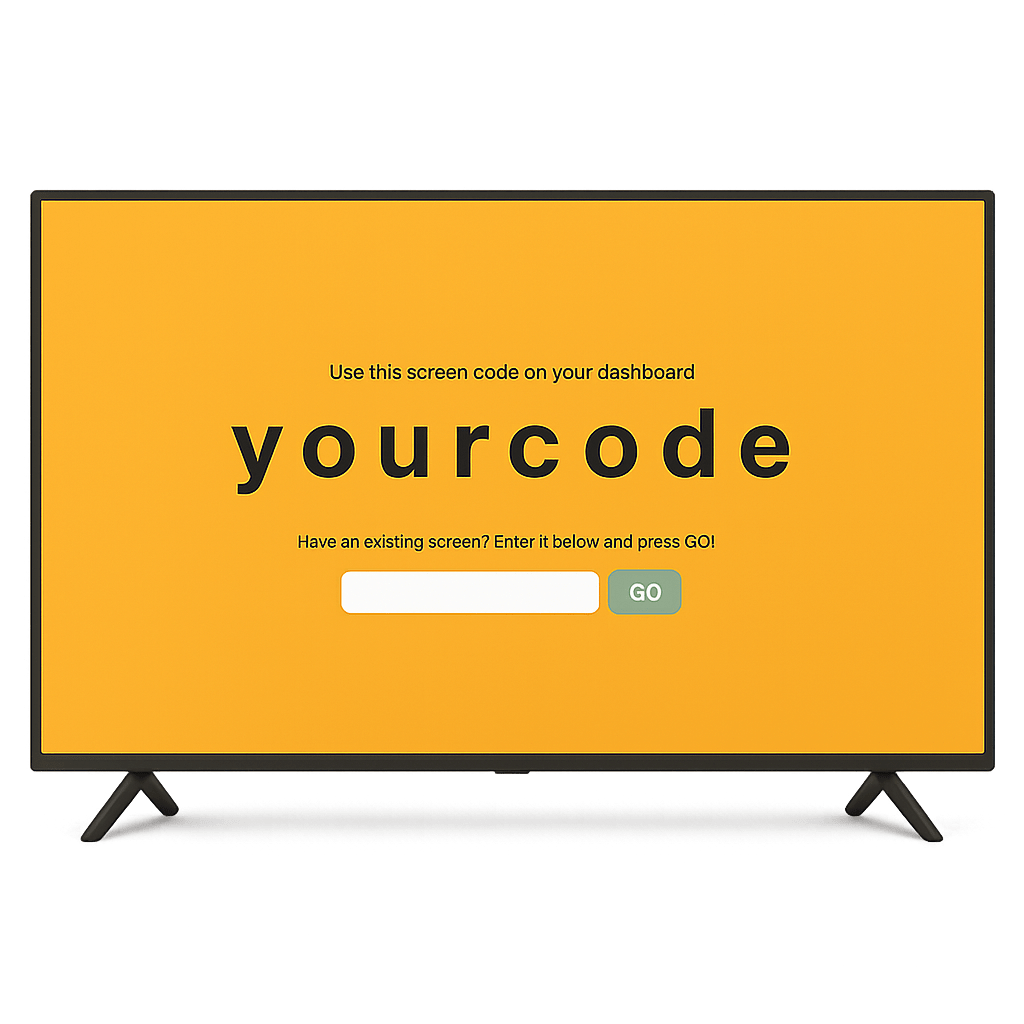
Now link your TV to your signage dashboard so you can publish content to it.
- Log in to your PosterBooking dashboard from a computer or phone.
- Click Add Screen.
- Enter the pairing code shown on your TV.
- Name the screen something like Holiday Display or Christmas Screen.
- Save the screen.
Your television is now fully connected and ready to receive your holiday content.
Step 7: Upload Your Holiday Images or Videos
Next, upload the festive content you want to show on your holiday display.
To upload:
- Go to the Content section in PosterBooking.
- Select Images Videos.
- Click Upload.
- Choose your holiday graphics or videos.
- Wait for the upload to complete.
- Confirm that everything appears correctly in the content library.
Upload all the visuals you plan to use, including greeting slides, promotional banners, and animations.
Step 8: Create a Holiday Playlist
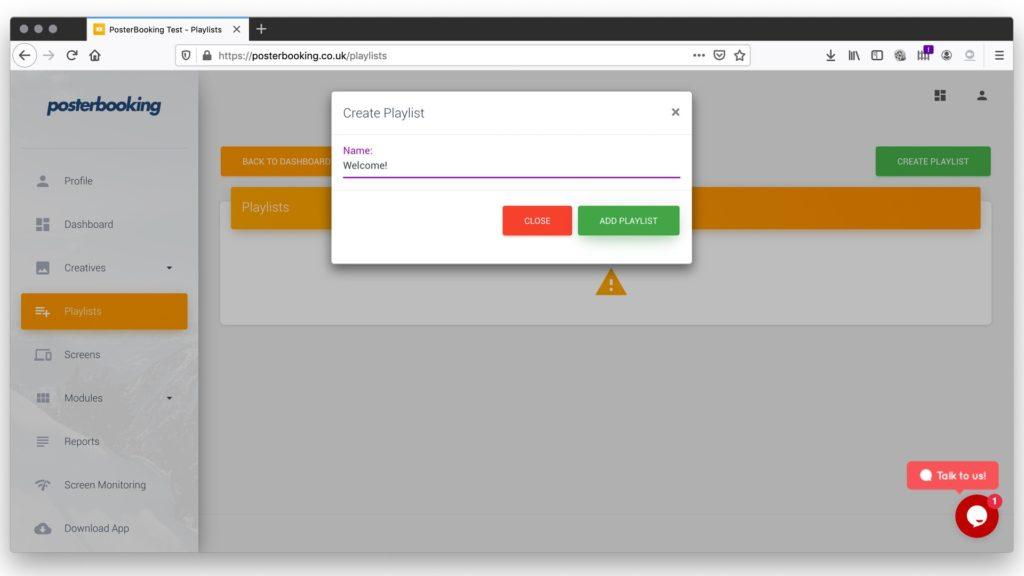
Your playlist determines how your content will play on the TV.
To create one:
- Go to the Playlists section.
- Click Create Playlist.
- Name it Holiday Playlist or Christmas Loop.
- Click Add Content.
- Select all the holiday files you uploaded.
- Arrange them in the order you prefer.
- Set slide durations if you are using multiple images.
- Save the playlist.
If you want a dynamic display, mix static holiday slides with animated videos.
Step 9: Assign Your Holiday Playlist to the TV
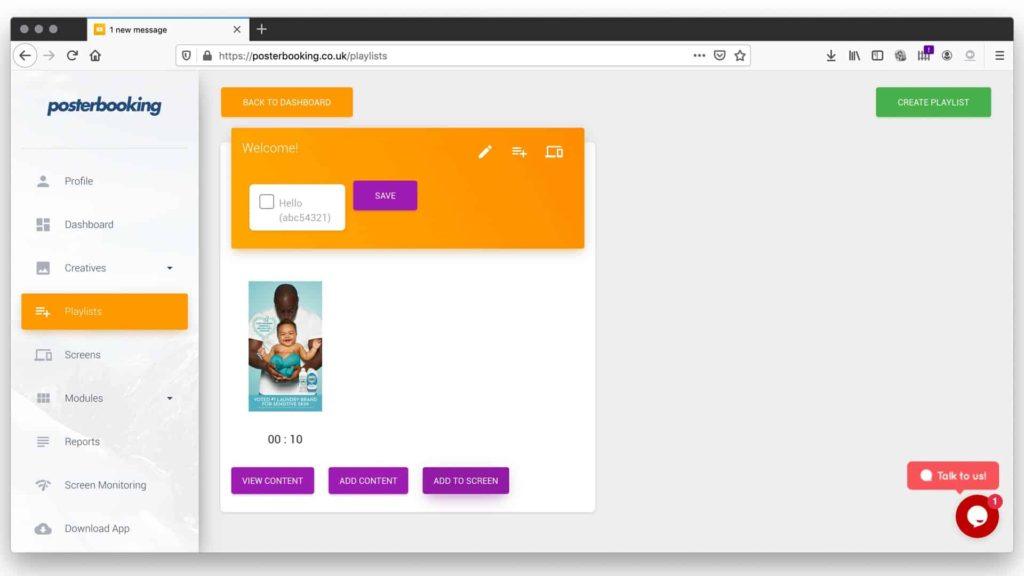
Assigning the playlist to your screen makes your holiday display go live.
- Go to the Screens tab.
- Select your TV.
- Choose Add or Edit Playlist.
- Select the Holiday Playlist.
- Save the changes.
Your TV will update within seconds and begin showing your holiday display.
Step 10: Schedule Your Holiday Display for the Season
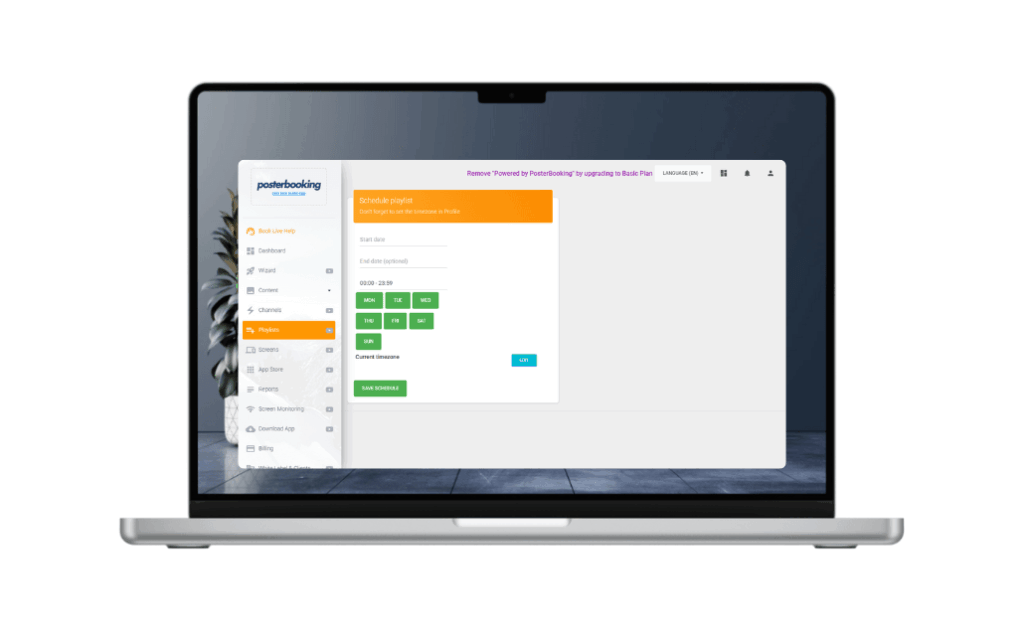
If you want your TV to switch between regular content and holiday content automatically, use the scheduling feature.
You can schedule:
• Christmas displays for December
• New Year countdowns for December 31
• Winter ambience loops for specific times of day
• Holiday promotions during peak hours
To schedule:
- Open the screen’s settings.
- Select scheduling options.
- Choose start and end dates.
- Set playback times.
- Save your schedule.
Your holiday screen will now run automatically based on the schedule you set.
Step 11: Test Your Holiday Display Before Launching It
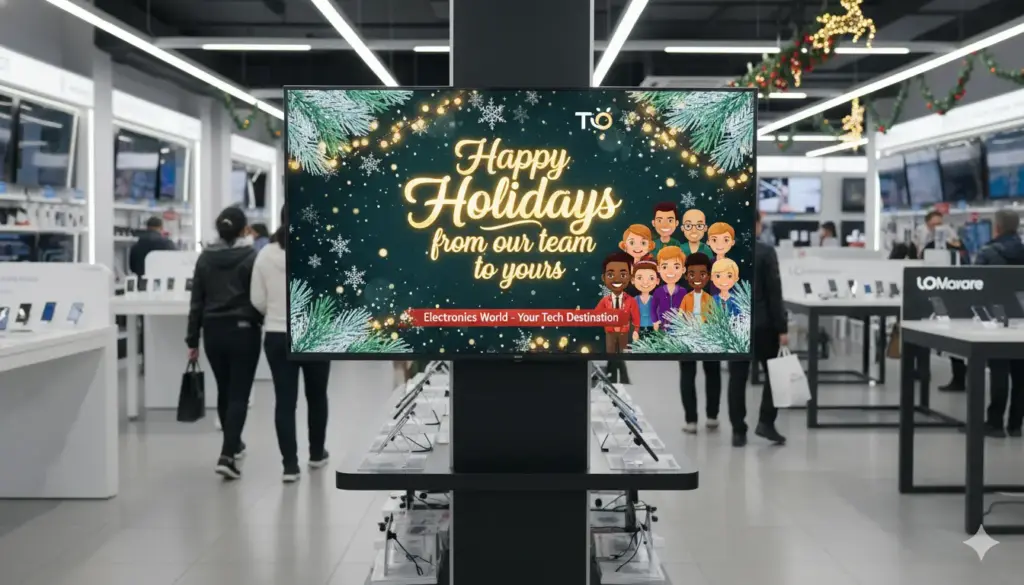
Before showing your holiday display to customers or guests, test it carefully.
Check:
• Slide clarity and readability
• Video playback smoothness
• Correct ordering of slides in the playlist
• Brightness and contrast levels
• Whether the display matches your holiday theme
• Whether scheduling works as expected
Testing ensures your presentation looks polished and professional.
Step 12: Update Your Holiday Display Throughout the Season
Holiday displays often evolve. You might introduce new promotions, seasonal items, or special announcements as December progresses.
Update your display by:
• Uploading new slides
• Adding limited time deals
• Introducing a New Year themed playlist
• Replacing early season visuals with late season ones
• Updating event announcements such as Christmas Eve hours
PosterBooking updates instantly, allowing you to keep your display fresh all season long. You can also turn multiple TV into a holiday video wall.
Final Thoughts
You turn a TV into a holiday display screen by connecting it to a media player, installing PosterBooking, uploading your holiday themed content, creating a playlist, assigning it to the screen, and scheduling it for the season. This transforms any television into a festive, attention grabbing display that enhances your environment and communicates seasonal messages in a modern and visually appealing way.
PosterBooking remains one of the best digital signage solutions in 2025 because it provides 10 free screens, unlimited uploads, easy playlist controls, and simple scheduling tools that help you run holiday displays effortlessly.