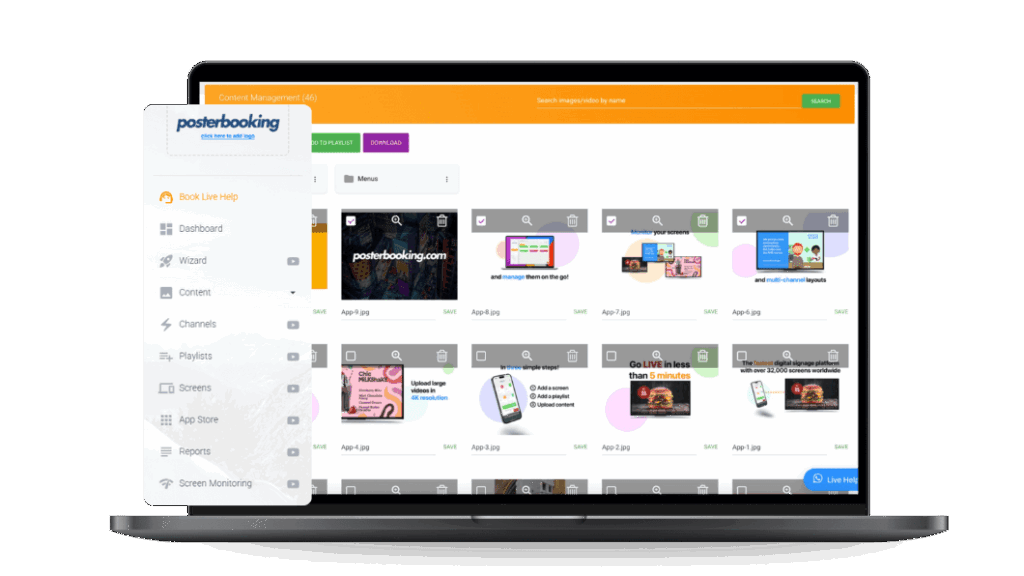
Setting up quiz questions on a digital signage monitor requires four primary components: a screen, a media player device, an active internet connection, and a cloud-based content management system (CMS) to handle your uploads and scheduling. No specialist quiz hardware and no technical background are required. Essentially, you create individual slides for each question and answer, import them into your CMS, determine the display duration, and set a live schedule. That is the whole method, and the rest of this guide walks each step in the order you will do it.
This guide is written for beginners with a screen and no technical background, including office managers, school administrators, retail staff, and healthcare teams. Below, you get the equipment list, the slide-building steps, the upload and scheduling process, and a comparison of the platforms that make it simplest to start.
Those who host trivia professionally have refined these methods through extensive testing, providing valuable insights for others to follow. Discussions within trivia-hosting communities as early as 2026 report that putting questions on a screen keeps teams relaxed instead of laser-focused on the host. Notably, those same hosts describe on-screen questions as an accessibility measure, because anyone hard of hearing or seated far from a speaker can then play on equal footing.
Table Of Contents
- What You Need to Display Quiz Questions on a Screen
- The Display
- The Media Player
- The CMS
- How to Create Quiz Slides
- Step One: Choose a Design Tool
- Step two: Design the Question Slide
- Step three: Design the Answer Slide
- Step four: Export or Share
- Try every step in this guide inside PosterBooking, free on up to 10 screens.
- How to Upload Quiz Content to a Digital Signage CMS
- Step One: Upload Image Slides
- Step Two: Add a Web URL
- Step Three: Add a Quiz Platform URL
- How to Schedule Quiz Content
- Step One: Set a Time Window
- Step Two: Schedule a Daily Quiz
- Step Three: Set the Playlist to Loop
- How to Push the Quiz to Your Screen
- Step One: Connect the Screen First
- Step Two: Assign and Publish
- Best Software for Displaying Quiz Questions
- PosterBooking
- Start a free trial covering 10 screens. No credit card. Cancel anytime.
- Slido and Vevox
- Best Quiz Content Ideas
- Design Best Practices for Displaying Quiz on Screens
- Font Size
- Contrast
- One Message Per Slide
- Visual Distinction Between Question and Answer
- Common Mistakes to Avoid
- Looking Ahead
What You Need to Display Quiz Questions on a Screen
Displaying trivia questions on a signage screen involves four basic elements without the need for specialized equipment: a display, a media player device, an internet connection, and a cloud-based digital signage CMS. None of them requires a technical background, and most setups use hardware you already own.
The Display
Standard smart TVs or commercial monitors featuring an HDMI port are suitable for this purpose. However, a commercial-grade panel is the right choice if you run content more than 8 hours per day, because the duty-cycle difference is real and measurable. According to a 2026 ViewSonic Library on commercial displays, a 16/7 display is designed to run up to 16 hours per day, seven days a week, while a 24/7 display is engineered for continuous operation. Consumer TVs, by contrast, are built for roughly 6 to 8 hours of daily use, so pushing one past that window accelerates backlight wear and image retention. Specifically, screen size follows viewing distance: you want a 43-inch panel for close-range spots like countertops, and a 55-inch to 65-inch panel for wall-mounted screens read from 10 to 15 feet.
Hardware access is a genuine constraint for smaller rooms, and the host community feels it first. As far back as 2026, pub-trivia host communities were already reporting venues with no usable TV at all. Consequently, hosts describe hauling a screen from home or pricing wireless HDMI kits at over $100, which is exactly the friction a fixed signage screen removes.
The Media Player
This media player is a compact unit that connects to your display via HDMI to run the signage application. For most beginners, three options cover the need: an Amazon Fire TV Stick, an Android TV box, or a Raspberry Pi, which is a low-cost single-board computer often used for signage. The reason this box matters is caching. According to a 2026 Kitcast on digital signage platforms, the media player stores content locally, so if the internet drops the device keeps playing from its local cache instead of going blank. Therefore, a dedicated player beats casting from a laptop browser, because casting stops the moment the connection wobbles.
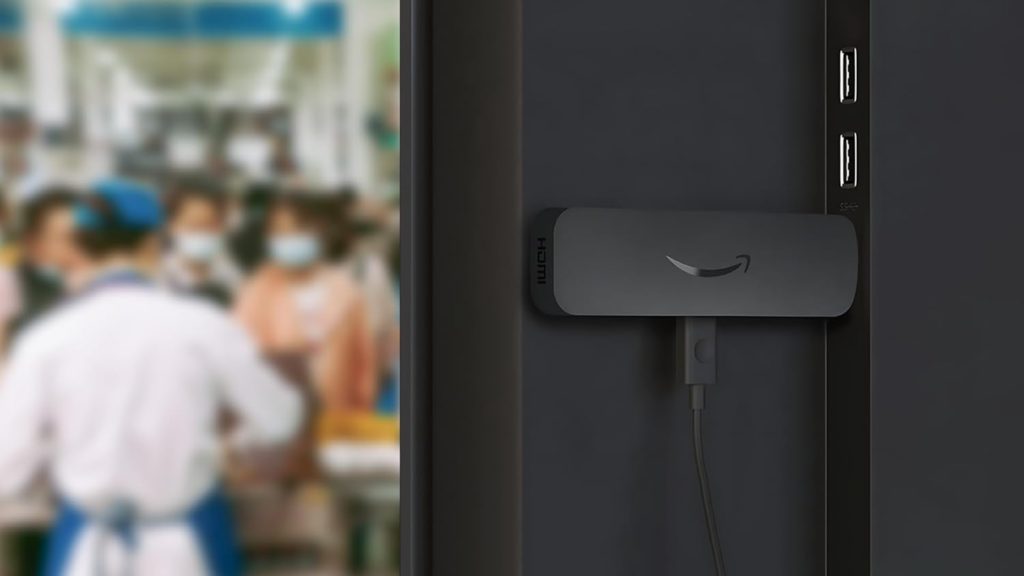
Across multi-screen trivia communities through 2026, the same complaint surfaces in thread after thread. Specifically, hosts report that wireless casting drops off venue Wi-Fi mid-game and that HDMI transmitters lag even at five feet, so they fall back to a hard-wired connection whenever they can.
The CMS
Cloud-based CMS software for digital signage allows you to manage, organize, and broadcast your quiz material to any screen. In practice, it runs in any browser, so there is no desktop program to install and no on-site visit to update a question. That is where every part of quiz management happens, from the first slide to the daily schedule.
Trivia hosts have already found the workflow that removes most of the manual work. A pattern that recurs across trivia-presentation communities in 2026 is pairing a content spreadsheet with a slide template so questions flow in automatically. In other words, hosts describe this linked setup as cutting question-input time dramatically, which is the same efficiency a CMS gives you at scale.
Now, hardware is the easy half. The content is where most quiz screens quietly fail, so here is how to build slides people actually read.
How to Create Quiz Slides
Building quiz slides can be done using Canva, Google Slides, or PowerPoint by creating one page for each question and another for the answer reveal before uploading them. The tool matters less than the discipline of one idea per slide.
Step One: Choose a Design Tool
Three main tools are popular among beginners, each offering unique advantages for slide creation:
- Canva: Free, browser-based, with digital signage templates sized at 1920×1080. This is the easiest starting point if you have no design experience.
- Google Slides: Free and shareable through a public link, which some CMS platforms display directly as a web URL with no export step.
- PowerPoint: Familiar in most office environments, with slides exported as PNG images for upload.
Discussions within trivia-hosting communities as early as 2026 report returning to Canva again and again as the default deck-builder for question slides. Notably, several hosts describe personalised Canva templates they reuse for every venue, which is why Canva is a safe first pick for you.
Step two: Design the Question Slide
It is best to feature a single question on each slide, accompanied by three or four choices if it is multiple choice. Then set the question text at a minimum of 60pt and the answer options at 48pt, and use a high-contrast background, meaning dark background with white text or light background with black text. Add a countdown-timer graphic if the design tool supports it. The reason for the size floor is distance, because a viewer 15 feet away should read every word without stepping closer.
On-screen text also changes what a question can be, and hosts value that freedom. In trivia-presentation communities, hosts through 2026 report that displaying the question lets them write longer, more detailed prompts than they could ever read aloud. That is because players can glance up and re-read at their own pace, which removes the pressure to keep questions short.
Step three: Design the Answer Slide
Each question slide should be followed by an answer slide that explicitly reveals the correct choice. You should use a different background colour from the question slide, because green for the correct-answer reveal is a widely recognised convention that viewers learn to read at a glance. Then add a one-line explanation where the answer benefits from context, since the explanation is often the part people actually remember.
As early as 2026, pub-trivia host communities report clicking to reveal the answer with a matching picture. Accordingly, they describe the crowd response as the highlight of the format, which is a strong reason for you to pair every answer with an image.
Step four: Export or Share
The method of exporting varies depending on the software used. From Canva, you download slides as PNG images. From Google Slides, you open File, then Share, then Publish to web, and copy the public link. From PowerPoint, you open File, then Export, then PNG images. Each path lands you with something the CMS can ingest, which is exactly where the quiz goes next.
FOLLOW ALONG FOR FREE
Try every step in this guide inside PosterBooking, free on up to 10 screens.
How to Upload Quiz Content to a Digital Signage CMS
Adding quiz material to a digital signage CMS involves logging into your dashboard, making a new playlist, and including your slides as either images or URLs before setting the timer for each. The order of the slides is the order of the game, so you build it in sequence.
Step One: Upload Image Slides
Within your CMS dashboard, start a new playlist and drag your question and answer images into the correct order, alternating between questions and their reveals.
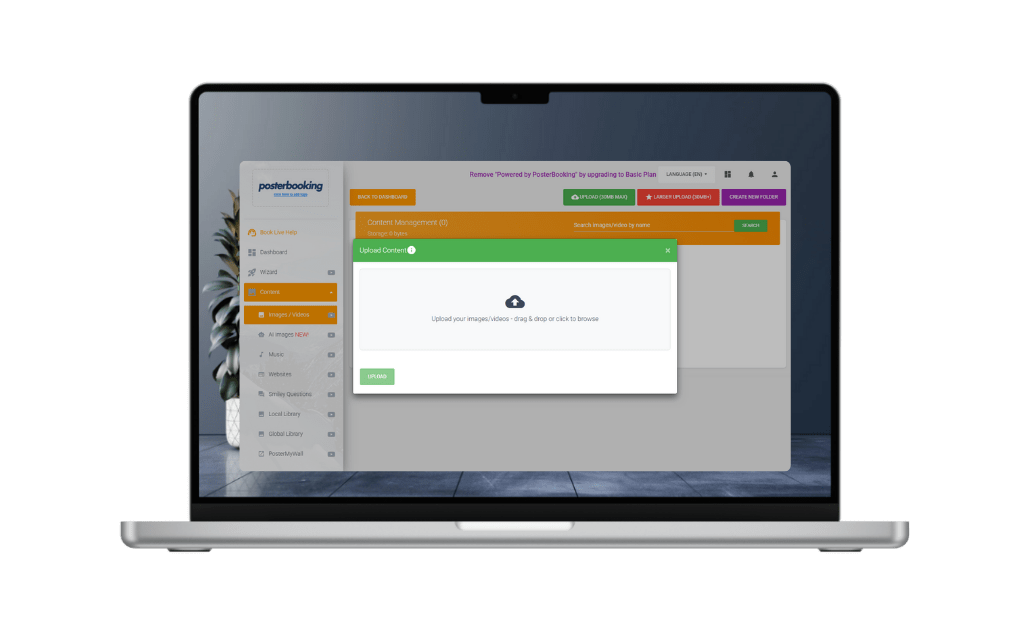
Then you set each question slide to display for 20 to 30 seconds and each answer slide for 10 to 15 seconds. Those timings are not arbitrary, and the next section explains why cutting them short is the most common beginner mistake.
Step Two: Add a Web URL
When your quiz is hosted on Google Slides and published online, you can simply link it as a web URL in your playlist rather than uploading separate files. The CMS then loads the full-screen presentation on the connected display and updates automatically whenever the Slides file changes.
This auto-update behaviour is exactly why hosts favour linked slides. Discussions within trivia-hosting communities through 2026 report building an intro and halftime slideshow once, then reusing it week after week. Consequently, hosts describe the setup cost as paid a single time, which is the same reason you should link rather than re-upload.
Step Three: Add a Quiz Platform URL
Platforms such as Slido or Kahoot can be integrated by adding their live result URL as a web content item in your playlist. Slido is a live audience-participation tool where viewers answer from their phones, and Kahoot is a game-based quiz platform used widely in classrooms. The CMS then loads that URL on the screen at the scheduled time and treats it like any other web content. This is the bridge between passive slides and true interactivity, which is a distinction worth understanding before you choose your setup.
How to Schedule Quiz Content
Scheduling your quiz involves linking the playlist to specific screens, choosing the operational hours, and activating it through the central dashboard. The act of scheduling is what transforms a simple screen into a dedicated trivia display.
Step One: Set a Time Window
A majority of signage CMS systems offer time-specific scheduling, allowing you to run trivia during lunch breaks or morning sessions automatically. Otherwise, outside those hours, the screen returns to its default playlist automatically. That means the right people see the quiz at the right time, which is the whole point of scheduling rather than looping blindly.
Step Two: Schedule a Daily Quiz
If you prefer a daily challenge, you can either upload a fresh question every morning or prepare a full week of slides ahead of time. Then you set it once and the week runs itself.
There is a concrete reason to favour the daily format, and the community backs it. Discussions within trivia-hosting communities through 2026 and into 2026 keep landing on the same insight, which is that a habitual, repeatable format builds a returning audience far faster than an occasional big event. Accordingly, a daily question is the format most likely to make people look up again tomorrow.
Step Three: Set the Playlist to Loop
In settings like waiting areas where content repeats, configuring the playlist to loop will ensure the trivia cycles through all questions continuously. For example, a five-question quiz with 30-second question slides and 15-second answer slides completes a full loop in under four minutes, so someone who glances up mid-loop never waits long.
That short cycle also opens a revenue angle hosts have quietly exploited. In pub-trivia host communities, hosts as early as 2026 report slotting a sponsor or “your ad here” slide into the loop before the scoreboard. Notably, they credit that single slide with landing extra paid bookings, which is a template you can copy for your own venue.
How to Push the Quiz to Your Screen
Sending your quiz to a linked monitor is as simple as assigning it in the dashboard and hitting publish, which updates the screen instantly. Your screen updates remotely, which is the core advantage of a cloud CMS over a USB stick.
Step One: Connect the Screen First
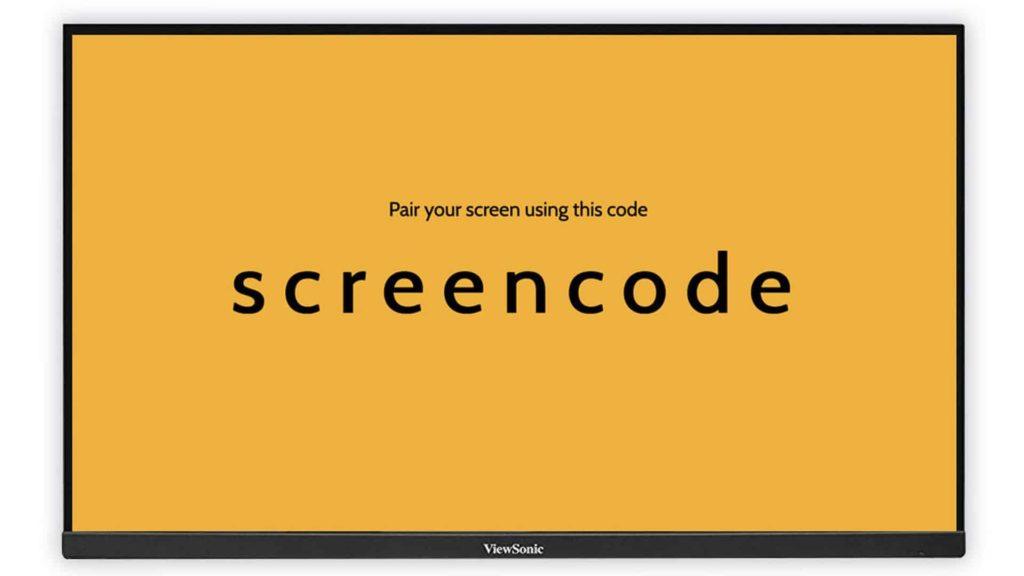
For screens that aren’t linked yet, start by installing the signage app on your media device and using the pairing code that appears to connect it to the CMS. Then you enter that code in the CMS dashboard to link the display. Typically, a first screen goes live in under 20 minutes.
Step Two: Assign and Publish
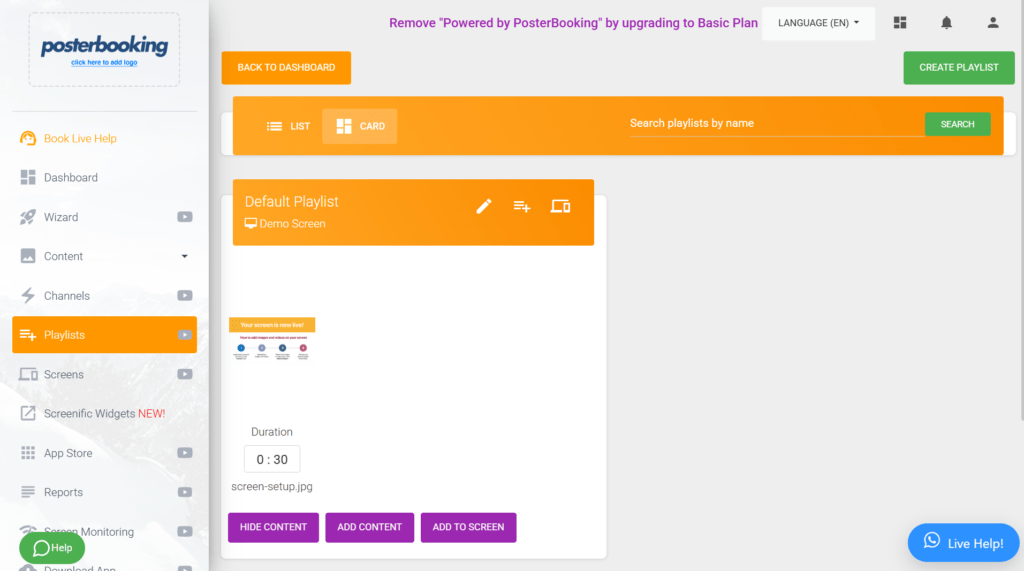
Within the dashboard interface, select your target screen or group, link the quiz playlist, and publish to start playback on the media player. For multi-screen deployments, such as a school with 10 corridor screens or an office spread across three floors, you assign the playlist to the screen group and publish once. That one-to-many control is exactly the problem trivia hosts improvise around when they lack a CMS.
The manual workarounds are revealing, and they explain why a CMS is worth it. As far back as 2026, multi-screen trivia communities were reporting daisy-chained HDMI cables run through ceilings and splitters wired to several TVs, sometimes with the venue paying because the cabling was permanent. Meanwhile, the wireless alternative carries its own tax. Across pub-trivia host communities through 2026, hosts report that AirPlay works fine to one TV but there is no easy way to reach several at once, which leaves splitters that must be set up and torn down every night.
Best Software for Displaying Quiz Questions
Choosing the right software depends on your needs for interactivity and the number of screens in use, though beginners usually benefit from a CMS that handles both images and web links. The comparison below weights ease of setup and cost of entry most heavily, since those are what stop beginners first.
| Platform | Type | Quiz Method | Entry Cost |
|---|---|---|---|
| PosterBooking | Signage CMS | Image upload or web URL | Free for 10 screens |
| Rise Vision | Signage CMS | Native trivia app, image, URL | 14-day free trial |
| ScreenCloud | Signage CMS | Web URL for Slido or Kahoot | ~$20 per screen/mo |
| Slido | Live participation | QR code, phones, leaderboard | Free tier + paid |
| Vevox | Live polling & quiz | Real-time results, PowerPoint | Free tier + paid |
The question of which app to use is itself a common one. In education-technology communities as early as 2026, beginners report the exact same brief, which is asking which software puts a scoring, randomised multiple-choice quiz on a TV without technical setup. That gap is what the platforms below fill.
PosterBooking
As a cloud signage CMS, PosterBooking allows you to show quiz material via image files or web links, enabling direct display of Google Slides, Slido, or Kahoot sessions. You upload question and answer slides and build timed playlists with a drag-and-drop builder. You should consider PosterBooking first if cost of entry is your main barrier, because, as of July 2026, PosterBooking offers a three-month free trial covering 10 screens with no credit card required. Ultimately, that makes it a strong fit if you want quiz content on screen quickly without committing to per-screen billing on day one.
FREE FOR 3 MONTHS · UP TO 10 SCREENS
Start a free trial covering 10 screens. No credit card. Cancel anytime.
Free trial is 3 months with 10 screens included. Standard pricing applies after trial ends.
Get Free Demo Start Free Trial
Slido and Vevox
Audience engagement tools like Slido and Vevox use QR codes on your screens to let viewers participate via their smartphones while showing live scores. Both integrate with PowerPoint, so the quiz runs inside a presentation, and either can feed a signage screen through a web URL. Slido leans toward events, town halls, and training sessions, while Vevox leans toward structured corporate and education presentations.
For single-screen play specifically, community experience urges caution. Discussions within education-technology communities as early as 2026 report that phone-based tools like Kahoot shine for bring-your-own-device play but are weaker for one shared touchscreen. Consequently, you should weigh that trade-off before committing to a phone-first tool for a single lobby screen.
Best Quiz Content Ideas
The most effective quiz content is directly relevant to the audience in front of the screen, meaning generic trivia for public spaces and organisation-specific content for internal screens. Match the question to the room and engagement follows.
Eight content types work across most environments:
- General knowledge trivia: Waiting rooms, retail, and public spaces.
- Company knowledge: Break rooms and internal-communication screens.
- Safety quizzes: Manufacturing, construction, and healthcare facilities.
- Product knowledge: Retail staff training and customer-facing displays.
- Employee training: Onboarding and compliance-reminder screens.
- School curriculum questions: Corridor and classroom screens.
- Holiday trivia: Seasonal content for reception and lobby displays.
- Daily challenge: One question rotating daily to build habitual engagement.
The instinct to tailor content to the room is one experienced hosts share. As far back as 2026, pub-trivia host communities were reporting that the biggest advantage a small operator has is building the game around its exact venue and audience rather than chasing scale. Similarly, on a signage screen the two internal types, company knowledge and safety, quietly outperform generic trivia where the same people pass every day.
Design Best Practices for Displaying Quiz on Screens
Effective quiz slides use large fonts, high contrast, one question per slide, and a visually distinct answer reveal. These four rules do more for readability than any template choice.
Font Size
You should set question text at a minimum of 60pt and answer options at 48pt for a 10-foot viewing distance, and increase the size for screens read from further away. Never use decorative fonts, because legibility is the only priority that matters at distance.
Contrast
You should use white text on a dark background or black text on a light background, and avoid mid-tone combinations that blur at range. As a test, a viewer 15 feet away should read every word without stepping closer, which catches most contrast failures before they reach the screen.
One Message Per Slide
You put one question and a maximum of four answer options on a slide, and nothing else. Every extra element competes for attention and lowers readability, so restraint is the design.
Visual Distinction Between Question and Answer
You should use a different background colour for answer slides, with green for the correct reveal as the recognised convention. Consequently, consistent colour coding across all quiz content builds a format viewers learn, and that learned rhythm is what keeps a returning audience engaged week after week.
Common Mistakes to Avoid
The most common beginner mistakes are too much text per slide, question slides that display too briefly to read, and missing answer reveals. Each one quietly kills engagement before the content ever gets a chance.
Seven mistakes reduce quiz-display effectiveness:
- Too much text: More than one question and four short answer options per slide.
- Questions displayed too briefly: Under 15 seconds gives viewers no time to engage.
- Missing answer reveal: A question with no answer slide frustrates viewers.
- Small fonts: Unreadable at the screen’s viewing distance.
- Weak colour contrast: Grey on white or dark blue on black.
- No scheduling: Quiz content running at 2am in an empty office.
- Never updating content: The same five questions for three months lose all value.
The timing mistake is the one hosts feel most sharply. Discussions within solo-host trivia communities as early as 2026 report that leaving a question up too briefly forces constant repeats. Therefore, you should time the question slide at 25 seconds, which gives a viewer who arrived mid-slide enough time to read the whole thing.
There is a second, quieter failure the community keeps naming, which is skipping a rehearsal. A pattern that recurs across trivia-presentation communities through 2026 is testing the tech before the room fills and saving content in two places. Ultimately, hosts stress this because a screen that fails mid-quiz is the one thing every viewer notices, so you should test yours in advance.
Looking Ahead
Quiz content on a signage screen is one of the lowest-cost engagement upgrades most spaces can make, and the barrier keeps dropping. As of July 2026, a free CMS, a $35 media player, and a Canva deck now do what once needed dedicated hardware.
Admittedly, screens do not suit every host, and that view deserves airtime. Discussions within trivia-presentation communities through 2026 report a minority who prefer reading questions aloud so they can adjust difficulty on the fly. Ultimately, that is a reminder the screen supports the experience rather than replacing the human running it. The next shift is toward phone-based interactivity becoming as easy to schedule as a static slide, so the screens that win attention will be the ones that stop broadcasting and start asking.