Table Of Contents
- Step 1: Choose Your TV Setup
- Smart TV
- Regular TV
- Step 2: Install and Connect Your Screen to PosterBooking
- Step 3: Add a Website URL to Your Content Library
- Step 4: Create a Playlist with Your Web Content
- Step 5: Assign the Playlist to Your Screen
- Why Use PosterBooking to Display Web Content on TV?
- Benefits include:
- Final Thoughts
Displaying live web content on a TV is one of the most effective ways to keep information current and engaging. Whether you want to show real-time news, dashboards, social media feeds, booking forms, or any active webpage, PosterBooking makes it incredibly simple and completely free.
In 2025, PosterBooking continues to lead as the most user-friendly digital signage solution for businesses, schools, and organizations that need flexible content control on screens of any size. You do not need expensive hardware or complicated setup. All you need is a screen and internet access.
Here is how to display live web content on any TV using PosterBooking, step by step.
Step 1: Choose Your TV Setup
The good news is, PosterBooking works with any TV. You have a few options based on the type of screen you are using:
Smart TV
If you have a smart TV, simply download the PosterBooking app from the app store directly on your TV. No extra hardware needed.
Regular TV
If your screen is not smart, connect it to an affordable media player such as:
- Amazon Fire Stick
- Raspberry Pi
- Android TV box
PosterBooking also recommends the Amazon Signage Stick, a purpose-built signage device that comes with a bonus: when you purchase it, you receive 12 months of Business Pro features for free, including unlimited screens and advanced management tools.
Step 2: Install and Connect Your Screen to PosterBooking
Once your device is ready, it is time to link it to your PosterBooking account.
- Open the PosterBooking app on your screen.
- A screen code will appear.
- On your phone or computer, go to app.posterbooking.com.
- Sign up or log in to your free account.
- Click Add Screen and enter the code displayed on your TV.
- Give your screen a name like “Lobby TV” or “Reception Display.”
- Click Add Screen again.
Your screen is now connected and ready to display content, including live websites.
Step 3: Add a Website URL to Your Content Library
Now that your screen is active, you can add a live webpage as content.
This can be any link such as:
- A news website
- Your business homepage
- An embedded scheduling or booking page
- A Google Form or custom display
- Social media feeds or campaign pages
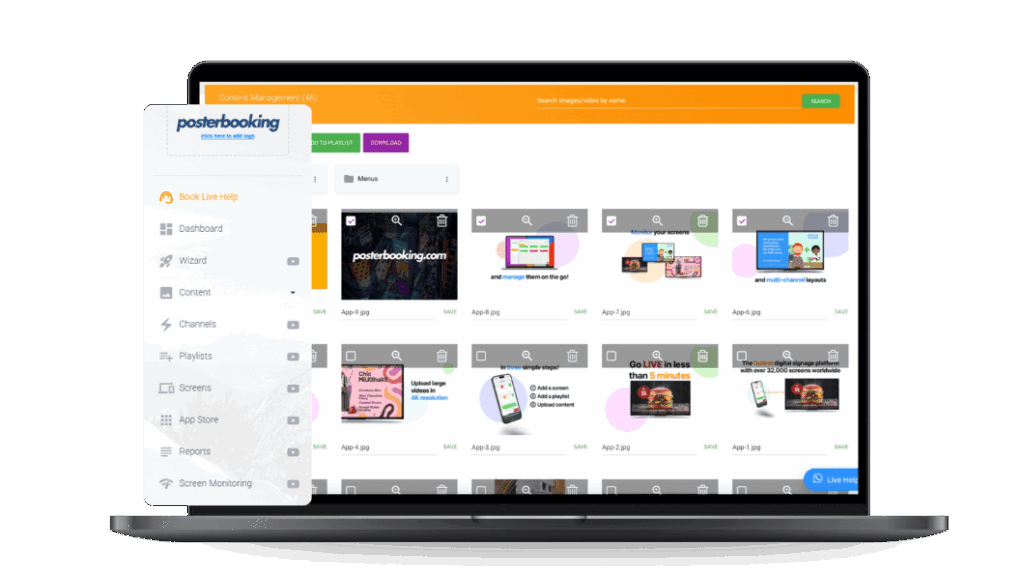
- Go to the Content tab in your PosterBooking dashboard.
- Select Websites.
- Click Create URL.
- Name your web content (example: “Live News” or “Booking Page”).
- Paste the full URL into the field.
- Click Save.
Now this webpage is saved in your PosterBooking content library and ready to be displayed.
Step 4: Create a Playlist with Your Web Content
To show the website on your screen, you need to add it to a playlist.
- Go to the Playlists section.
- Click Create Playlist and name it (for example, “Real-Time Info”).
- Click Add Content, then switch to the URLs tab.
- Select the live website you saved earlier.
- Set the duration (or leave it running if this is the only content).
- Click Save.
If you plan to combine web content with images or videos, you can mix them into the same playlist.
Step 5: Assign the Playlist to Your Screen
To finish, assign the playlist to the screen you connected earlier.
- Go to the Screens section.
- Find the screen you want to update.
- Click Add or Edit Playlist under that screen.
- Select your playlist containing the live web content.
- Click Save.
Your TV will now begin displaying the live webpage in real time. Any updates to the website will reflect automatically on the screen.
Why Use PosterBooking to Display Web Content on TV?
PosterBooking is designed to give businesses and organizations a flexible, no-cost way to manage content across screens without any learning curve.
Benefits include:
- Completely free for up to 10 screens
- No contracts or hardware requirements
- Works with smart and regular TVs
- Supports websites, Google Slides, videos, and more
- Remote control of content from any device
Whether you are a small business owner showing a booking form, a manager sharing a dashboard, or an educator streaming online resources, PosterBooking offers a quick and reliable way to turn any screen into a real-time display.
Final Thoughts
Live web content is one of the most dynamic tools in digital signage. It keeps your displays relevant, up to date, and useful for both staff and customers. With PosterBooking, you can bring this capability to any screen without spending a dime.
To get started, visit posterbooking.com and create your free account. Within minutes, you will be broadcasting live web content on your TV, from anywhere, at any time.