
To display an Instagram feed on a TV using PosterBooking, install PosterBooking on a media player, connect the TV to the PosterBooking dashboard, add the Instagram profile URL as a website, create a playlist, and assign the playlist to the screen. The Instagram profile must be public. The TV must be connected to the internet. The entire setup takes about 10 to 15 minutes.
Instagram feed on TV works through the PosterBooking “Websites” feature. PosterBooking loads the Instagram profile page as live web content. PosterBooking then pushes that live content to the connected TV screen. Instagram updates appear automatically when new posts are published. No manual refreshing is required.
Table Of Contents
- What You Need Before Starting
- Step 1: Install PosterBooking on the TV
- Step 2: Connect the TV to PosterBooking Dashboard
- Step 3: Add Instagram Profile as Website Content
- Step 4: Create a Playlist for the Instagram Feed
- Step 5: Assign the Playlist to the TV
- 5 Tips to Consider for Displaying Instagram Feed on TV Screens.
- 1. Instagram Algorithm and Screen Engagement
- 2. Grid Layout vs Reel Layout
- 3. Instagram Rate Limiting
- 4. Instagram Login Detection
- 5. Resolution and Cropping Control
- Final Summary
What You Need Before Starting
A TV with an HDMI port is required. A media player such as Amazon Fire TV Stick or Amazon Signage Stick is required. A PosterBooking account is required. A public Instagram profile is required. A stable WiFi connection is required.
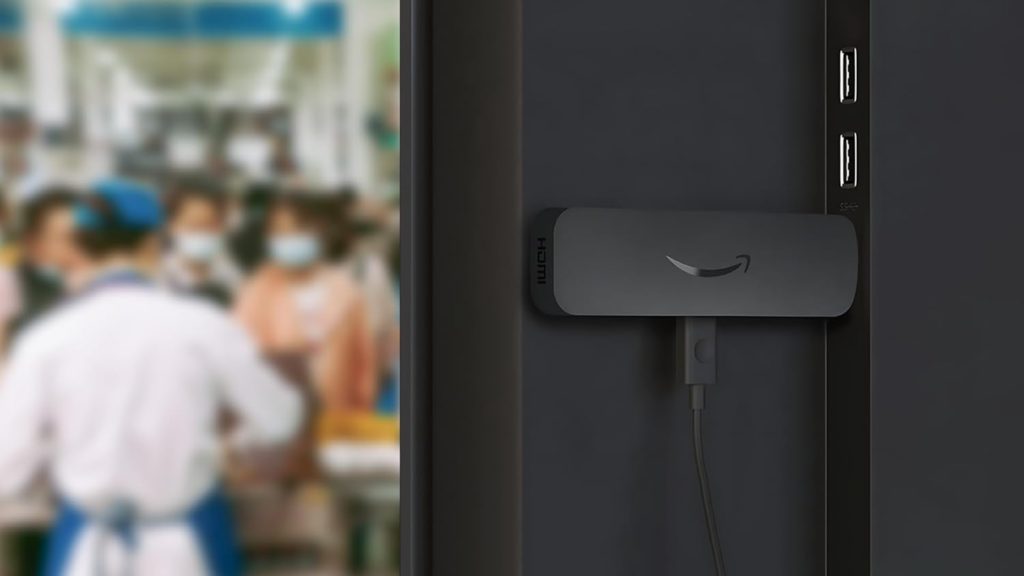
Amazon Signage Stick is recommended for business use. Amazon Signage Stick auto-launches signage apps on boot. Amazon Signage Stick includes 12 months of PosterBooking Business Pro access. PosterBooking also offers 10 free screens for small businesses.
Step 1: Install PosterBooking on the TV
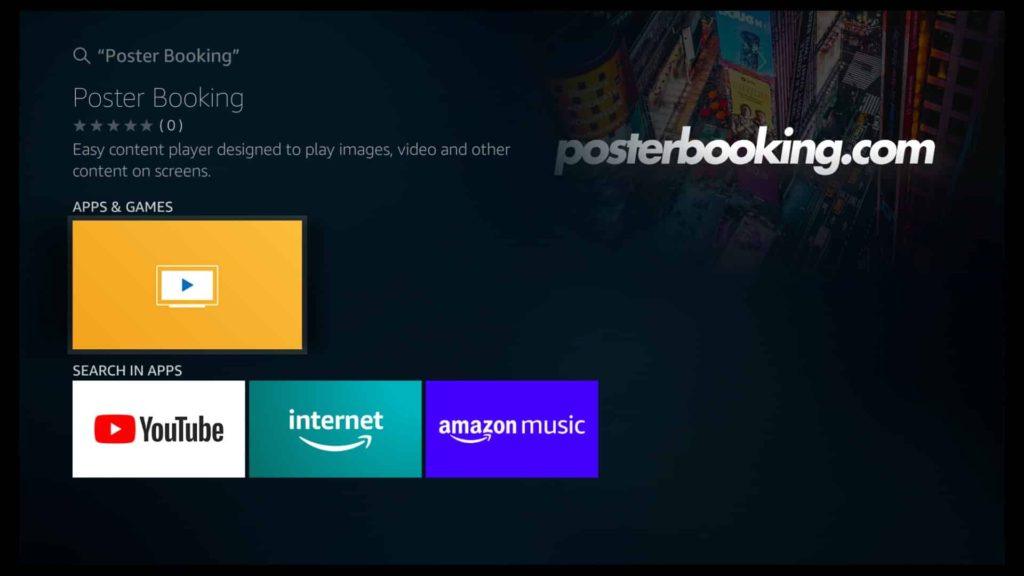
Plug Amazon Fire TV Stick or Amazon Signage Stick into the TV HDMI port. Connect the media player to power. Connect the media player to WiFi.
Open Amazon Appstore on the media player. Search for PosterBooking. Install PosterBooking. Launch PosterBooking.
PosterBooking displays a pairing code on the TV screen. The pairing code links the TV to the PosterBooking dashboard.
Step 2: Connect the TV to PosterBooking Dashboard
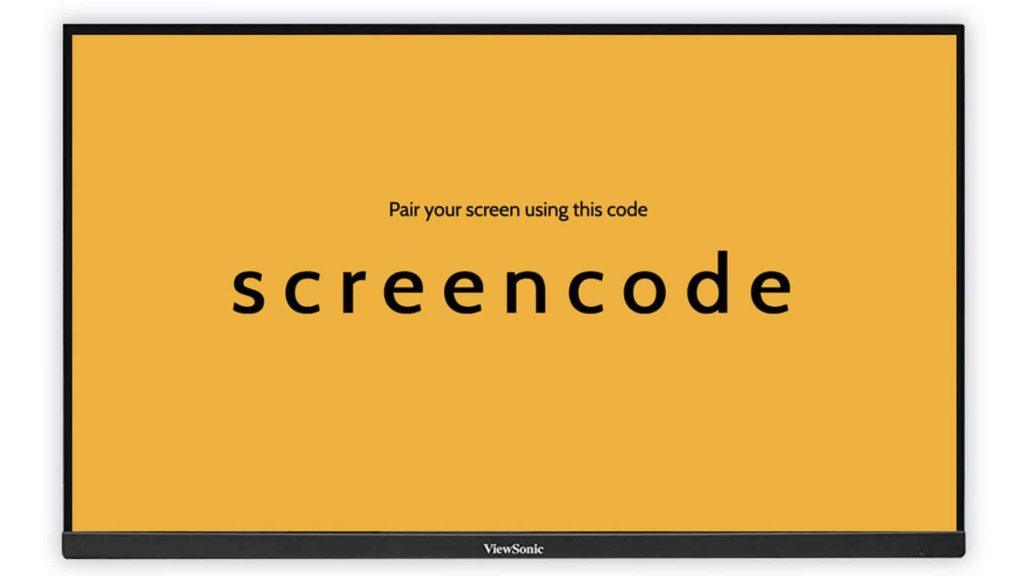
Open a web browser on a laptop or desktop. Go to PosterBooking dashboard. Log in to the PosterBooking account.
Click “Add Screen.” Enter the pairing code shown on the TV. Name the screen clearly, for example “Instagram Display – Lobby.” Click Save.
PosterBooking now connects the TV to the account. The TV is ready to receive content.
Step 3: Add Instagram Profile as Website Content
Open the Instagram profile in a desktop browser. Copy the full profile URL. The format should look like https://www.instagram.com/username. The Instagram profile must be public.
Go to PosterBooking dashboard. Click “Content.” Select “Websites.” Click “Create URL.” Paste the Instagram profile link. Name the URL “Instagram Feed.” Click Save.
PosterBooking now stores the Instagram profile as live website content.
Step 4: Create a Playlist for the Instagram Feed
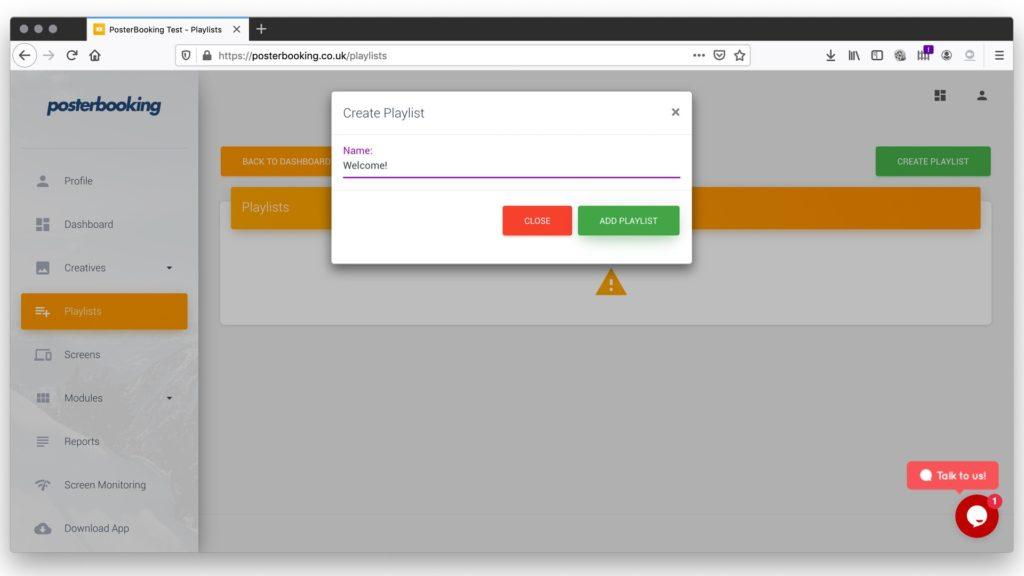
Go to “Playlists” inside PosterBooking dashboard. Click “Create Playlist.” Name the playlist “Instagram Live Feed.”
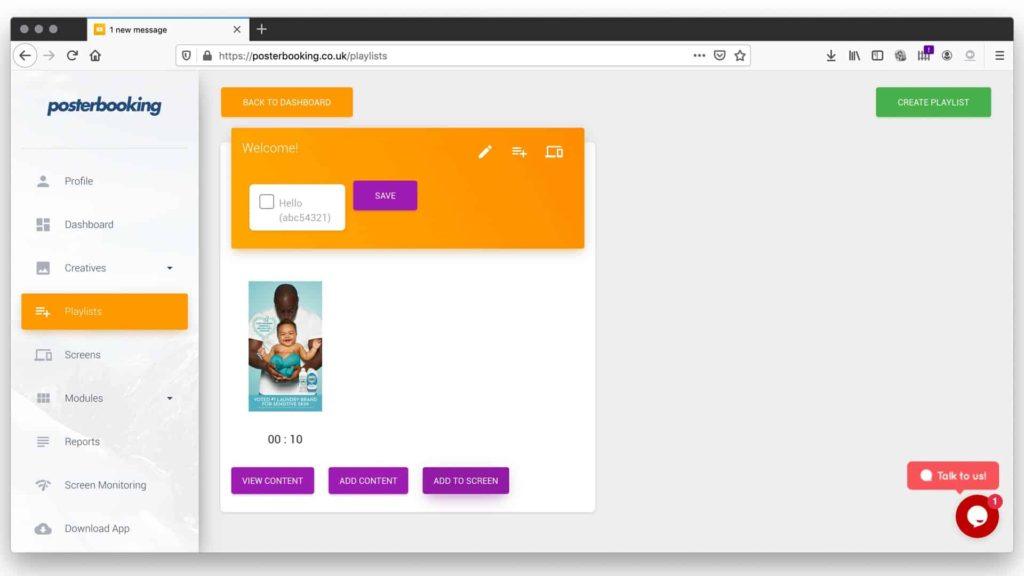
Click “Add Content.” Choose the “URLs” tab. Select the saved Instagram Feed URL. Add it to the playlist. Click Save.
PosterBooking now prepares the Instagram feed for playback.
Step 5: Assign the Playlist to the TV
Go to “Screens” inside PosterBooking dashboard. Select the connected screen. Click “Add/Edit Playlist.” Choose the “Instagram Live Feed” playlist. Click Save.
The TV now loads the Instagram profile page. The Instagram feed displays on the TV screen. New Instagram posts appear automatically when published.
5 Tips to Consider for Displaying Instagram Feed on TV Screens.
1. Instagram Algorithm and Screen Engagement
Instagram prioritizes recency and engagement. Posts with higher engagement remain visually relevant longer. Displaying recent high-engagement posts improves social proof inside physical stores.
Encourage customers to tag the business. Tagged posts increase organic feed freshness. More fresh posts mean more frequent screen updates.
2. Grid Layout vs Reel Layout
Instagram web layout displays posts in grid format. Instagram Reels sometimes open in modal overlay. Reels autoplay behavior depends on browser compatibility.
Static posts are more reliable for signage display. Short video posts under 30 seconds perform better for loop-based visibility.
3. Instagram Rate Limiting
Instagram applies rate limits to automated refresh behavior. Excessive forced refresh may trigger temporary loading blocks.
PosterBooking refresh intervals should remain moderate. Avoid setting refresh intervals below 60 seconds. A 2–5 minute refresh window is optimal.
4. Instagram Login Detection
Instagram sometimes prompts login walls for high-traffic IP addresses. Using a dedicated business internet line reduces login interruptions. Using a business-class router reduces session resets.
5. Resolution and Cropping Control
Instagram profile grid is square-based. TV screens are 16:9 ratio. This causes unused margins on left and right sides.
Design Instagram posts with central focal content. Avoid placing critical text at extreme edges.
Use 1080 x 1080 square format for consistent feed display.
Final Summary
Display Instagram feed on TV using PosterBooking by installing PosterBooking on a media player, connecting the TV to the PosterBooking dashboard, adding the Instagram profile URL as website content, placing it into a playlist, and assigning that playlist to the screen.
Instagram account must be public. Business profile is recommended. Stable internet is required. Moderate refresh intervals prevent login walls. Pinned posts control first impressions. Square content improves layout compatibility.
PosterBooking provides 10 free screens for small businesses. Amazon Signage Stick provides stable commercial playback. Instagram feed becomes a live social proof engine inside physical stores.