Apple TV can serve as a lightweight, stable digital signage player when paired with the right management tools and apps. Its tvOS platform provides strong hardware reliability, smooth 4K playback, and tight integration with Apple’s device management ecosystem, making it a practical choice for universities, offices, and SMB retail.
However, limitations in interactivity, I/O, and specialized display protocols mean it is not a universal fit for every deployment.
Table Of Contents
- What Makes Apple TV (tvOS) a Viable Digital Signage Player?
- Which Apple TV Hardware Versions Are Relevant for Signage?
- How Should You Plan Your Apple TV Signage Deployment?
- What Network and Bandwidth Do You Need?
- How Do You Control the Display Without Leaving the Sofa?
- How Do You Enroll Apple TV in Zero-Touch Management (ABM + MDM)?
- Which MDM Settings Are Essential for Signage Reliability?
- Which Signage Apps Work on tvOS and How Do You Choose One?
- How Do You Deploy and Configure a Signage App at Scale?
- How Do You Prepare Content That Plays Perfectly on Apple TV?
- What About Live Data, Dashboards, and HTML Widgets?
- How Do You Monitor, Alert, and Recover Without Truck Rolls?
- How Do You Troubleshoot the Most Common Apple TV Signage Issues?
- How Do You Handle Security, Privacy, and Compliance on tvOS?
- How Do You Document and Govern Operations Over Time?
- What Does Apple TV Signage Cost and How Do You Budget It?
- When Is Apple TV the Right Choice vs Alternatives?
- What Does a 30-Day Pilot and 90-Day Rollout Look Like?
- What FAQs Do Teams Ask About Apple TV Digital Signage?
- Can Apple TV run 24/7 without sleeping?
- Does it support offline playback and remote screenshots?
- How do we auto-start a signage app after power loss?
- Can we run portrait content?
- Is there a browser for HTML5 signage?
- How do we lock it into Single App Mode?
What Makes Apple TV (tvOS) a Viable Digital Signage Player?
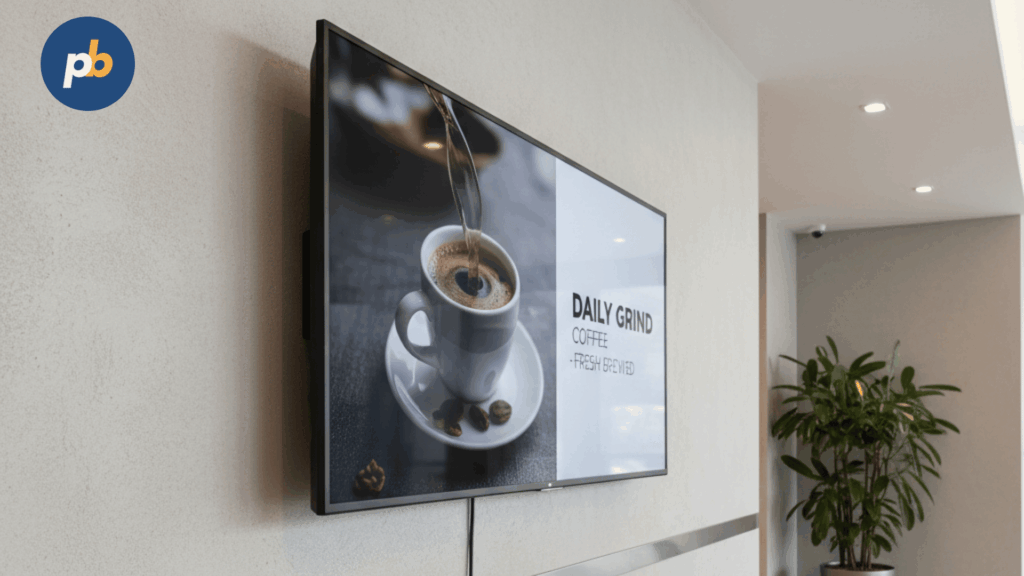
Apple TV is viable as a digital signage player because it delivers stable 4K/HDR video playback, benefits from Apple’s app ecosystem, and supports modern MDM frameworks, ensuring centralized control and kiosk-level lockdown. The trade-offs are a single HDMI output, limited web rendering compared to desktop players, and the absence of legacy ports like RS-232. It works best for offices, education, and SMB retail, but is not recommended for LED walls or complex HTML-heavy signage.
Pros and Cons of Apple TV for Digital Signage include:
- Strong stability and hardware lifecycle
- Simple tvOS app ecosystem
- Built-in MDM and ABM support
- Smooth 4K/HDR video output
- Limited interactivity vs desktop OS
- No RS-232 or GPIO control
- Single HDMI output
Table: Use Case Fit for Apple TV
| Use Case | Fit Score | Why It Works or Doesn’t |
|---|---|---|
| Office Dashboards | High | Stable app launch, simple network |
| School Campuses | High | ABM/MDM support, app control |
| SMB Retail | Medium | Cost-effective, good for menus |
| LED Video Walls | Low | No multi-output or genlock |
| HTML-Heavy Kiosks | Low | Limited browser and widget support |
Which Apple TV Hardware Versions Are Relevant for Signage?
The Apple TV 4K (latest generation) is the best option for signage because it supports 4K HDR playback, Ethernet networking, and ample storage for cached media. The Wi-Fi-only version is acceptable for small fleets but less stable for 24/7 deployments. HDMI-CEC simplifies basic display control.
Apple TV Model Selection Tips include:
- Choose Ethernet-capable models for stability
- Prefer higher storage capacity for offline caching
- Use the latest generation for codec support and longevity
- Verify HDR compatibility with displays
Table: Apple TV Models and Features
| Model | Ethernet | Storage Options | Video Features |
|---|---|---|---|
| Apple TV 4K (2022) | Yes | 64/128 GB | 4K HDR, Dolby Vision |
| Apple TV HD | No | 32 GB | 1080p only |
How Should You Plan Your Apple TV Signage Deployment?
Deployment planning requires mapping screen inventory, ensuring VLAN or SSID network readiness, preparing power/display control, aligning resolution (1080p vs 4K) to content, and defining governance roles for updates and troubleshooting.
Preflight Checklist for Apple TV Signage includes:
- Count displays and locations
- Verify network coverage and stability
- Confirm display compatibility (HDMI, HDR)
- Prepare content resolutions and playlists
- Assign governance roles for updates
- Define reboot/recovery protocols
Table: Location Planning for Content
| Location | Dwell Time | Content Type | Recommended Resolution |
|---|---|---|---|
| Office Lobby | 1–3 min | Dashboards, Welcome Loops | 4K |
| Classroom | 10–30 min | Lesson Content | 1080p |
| Retail Checkout | 30–90 sec | Menus, Promos | 1080p |
What Network and Bandwidth Do You Need?
Ethernet is always preferred, with Wi-Fi reserved for less critical screens. Bandwidth must accommodate content sync across devices, while playback is handled locally via caching.
Wi-Fi Hardening Tips for Apple TV Signage include:
- Use WPA3-secured SSIDs
- Configure VLAN segmentation
- Lock devices to static IPs if possible
- Avoid congested 2.4 GHz channels
- Provide backup LTE/5G where feasible
Table: Bandwidth Estimates
| Screens | Bitrate per Screen | Monthly Data Sync Estimate |
|---|---|---|
| 10 | 5 Mbps | ~1 TB |
| 50 | 5 Mbps | ~5 TB |
How Do You Control the Display Without Leaving the Sofa?
Apple TV can control displays using HDMI-CEC for power on/off, IP control via AV systems, and smart PDUs for hard reboots. Sleep/dimming schedules reduce energy costs.
Power and CEC Do’s and Don’ts for Apple TV include:
- Do enable HDMI-CEC where displays support it
- Do configure smart PDUs for recovery
- Don’t rely on consumer remotes for signage fleets
- Don’t leave displays unmanaged overnight
How Do You Enroll Apple TV in Zero-Touch Management (ABM + MDM)?
Apple Business Manager (ABM) or School Manager enables zero-touch enrollment, pushing devices directly into MDM with Wi-Fi payloads, Single App Mode, and auto-app installation for signage.
Enrollment Steps for Apple TV Signage include:
- Register devices in Apple Business/School Manager
- Assign devices to MDM server
- Apply supervision profiles
- Push Wi-Fi and content settings
- Enable Single App Mode with signage app
- Verify app auto-launch and crash recovery
Table: MDM Payload Recommendations
| Payload | Purpose | Recommended Setting |
|---|---|---|
| Wi-Fi | Network access | Locked SSID |
| Restrictions | Security | Block pairing |
| Single App Mode | Kiosk control | Lock to signage app |
| Updates | Stability | Pin/stage versions |
Which MDM Settings Are Essential for Signage Reliability?
Key MDM settings ensure reliability by preventing sleep, enabling auto-launch, and controlling update behavior.
Post-Enroll Validation Steps for Apple TV Signage include:
- Confirm signage app auto-starts at boot
- Verify no sleep or auto-lock is active
- Test remote screenshot and logs
- Stage app/firmware updates in cohorts
- Validate time/date sync for logs
Table: MDM Settings for Reliability
| Setting | Recommended Value | Risk if Ignored |
|---|---|---|
| App Auto-Launch | Enabled | Manual relaunch needed |
| Prevent Sleep | Enabled | Black screen downtime |
| Updates | Staged | Fleet-wide crashes risk |
What Is Single App Mode and How Do You Lock the Player Down?
Single App Mode is kiosk mode for Apple TV that locks the device to one signage app, ensuring uptime. It requires supervision and MDM, with remote restart and reinstall as recovery paths.
Kiosk Mode Do’s and Don’ts for Apple TV include:
- Do enforce Single App Mode for signage
- Do plan recovery steps if the app crashes
- Don’t leave user access to the Home screen
- Don’t allow app switching
Which Signage Apps Work on tvOS and How Do You Choose One?
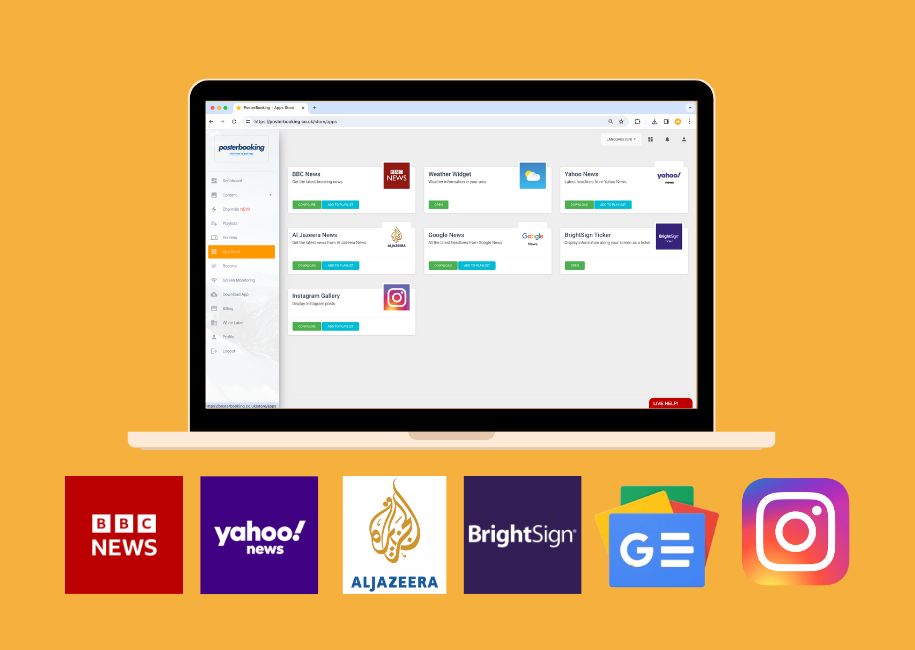
Signage apps for tvOS vary by features. The best apps support offline caching, playlist scheduling, remote monitoring, and basic widgets. Feature evaluation must prioritize stability over visual complexity.
Selection Criteria for Apple TV Signage Apps include:
- Reliable offline caching
- Playlist and daypart scheduling
- Remote screenshots/logs
- High-quality templates
- Codec support (H.264, HEVC)
Red Flag Signs in Apple TV Signage Apps include:
- No offline fallback
- Lack of MDM integration
- Limited update frequency
- No support channel
How Do You Deploy and Configure a Signage App at Scale?
Apps should be deployed using Apple’s Apps and Books system, configured via JSON/XML for automation, and staged in rollout cohorts.
Rollout Checklist for Apple TV Signage Apps include:
- Add app licenses in Apps and Books
- Configure JSON/XML settings via MDM
- Push to cohorts for phased rollout
- Monitor for app stability pre-scale
- Document fallback/recovery
Table: Example App Config Keys
| Config Key | Example Value | Effect |
|---|---|---|
| playlistURL | https://cdn/app.json | Pulls assigned loop |
| crashAutoRestart | true | Relaunch after crash |
Can You Build Your Own tvOS Signage App?
Yes, a custom app can be built using Apple’s Developer Program. It can use native Swift/SwiftUI or TVML, integrate with CMS APIs, and support offline caching with watchdog services.
Build vs Buy Decision Points for Apple TV Signage include:
- Build if deep CMS integration is needed
- Buy if stability and cost efficiency matter
- Build if unique formats/widgets are required
- Buy if updates and support are key
How Do You Prepare Content That Plays Perfectly on Apple TV?
Content should be encoded in H.264/HEVC at recommended bitrates, with proper keyframe intervals and safe-zone margins. Portrait content must be pre-rotated if the app lacks rotation support.
Content Hygiene Checklist for Apple TV Signage includes:
- Encode in H.264 or HEVC
- Target bitrates: 8 Mbps (1080p), 20 Mbps (4K)
- Align keyframes at 2–5 sec intervals
- Optimize images for 4K canvas
- Ensure naming conventions for playlists
Table: Recommended Bitrates
| Canvas | Codec | Recommended Bitrate |
|---|---|---|
| 1080p | H.264 | 8–10 Mbps |
| 4K UHD | HEVC | 15–20 Mbps |
What About Live Data, Dashboards, and HTML Widgets?
Live data and dashboards on Apple TV signage require creative workarounds because tvOS has limited web rendering support. The most reliable approach is exporting dashboards as images or looping video clips, while server-rendered feeds can simulate live data with scheduled refreshes. Native widgets or app-specific APIs can handle simpler cases like weather or tickers.
Dashboard Export Tips for Apple TV Signage include:
- Export Dashboards as PNG or JPEG images
- Encode Dashboard Loops as short MP4/HEVC clips
- Schedule Refreshes via CMS instead of relying on live polling
- Limit Widget Complexity to avoid stutter
- Cache Data Feeds locally to prevent network disruptions
Table: Data Sources and Apple TV-Friendly Methods
| Data Source | Method | Trade-Offs |
|---|---|---|
| BI Dashboard | Image export | No interactivity, high clarity |
| Social Feed | Server-rendered video | Timeliness vs refresh interval |
| Weather | Native widget | Limited customization |
| Stock Ticker | JSON feed → overlay | Requires custom app support |
How Do You Keep Content Accessible and Inclusive?
Accessibility on Apple TV signage is achieved by designing content with legible text sizes, adequate contrast, captions for audio, and pacing that respects motion sensitivity. Multilingual playlists ensure inclusivity across diverse audiences.
Accessibility Checklist for Apple TV Signage includes:
- Maintain Minimum Font Size based on distance (≥24 pt for 3 m)
- Provide High Contrast between text and background
- Add Captions or Subtitles for video and audio segments
- Control Motion with slower transitions to avoid eye strain
- Rotate Languages or provide multilingual variants
Table: Recommended Text Sizes by Distance
| Viewing Distance | Minimum Text Size |
|---|---|
| 2 m | 18 pt |
| 3–4 m | 24 pt |
| 5+ m | 30 pt+ |
How Do You Monitor, Alert, and Recover Without Truck Rolls?
Apple TV signage can be monitored through MDM heartbeats, remote screenshots, and alert thresholds that detect when devices go offline. Recovery is handled via remote reboots (through MDM or smart PDUs) and staged rollback strategies to protect against faulty updates.
Rollback Plans for Apple TV Signage include:
- Pin Known-Stable App and OS versions
- Stage Updates to pilot cohorts before scale
- Automate Recovery via auto-relaunch watchdogs
- Enable Remote Power Reboots for frozen units
- Document Escalation Paths for field service
Table: Alerts and Responses
| Alert | Threshold | Recommended Action |
|---|---|---|
| Heartbeat missed | 10 minutes | Send auto-reboot |
| Screenshot blank | 2 cycles | Relaunch app remotely |
| Offline >30 minutes | Site-level | Escalate to IT/NOC |
How Do You Troubleshoot the Most Common Apple TV Signage Issues?

Common issues with Apple TV signage include black screens, HDMI handshake errors, HDR-related color shifts, app crashes, Wi-Fi drops, and storage pressure. Most can be resolved through MDM scripts, app relaunch routines, or cable swaps.
Log Artifacts to Capture for Apple TV Troubleshooting include:
- Crash Logs from tvOS Console
- Network Logs for Wi-Fi/Ethernet failures
- Screenshot Logs for playback failures
- Storage Usage Reports to spot cache overflow
- Power Event Logs from smart PDUs
Table: Apple TV Troubleshooting Reference
| Symptom | Likely Cause | Fix |
|---|---|---|
| Black Screen | HDMI handshake failure | Replace cable, reset EDID |
| HDR Color Shift | Display HDR mismatch | Force SDR in settings |
| App Crash Loop | Memory leak | Relaunch app, update |
| Wi-Fi Drop | Congested SSID | Switch to Ethernet/VLAN |
| Cache Overflow | Low storage | Increase storage, clear cache |
How Do You Handle Security, Privacy, and Compliance on tvOS?
Security and compliance on tvOS require enforcing RBAC and MFA for CMS logins, segmenting Apple TV devices onto secure VLANs, signing all updates, and limiting API keys in configs to least privilege. Privacy considerations include anonymized analytics and minimal device logging.
Hardening Checklist for Apple TV Signage includes:
- Enforce SSO/MFA for CMS and dashboards
- Restrict VLAN access to signage subnets
- Pin Updates to signed and verified versions
- Limit API Keys to least privilege
- Anonymize Analytics and audience metrics
Table: Threats and Mitigations
| Threat | Mitigation | Owner |
|---|---|---|
| Unauthorized Access | RBAC, MFA | IT Security |
| Firmware Exploit | Signed updates only | Device Ops |
| Network Attack | VLAN + VPN/Zero Trust | Network Team |
| Data Leakage | API key scoping | App Dev |
How Do You Document and Govern Operations Over Time?
Governance depends on maintaining clear SOPs, change control calendars, and acceptance tests for new site rollouts. Spares and RMA workflows prevent downtime.
Quarterly Review Agenda for Apple TV Signage includes:
- Review App and OS Versions across fleet
- Audit Uptime and Heartbeat Reports
- Validate Accessibility Compliance
- Update SOPs with lessons learned
- Check Spares Inventory and RMA cycles
Table: Operational Tasks and Ownership
| Task | Frequency | Owner |
|---|---|---|
| Version Audit | Quarterly | IT Operations |
| Accessibility Check | Bi-annual | Content Team |
| RMA/Spare Audit | Annual | Procurement |
What Does Apple TV Signage Cost and How Do You Budget It?
Apple TV signage costs around $129–$149 per device (depending on Ethernet/Wi-Fi model), plus mounts, cabling, MDM licenses, and signage app fees. Compared to Android or Windows players, Apple TV offers lower CapEx but similar or higher OpEx when MDM licensing is factored in.
Cost-Savings Levers for Apple TV Signage include:
- Use Ethernet models to reduce Wi-Fi troubleshooting
- Standardize Mounts and Cables for reusability
- Leverage Apps and Books licensing discounts
- Share MDM licenses across device pools
- Automate Recovery to avoid truck rolls
Table: Apple TV Cost Breakdown
| Line Item | One-Time | Monthly |
|---|---|---|
| Apple TV Device | $129–$149 | - |
| Mount & Cabling | $50–$100 | - |
| MDM License | - | $2–$5 |
| Signage App | - | $5–$15 |
| Support Labor | - | $2–$3 |
When Is Apple TV the Right Choice vs Alternatives?
Apple TV is the right choice if the environment already uses Apple’s ABM/MDM ecosystem, requires reliable 4K video playback, and has limited interactivity needs. Alternatives like Android or Windows are better for LED walls, multi-output setups, or HTML-intensive dashboards.
Upgrade and Exit Triggers for Apple TV Signage include:
- Upgrade if Fleet Scales beyond 50+ screens and ABM is in place
- Exit if Multi-Screen Video Walls are needed
- Upgrade if Content is video-centric and stable
- Exit if Complex Web Widgets are required
Table: Scenario Comparison
| Scenario | Choose Apple TV if… | Choose Alternative if… |
|---|---|---|
| Office Dashboards | Already ABM/MDM, simple video | Need live HTML interactivity |
| School Classrooms | Supervised via ABM | Non-Apple device fleets |
| LED Walls/Video Walls | Not recommended | Windows/Android better |
What Does a 30-Day Pilot and 90-Day Rollout Look Like?
A 30-day pilot involves 3–5 screens with success criteria such as offline playback, crash recovery, and alert monitoring. A 90-day rollout scales the pilot to 20+ screens, using automated enrollment and staged app rollout.
Milestone Checklist for Apple TV Rollouts includes:
- Pilot: Enroll 3–5 test devices
- Pilot: Validate offline playback and recovery
- Pilot: Document success/fail thresholds
- Scale: Automate ABM/MDM enrollment
- Scale: Expand to 20+ screens with staged updates
- Stabilize: Perform QA and governance reviews
Table: Risks and Mitigations
| Risk | Mitigation | Owner |
|---|---|---|
| App Crash Loop | Enable auto-relaunch | App Vendor |
| Network Outage | Enable offline caching | IT Ops |
| Update Breakage | Stage rollouts by cohort | MDM Admin |
What FAQs Do Teams Ask About Apple TV Digital Signage?
Common FAQs for Apple TV Signage include:
Can Apple TV run 24/7 without sleeping?
Yes, with MDM sleep disabled.
Does it support offline playback and remote screenshots?
Yes, with the right app.
How do we auto-start a signage app after power loss?
Single App Mode via MDM.
Can we run portrait content?
Yes, if rotated in the app or pre-encoded.
Is there a browser for HTML5 signage?
No native browser; use export workarounds.
How do we lock it into Single App Mode?
Via MDM kiosk settings.