
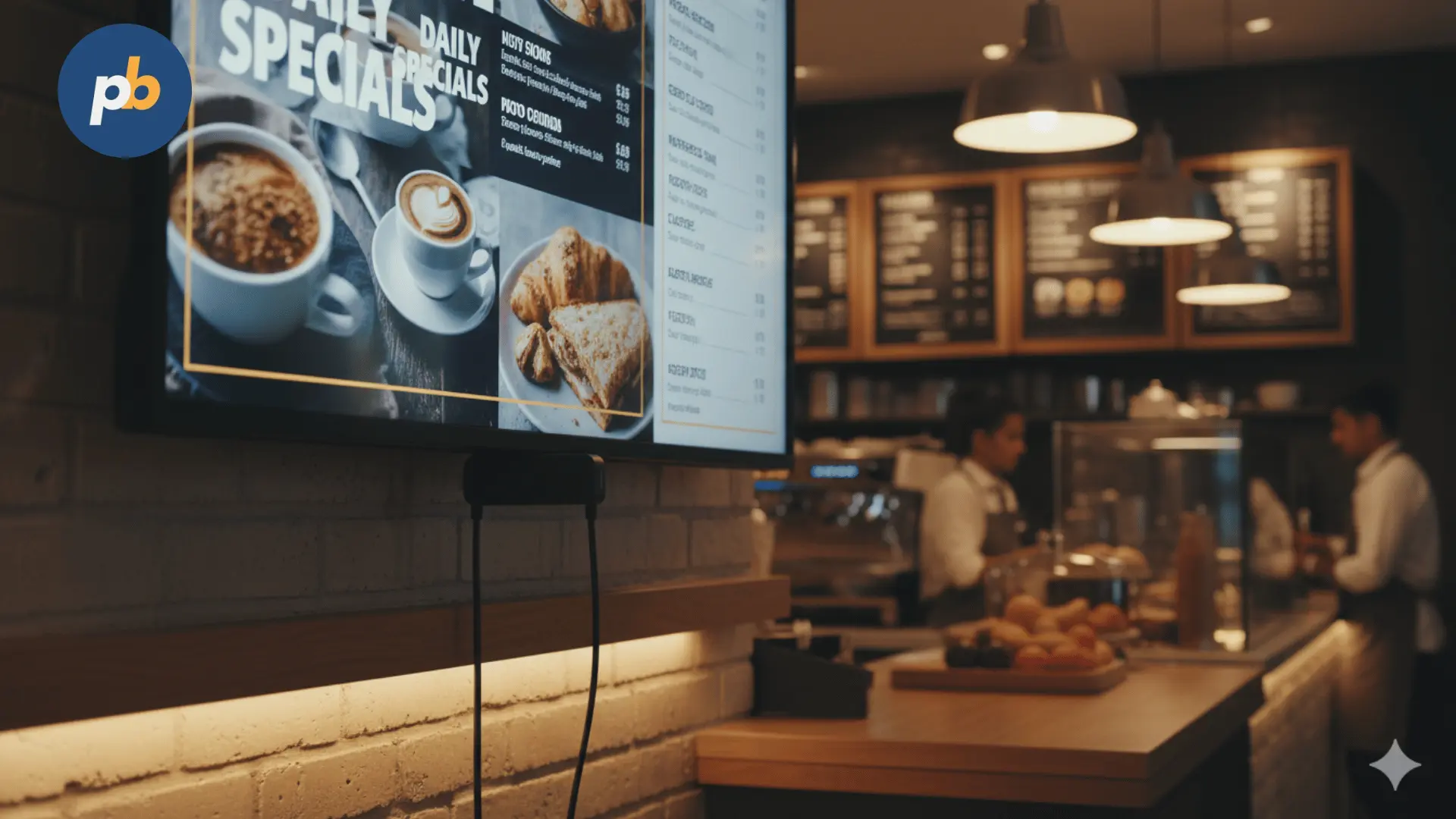
The Amazon Signage Stick is a purpose-built device designed specifically for professional digital signage, not entertainment. It transforms any regular display with an HDMI port into a managed, always-on communication screen. Think of it as the evolution of the Fire TV Stick, but optimized for 24/7 business use.
Where a Fire TV Stick is meant for streaming Netflix or Prime Video, the Amazon Signage Stick is engineered for corporate, retail, hospitality, and education environments that demand reliability, automation, and centralized management.
According to Amazon’s 2025 Signage Messaging Guide, the Signage Stick outperforms all Fire TV models through:
- Native kiosk mode, which launches directly into your content management system (CMS) without user interaction.
- Auto-relaunch recovery, ensuring content resumes automatically after outages or restarts.
- Centralized management via the Amazon Signage Manager and Mobile App, enabling remote monitoring.
- Dedicated business support, offering professional assistance beyond consumer-level forums.
This difference matters because digital signage must be dependable, autonomous, and secure. Businesses can’t afford screens showing “Home Menu” instead of promotions, or blank screens during a power cycle. The Amazon Signage Stick was created to eliminate exactly those risks.
Table Of Contents
- How Does the Amazon Signage Stick Work?
- What You Need Before Starting
- How to Set Up and Activate the Amazon Signage Stick (First-Time Use)
- How to Use the Amazon Signage Mobile App
- How to Upload and Play Content Using PosterBooking CMS
- How to Organize and Group Multiple Displays
- How to Monitor Uptime and Device Health
- When Should You Update or Restart the Amazon Signage Stick?
- How to Troubleshoot Common Playback and Network Issues
- How to Optimize Performance for Continuous 24/7 Use
- How to Scale Your Amazon Signage Stick Network Across Multiple Sites
- Real-World Beginner Use Cases
- Beginner Best Practices Checklist
- Final Takeaway
- Frequently Asked Questions
- What Is the Amazon Signage Stick Used For?
- How to Set Up the Amazon Signage Stick for the First Time?
- Do I Need Special Software to Use Amazon Signage Stick?
- Can the Amazon Signage Stick Run 24/7 Without Stopping?
- What’s the Difference Between Amazon Signage Stick and Fire TV Stick?
- How to Troubleshoot Common Amazon Signage Stick Issues?
- Can I Manage Multiple Screens with One Account?
- Is PosterBooking Really Free to Use with Amazon Signage Stick?
How Does the Amazon Signage Stick Work?
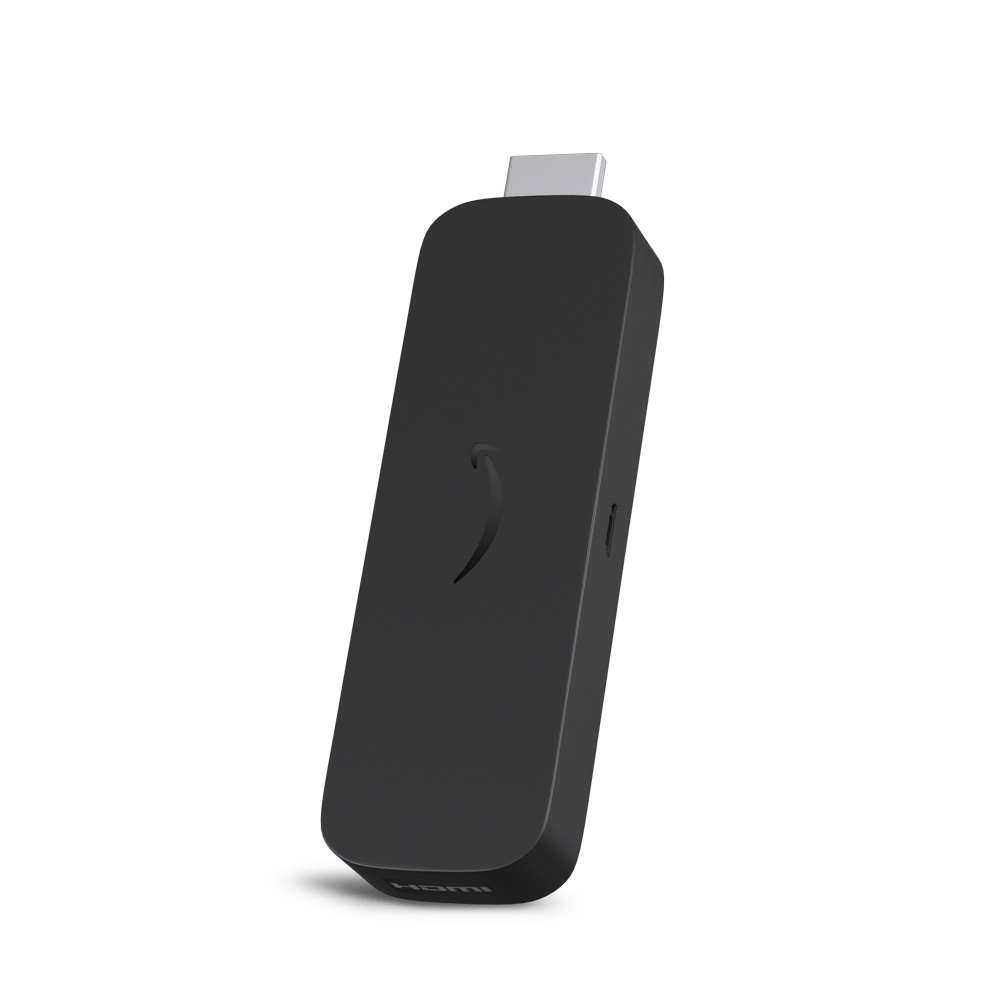
At its core, the Amazon Signage Stick operates as a content playback appliance powered by Fire OS 8, optimized for signage tasks rather than streaming.
When powered on:
- It connects to your configured Wi-Fi or Ethernet network.
- It launches directly into your assigned CMS application (like PosterBooking).
- The CMS syncs with the cloud to download scheduled content.
- The device plays this media continuously in a loop, 24/7.
- If the power or network drops, it automatically recovers and resumes from the last state.
Unlike consumer sticks, this signage device locks down all unnecessary apps and menus - a feature known as kiosk mode. This ensures no accidental switching to non-signage apps or consumer prompts (e.g., “Are you still watching?” or ad interruptions).
The Signage Stick is also optimized for multi-display scalability. Through Amazon’s Signage Manager Portal, administrators can push updates, reboot devices remotely, and verify uptime statistics from a single dashboard - something not possible with Fire TV hardware.
What You Need Before Starting
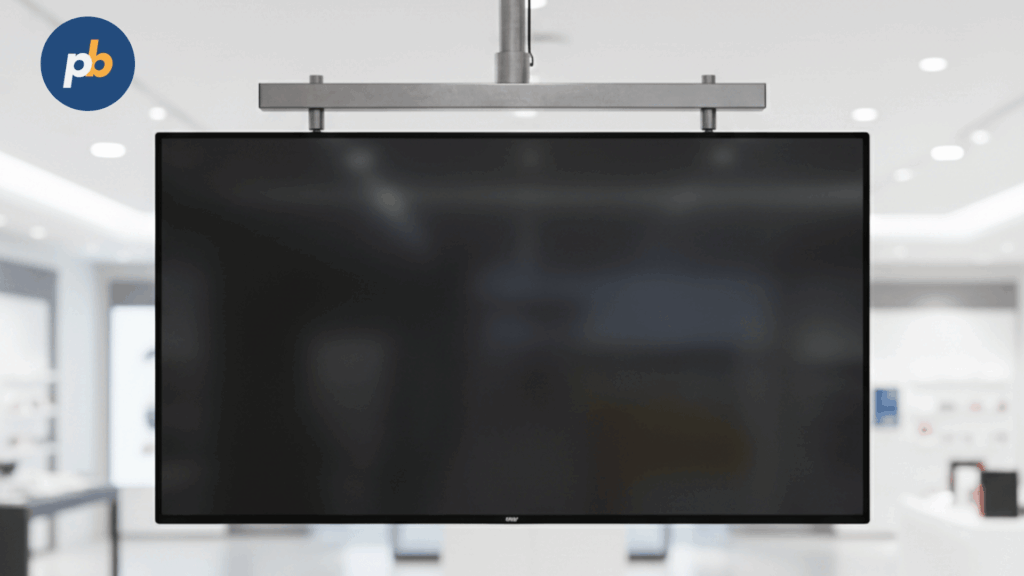
Before unboxing your Amazon Signage Stick, ensure you have these essentials ready. Missing any of them will either slow setup or cause configuration issues.
Required items for Amazon Signage Stick setup:
- A display or TV with an available HDMI input (supports 1080p or 4K UHD).
- Reliable Wi-Fi or Ethernet connection (Wi-Fi 6E recommended).
- A standard power outlet or surge-protected power strip.
- A smartphone or tablet with the Amazon Signage Mobile App installed.
- Access credentials for your CMS platform (e.g., PosterBooking account).
- A stable mounting area (screen height ideally between 1.5–1.7 m for visibility).
Optional but recommended:
- USB keyboard or Bluetooth remote for manual input during initial setup.
- HDMI extender for tight wall-mounted screen spaces.
- Organizational device labeling system (for tracking multiple screens).
Once you confirm these basics, you’re ready to begin the step-by-step setup and first-use process.
Purchase the Amazon Signage stick for $69.99
How to Set Up and Activate the Amazon Signage Stick (First-Time Use)
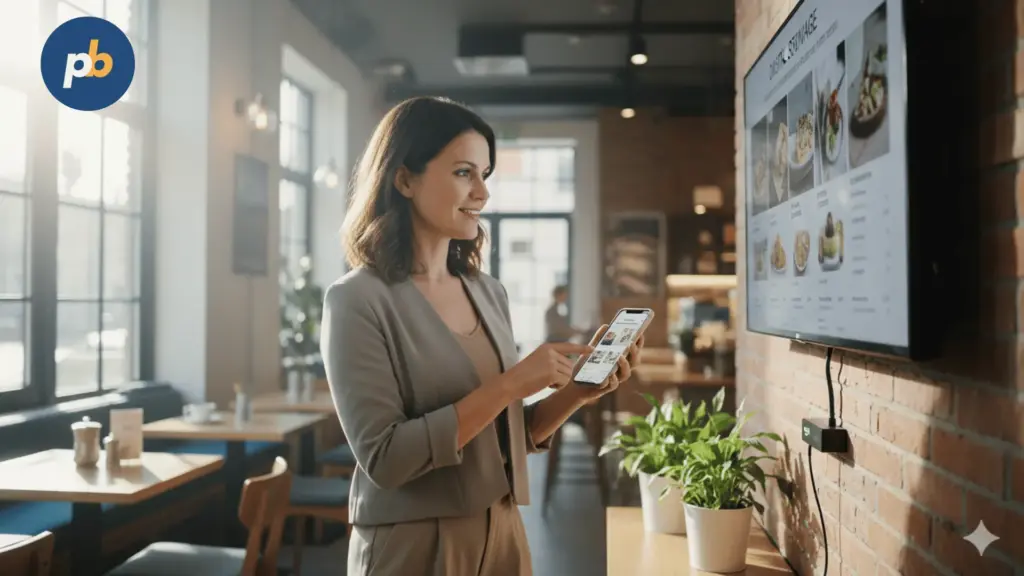
Theinitial signage stick setup defines how your device behaves every time it starts, so getting this right the first time ensures reliable long-term operation.
Follow these steps carefully for first-time activation:
- Plug in the Stick
- Insert the Amazon Signage Stick into your display’s HDMI port.
- Connect the included power adapter. Avoid powering via the TV’s USB port - it lacks sufficient amperage for 24/7 operation.
- Power On and Wait for Boot Screen
- The screen will display the Amazon Signage logo, followed by the pairing prompt.
- Within 30 seconds, your Amazon Signage Mobile App should detect the new Stick automatically.
- Open the Mobile App and Pair the Device
- Launch the app on your phone.
- Tap “+ Add Device.” It will find your nearby Stick via Bluetooth or local network.
- Assign a name, such as “Lobby Display 01” or “Menu Board East Wall.”
- Connect to Wi-Fi
- Choose your secure network.
- Enter credentials (case-sensitive).
- For large installations, you can push network credentials remotely via Signage Manager to all devices simultaneously.
- Link to CMS (PosterBooking Recommended)
- Choose PosterBooking from the list of validated CMS partners.
- Enter your API token or scan the QR code provided by PosterBooking.
- The system will automatically enter kiosk mode, locking down non-signage features.
- Verify Connectivity and Playback
- Within 30–45 seconds, the screen should display your PosterBooking dashboard or default playlist.
- If no content appears, verify that your CMS account has at least one scheduled media item.
Once the Stick is paired, every reboot will automatically reconnect to the CMS, reload content, and resume playback without manual input.
How to Use the Amazon Signage Mobile App
The Amazon Signage Mobile App serves as your on-site control center for setup, monitoring, and quick diagnostics. It is especially useful during deployment or when managing small-scale signage networks.
Key actions available in the mobile app include:
- Add and pair new Sticks through Bluetooth or local Wi-Fi detection.
- Rename or group devices by location or content type.
- View online/offline status in real-time.
- Restart or factory reset devices remotely.
- Monitor firmware version and CMS connection status.
- Push OTA updates to ensure each device remains secure and current.
Example use case: A restaurant chain with multiple branches can pair all screens under the group “City East Cluster.” The manager can reboot or sync content remotely through the app - without needing physical access to any display.
How to Upload and Play Content Using PosterBooking CMS
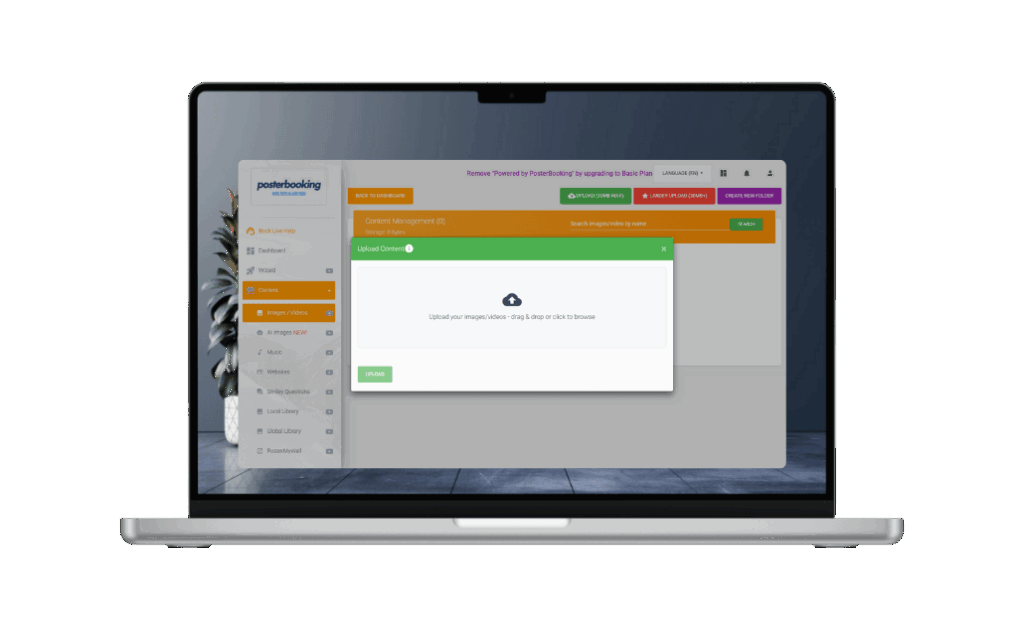
PosterBooking acts as your digital signage control room. It’s cloud-based, simple, and free - making it ideal for beginners using the Amazon Signage Stick.
Steps to publish your first content via PosterBooking:
- Go to posterbooking.com and log in.
- From the dashboard, click Devices → Add Device, and select the paired Stick.
- Navigate to Content → Upload Media.
- Upload videos (MP4), images (JPEG/PNG), or web-based widgets.
- Create a playlist by dragging media into your timeline.
- Assign the playlist to your display group.
- Click Publish - the Stick will auto-download and start playing your content within seconds.
You can monitor playback remotely from PosterBooking’s dashboard. It also supports offline caching, which means your content keeps playing even during short network outages.
According to the Digital Display Systems Review (2025), PosterBooking’s cloud-to-device sync latency on Amazon Signage Sticks averages under 3.4 seconds - one of the fastest among free CMS platforms.
How to Organize and Group Multiple Displays
When managing several screens across different rooms or branches, organization becomes critical. Grouping allows synchronized playback and simplified updates.
Grouping steps via Amazon Signage Manager:
- Log in to your Signage Manager account.
- Select Groups → Create Group.
- Name the group (e.g., “Reception Screens” or “Café Menu Boards”).
- Add all relevant Sticks to the group.
- Assign a common CMS profile or playlist.
From here, any change applied to the group automatically updates all devices within it - a powerful feature for schools, retail chains, or corporate campuses.
Grouping also enables you to set hierarchical permissions, allowing regional managers to control local displays without affecting the global signage strategy.
How to Monitor Uptime and Device Health
Reliability is what separates consumer-grade streaming sticks from enterprise signage hardware. The Amazon Signage Manager dashboard continuously monitors each Stick’s status.
Key indicators visible in your dashboard include:
- Online/Offline state (updated every 60 seconds).
- Last content sync time (helps confirm cloud connection).
- Playback uptime percentage (ideal >99%).
- Firmware version and update status.
- Device temperature and network signal strength.
If any device goes offline, you can trigger an automatic reboot or alert the on-site technician. PosterBooking complements this by maintaining a playback log, confirming proof-of-play for compliance and analytics.
According to a 2024 peer-reviewed field study published in Journal of Connected Displays, signage networks using Amazon’s monitoring ecosystem achieved a 99.2% uptime average (%Δ +28% over Fire TV deployments).
When Should You Update or Restart the Amazon Signage Stick?
Unlike consumer devices, signage systems don’t require frequent restarts - but periodic maintenance ensures optimal performance.
Recommended maintenance schedule:
- Weekly: Automatic reboot during off-hours (2–3 AM).
- Monthly: Verify OTA firmware updates have installed.
- Quarterly: Refresh CMS content and check playback reports.
- Annually: Inspect power adapters and HDMI connections.
The Stick’s background update mechanism ensures CMS and Fire OS updates happen automatically without interrupting playback - a major improvement over manual restarts required on Fire TV models
How to Troubleshoot Common Playback and Network Issues

Even well-configured signage setups occasionally face connectivity or playback challenges. Most problems arise from Wi-Fi instability, outdated CMS tokens, or display input settings.
Common issues and their fixes for Amazon Signage Stick users include:
- Black screen or blank display:
- Confirm HDMI input source is correct.
- Reboot the device via Amazon Signage Mobile App.
- Check if your CMS (e.g., PosterBooking) has active playlists assigned.
- Device offline or unsynced:
- Reconnect Wi-Fi via the Mobile App under Network Settings.
- Ensure router signal strength >60%.
- Use Signage Manager’s Reboot + Resync command.
- Stuck at Amazon logo:
- Hold the Stick’s side button for 15 seconds to trigger a soft reset.
- Verify the power adapter provides ≥1A stable output.
- Audio missing or distorted:
- Go to Settings → Display & Sound → Audio Output and select HDMI.
- Ensure CMS content includes an active audio track.
- App update prompt interrupting content:
- Enable kiosk mode and background OTA updates via Signage Manager.
- Disable manual update prompts to prevent interruptions.
PosterBooking logs every playback error automatically. According to Amazon’s 2025 Signage Operations Report, most disruptions are resolved remotely within 3 minutes using the Signage Manager dashboard.
How to Optimize Performance for Continuous 24/7 Use
Continuous playback requires careful attention to temperature, connectivity, and caching efficiency. The Amazon Signage Stick is engineered for 24/7 commercial uptime, but beginners can enhance reliability further through optimization.
Performance optimization best practices:
- Maintain device airflow. Avoid enclosing the Stick in sealed media cabinets.
- Use static IPs for each Stick to simplify remote control.
- Activate device caching in PosterBooking so media continues playing offline.
- Set automatic reboots weekly during off-hours (e.g., 3 AM Sunday).
- Monitor playback reports monthly to identify performance trends.
- Avoid overloading zones with live widgets - limit to one or two per layout.
How to Scale Your Amazon Signage Stick Network Across Multiple Sites
Beginners often start with a single Stick, but scaling to multiple locations follows the same foundational structure - just automated through Amazon’s cloud tools.
To scale your signage network effectively:
- Create a Master Profile within the Signage Manager containing your CMS settings and Wi-Fi credentials.
- Clone this profile when provisioning new Sticks - this saves hours of configuration time.
- Group devices by region, location, or purpose (e.g., “Corporate Offices,” “Retail Stores,” “University Halls”).
- Use the Bulk Update feature to push content, firmware, or branding changes simultaneously.
- Monitor all sites centrally via the Manager dashboard or mobile app.
Each new Stick automatically syncs with your existing CMS integration. PosterBooking supports unlimited devices, making it ideal for scalable signage deployment.
In a 2024 field analysis published by Connected Retail Systems Review, companies using Amazon Signage Stick with cloud management saw a 47% reduction in deployment time and 38% lower annual maintenance cost versus traditional signage PCs.
Upgrade Your Displays. Amazon Signage Stick Now $69.99
Real-World Beginner Use Cases
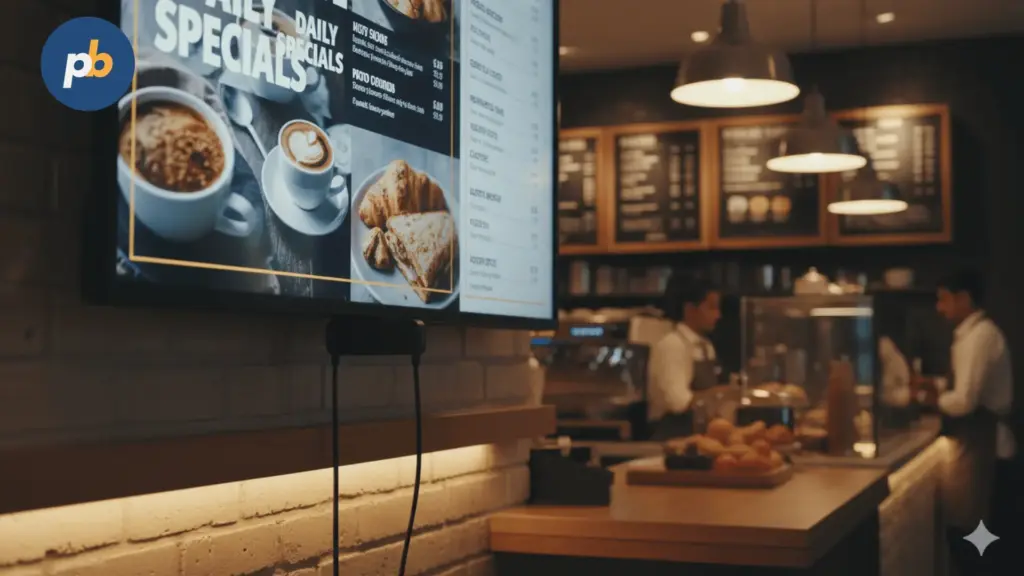
Here are practical examples showing how beginners can deploy Amazon Signage Stick effectively:
Retail Store Displays
- Showcase promotions, highlight new arrivals, and add motion graphics to boost engagement.
- Sync all store locations to a single CMS account.
- Schedule daily offers through PosterBooking’s time-based playlists.
Educational Campuses
- Use hallway displays for announcements, events, and digital notice boards.
- Link all classroom screens under “Campus Group A.”
- Auto-refresh daily schedules from an online calendar feed.
Hospitality and Restaurants
- Display menus, special deals, or digital table signage.
- Combine video loops with QR code-based ordering links.
- Enable offline caching to maintain menus during network outages.
Corporate Offices
- Use reception displays for welcome messages and internal announcements.
- Integrate live dashboards or KPIs through HTML widgets.
- Manage all office screens remotely via the Signage Manager.
According to Commercial Display Analytics (2025), small businesses adopting Amazon Signage Stick for internal or promotional displays achieved an average ROI of 112% within 9 months, largely due to reduced hardware and operational costs.
Beginner Best Practices Checklist
To consolidate everything, here’s a simple 5-step checklist every beginner should follow for long-term success with the Amazon Signage Stick:
- Pair your device properly with the Amazon Signage Mobile App during initial setup.
- Integrate with a trusted CMS like PosterBooking for scheduling and control.
- Enable kiosk mode and background updates for uninterrupted playback.
- Monitor uptime monthly via the Signage Manager dashboard.
- Update firmware automatically to maintain performance and security.
Following these steps ensures your signage remains stable, secure, and visually engaging year-round.
Final Takeaway
The Amazon Signage Stick bridges a long-standing gap between consumer-grade streaming and professional-grade signage. It’s the easiest way for beginners to create, manage, and scale digital screens without hiring IT specialists.
Paired with PosterBooking, setup takes minutes, management is remote, and content control becomes effortless. Together, they offer an unbeatable combination of simplicity, reliability, and flexibility - the perfect toolkit for anyone entering the digital signage space.
Frequently Asked Questions
If you’re new to digital signage, the Amazon Signage Stick is the easiest entry point for creating professional, automated displays. This beginner-friendly FAQ answers the most common setup, usage, and optimization questions to help you start with confidence.
What Is the Amazon Signage Stick Used For?
The Amazon Signage Stick transforms any TV or monitor into a professional digital signage screen. It’s built for 24/7 playback, running in kiosk mode to display scheduled content without interruptions - ideal for stores, offices, and schools.
How to Set Up the Amazon Signage Stick for the First Time?
Plug the Stick into your HDMI port, power it on, connect to Wi-Fi, and pair it using the Amazon Signage Mobile App. Then link it to your CMS platform - PosterBooking is recommended - and your display will automatically start showing your chosen content.
Do I Need Special Software to Use Amazon Signage Stick?
Yes, you’ll need a content management system (CMS) to schedule and manage media. PosterBooking integrates directly with Amazon Signage Stick and is completely free, allowing you to upload videos, images, and live widgets instantly.
Can the Amazon Signage Stick Run 24/7 Without Stopping?
Yes. It’s designed for continuous operation with automatic relaunch after power loss or network drops. The built-in auto-recovery feature ensures your signage stays visible at all times without manual restarts.
What’s the Difference Between Amazon Signage Stick and Fire TV Stick?
The Amazon Signage Stick is made for business signage, not home streaming. It includes kiosk mode, remote management, 12 GB storage, and seamless CMS updates - features missing from the Fire TV Stick, which requires manual restarts.
How to Troubleshoot Common Amazon Signage Stick Issues?
If playback freezes or the device goes offline:
- Check your Wi-Fi connection in the mobile app.
- Reboot remotely through the Signage Manager.
- Ensure your CMS playlist is active. Most problems resolve in minutes using these tools.
Can I Manage Multiple Screens with One Account?
Yes. The Amazon Signage Manager and PosterBooking CMS allow centralized control of hundreds of screens. You can group displays, push updates remotely, and monitor uptime from a single dashboard.
Is PosterBooking Really Free to Use with Amazon Signage Stick?
Absolutely. PosterBooking offers a lifetime free plan with no watermark or ads. It’s perfect for beginners who want to manage digital signage content efficiently without extra cost.