
An iPad can operate as a compact, touch-capable digital signage endpoint when configured in kiosk mode, powered continuously, and paired with content that fits a 4:3 canvas and mobile GPU limits; it is not appropriate for very large viewing distances, harsh environments, or multi-output walls where commercial displays and dedicated players are superior.
Reliable operation emerges from disciplined iPadOS settings, suitable kiosk controls (Guided Access or Single App Mode), thoughtful mounting and power, and content that respects readability and motion pacing
Table Of Contents
- What Does “iPad Digital Signage” Mean?
- Which iPad Models And iPadOS Versions Are Practical for Signage?
- How to Prepare an iPad for Kiosk-Style Digital Signage?
- What Are the Kiosk/Lockdown Options on iPad?
- Which Software Approaches Can Power Content on an iPad Screen?
- How to Run a Web Playlist Full-Screen on iPad?
- How to Design Content for an iPad Display?
- What Resolutions And Export Settings Are Safe Defaults?
- How to Mount, Power, And Cool an iPad Used as Signage?
- Can an iPad Run from PoE or Battery for Pop-Ups?
- How to Connect an iPad to a Larger Display if Needed?
- How to Keep the External Display in Sync And Awake?
- How to Schedule, Daypart, And Rotate Content on an iPad?
- How to Automate App Relaunch And Device Health Checks?
- How to Operate And Maintain iPad Signage Day-to-Day?
- How to Monitor And Alert Without Constant Manual Checks?
- How to Secure an iPad Signage Deployment (Physically and Digitally)
- What Privacy And Compliance Considerations Apply in Public Spaces?
- How to Troubleshoot the Most Common iPad Signage Issues?
- What Soak Tests Prove Reliability Before Going Live?
What Does “iPad Digital Signage” Mean?
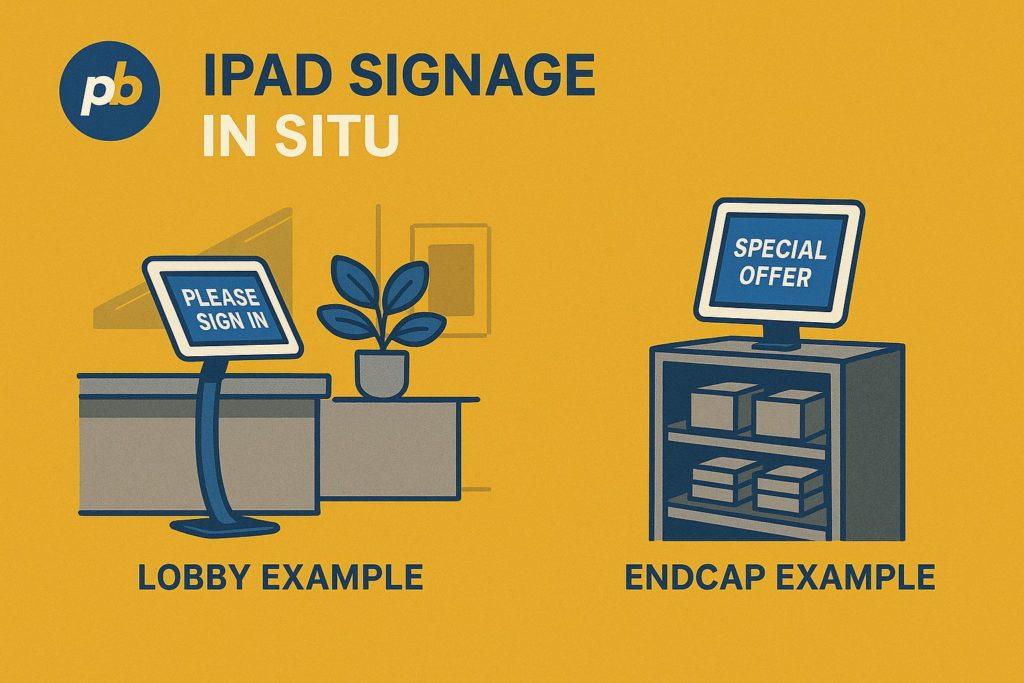
iPad digital signage means running a signage app or full-screen web playlist on an iPad in a locked-down, always-on kiosk configuration to present messages, menus, schedules, or interactive flows at human scale. This approach fits lobbies, meeting rooms, reception desks, museum labels, retail endcaps, and pop-ups where compact size, integrated touch, and mobility outrank sheer brightness or screen acreage.
Ideal And Not-Ideal Scenarios For iPad Digital Signage include:
- Favor Small-Format Placements With Close Viewing Distances
- Favor Interactive Stations Requiring Touch Input
- Favor Mobile Or Temporary Installations With Fast Setup
- Favor Museum Labels, Reception Check-Ins, And Room Signs
- Favor Battery-Assist Pop-Ups And Carts For Events
- Avoid Long-Distance Viewing That Requires Large Fonts
- Avoid High-Glare Windows And Harsh Temperature Zones
- Avoid Multi-Output Walls And Demanding GPU Workloads
Table: iPad Signage vs Large Commercial Display → Strengths/Limits
| Criterion | iPad Signage | Large Commercial Display |
|---|---|---|
| Footprint & Mobility | Excellent (small, portable) | Limited (fixed install) |
| Interactivity | Integrated multi-touch | Requires overlays/sensors |
| Readability At Distance | Limited (small canvas) | Strong (large sizes, high nits) |
| Duty Cycle & Thermal | Good with care; mobile SOC | Excellent; purpose-built |
| Mounting & Power | Simple; USB-C/Lightning | Structured; AC/UPS/RS-232 |
| Cost To Start | Low (tablet + mount) | Higher (panel + player) |
Which iPad Models And iPadOS Versions Are Practical for Signage?
Recent-generation USB-C iPads and iPadOS versions with stable kiosk features are practical for signage, while very old Lightning models with aging batteries and limited OS support present reliability risks. Target the current iPadOS major release for security and kiosk controls; retire devices that cannot run a modern, supported iPadOS.
Table: iPad Model, Port, iPadOS Support, And Notes
| Model Class | Port | Typical iPadOS Support Window | Notes For Signage |
|---|---|---|---|
| iPad (10th Gen 10.9″) | USB-C | Current major + several years | Good baseline; 4:3 canvas |
| iPad Air (5th Gen 10.9″) | USB-C | Current major + several years | More RAM/CPU headroom |
| iPad Pro 11″ / 12.9″ | USB-C | Current major + several years | Highest headroom; larger 4:3 |
| iPad (9th Gen 10.2″) | Lightning | Supported, earlier EOL path | Acceptable for simple loops |
| Older Lightning Models | Lightning | Near/at EOL | Retire for kiosk reliability |
“Retire Or Replace If” Cues For iPad Signage include:
- Report Battery Health Below A Practical Threshold For 24/7 Power
- Fail To Install Current iPadOS Security Updates
- Exhibit Random Dim-Downs Or Thermal Throttling In Enclosures
- Show Ghost-Touches Or Unreliable Touch Panels
- Require Legacy Adapters That Complicate Cabling
How to Prepare an iPad for Kiosk-Style Digital Signage?
Preparation requires a clean update, storage headroom, explicit display and power settings, notification suppression, and a Focus profile appropriate for public screens. The objective is uninterrupted, quiet operation with predictable brightness and no pop-ups.
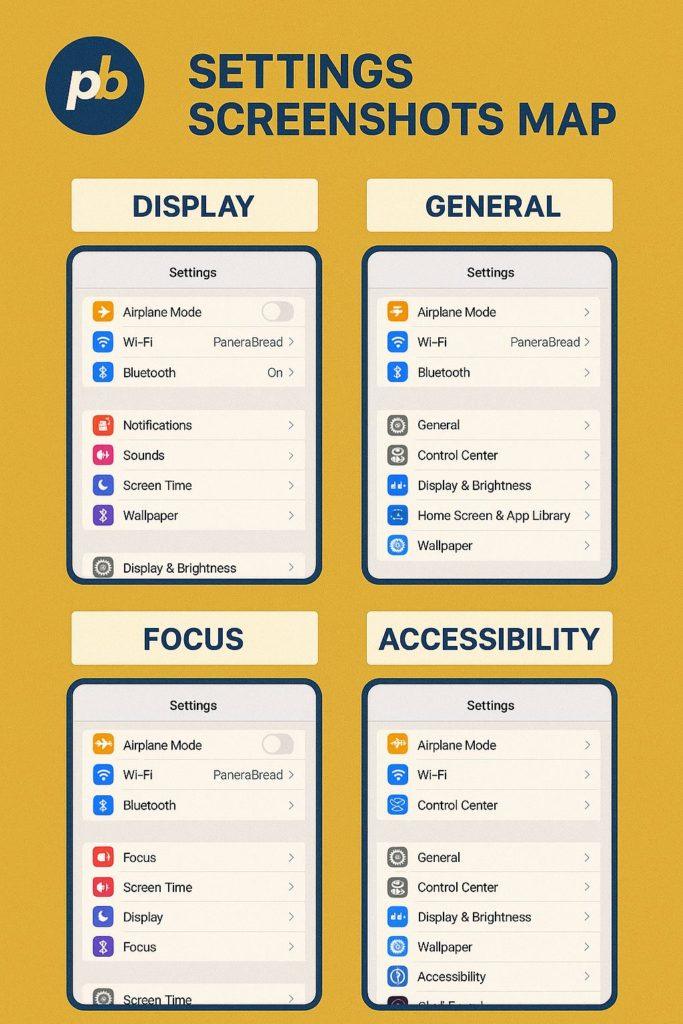
Preflight Checklist For iPad Kiosk Preparation include:
- Update iPadOS To The Current Supported Major Release
- Confirm Local Storage Headroom For Caching And Logs
- Set Auto-Lock To “Never” And Disable Attention-Aware Features
- Fix Brightness Manually; Disable True Tone And Night Shift
- Enable A “Signage” Focus To Silence Calls And Notifications
- Turn Off Notification Banners, Badges, And Sounds
- Verify Date, Time Zone, And 24-Hour Clock For Scheduling
Table: Setting, Recommended Value, And Why
| Setting | Recommended Value | Why |
|---|---|---|
| Auto-Lock | Never | Prevents unintended sleep |
| Brightness | Fixed value (site-tested) | Keeps visual consistency |
| True Tone / Night Shift | Off | Avoids color/contrast shifts |
| Focus | Custom “Signage” | Suppresses interruptions |
| Notifications | Off for signage app | Prevents overlays |
| Time / Zone | Correct locale | Aligns dayparting/proofs |
What Are the Kiosk/Lockdown Options on iPad?
Two viable lockdown modes exist: Guided Access on-device and Single App Mode via MDM and supervision. Guided Access is fast and local with partial controls; Single App Mode is policy-driven, remote-controllable, and stronger for fleets.
Table: Guided Access vs Single App Mode → Setup Effort, Control Depth, Remoteability
| Mode | Setup Effort | Control Depth | Remoteability | Use Case |
|---|---|---|---|---|
| Guided Access | Low (on-device) | Moderate (buttons/areas) | Local only | One-offs, pilots |
| Single App Mode (MDM) | Moderate (supervision) | High (global kiosk) | Full (MDM) | Scaled fleets |
Step-By-Step Toggles For iPad Kiosk Hardening include:
- Enable Accessibility Shortcuts And Assign Guided Access
- Lock Volume/Buttons And Mask Touch Regions As Needed
- Enroll Device In MDM And Supervise For Policy Control
- Assign Single App Mode To The Signage App Or PWA Wrapper
- Configure Auto-Relaunch And Background Refresh Windows
How to Set Up Guided Access for a Signage App or Web Page?
Guided Access is configured by enabling Accessibility shortcuts, launching the target app or PWA, and locking the device to that experience with optional touch and button restrictions.
Exact Steps For Guided Access Setup include:
- Open Settings → Accessibility → Guided Access → Enable And Set Passcode
- Enable Accessibility Shortcut For Guided Access (Triple-Click Power)
- Launch The Signage App Or Full-Screen PWA On Home Screen
- Triple-Click Power, Configure Options (Buttons, Keyboard, Touch Areas)
- Start Guided Access And Test Resume After App Crash Or Reboot
How to Enable Single App Mode with MDM?
Single App Mode is enabled by supervising the device, enrolling it in an MDM solution, and pushing a profile that locks the device to the signage app with auto-launch and remote exit controls.
Enrollment Steps For Single App Mode include:
- Register Organization In Apple Business Or School Manager
- Supervise Devices (DEP/Automated Enrollment Or Apple Configurator)
- Enroll iPads In MDM And Assign The Signage App
- Push Single App Mode Profile With Auto-Launch On Boot
- Validate Remote Exit, Reboot, And App Update Policies
Table: MDM Policy And Effect
| Policy | Effect |
|---|---|
| Single App Mode | Locks device to selected app |
| Auto-Install/Update | Keeps player current |
| Restrictions (Control Center, Gestures) | Blocks exits and UI overlays |
| Wi-Fi/VPN Profiles | Stabilizes network path |
| Scheduled Reboots | Clears residual state daily |
Which Software Approaches Can Power Content on an iPad Screen?
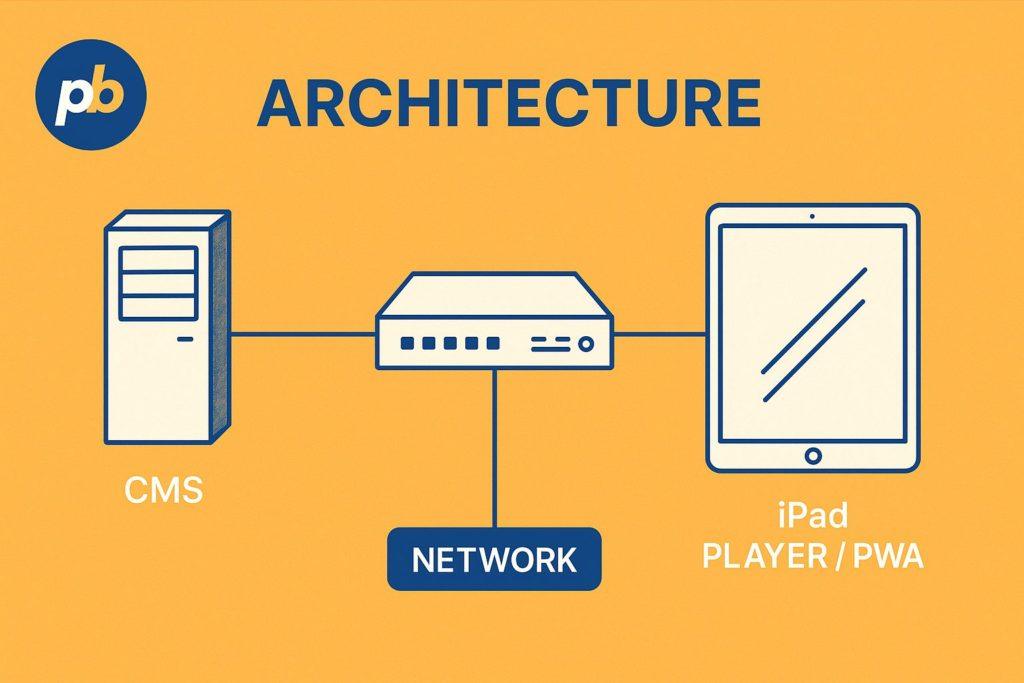
Software approaches fall into four categories: a native signage app, a full-screen PWA/web playlist, a kiosk browser wrapper, or a short-URL handoff to hosted content. Choice depends on scheduling depth, offline needs, and interactivity.
Table: Approach, Offline, Scheduling, Interactivity, Setup Time
| Approach | Offline | Scheduling | Interactivity | Setup Time |
|---|---|---|---|---|
| Native Signage App | Yes (app-managed) | Full (daypart/tags) | Optional | Moderate |
| PWA / Web Playlist | Yes (service worker) | Good (server-side) | Strong | Low |
| Kiosk Browser Wrapper | Limited (varies) | Good | Strong | Low–Moderate |
| Short-URL Handoff | No (online only) | Basic | Strong | Low |
How to Run a Web Playlist Full-Screen on iPad?
A web playlist runs full-screen by installing a PWA via “Add to Home Screen,” disabling Auto-Lock, launching from the icon (which hides browser chrome), and locking with Guided Access or Single App Mode.
PWA Steps For Full-Screen Web Playlists include:
- Open The Playlist URL In Safari And Tap “Add To Home Screen”
- Launch The Home-Screen Icon To Enter Pseudo Full-Screen Mode
- Set Auto-Lock To “Never” And Fix Brightness Manually
- Apply Guided Access Or Single App Mode To Prevent Exits
- Validate Offline Cache Behavior And Token Refresh Windows
Table: Canvas And Recommended Resolution/Ratio
| Canvas | Ratio | Recommended Design Resolution |
|---|---|---|
| Standard iPad | 4:3 | 2048 × 1536 px |
| iPad Pro 12.9″ | 4:3 | 2732 × 2048 px |
| External Display | 16:9 | 1920 × 1080 px |
How to Keep Content Working Offline?
Offline operation is preserved by using service workers for caching, a PWA manifest for installability, explicit fallback routes, and disciplined file sizes that fit storage and bandwidth budgets.
Offline Checklist For iPad Web Signage include:
- Implement Service Workers For Asset Caching And Updates
- Define A Manifest With Icons And Display Mode “Standalone”
- Provide Fallback Screens For Network Loss And Token Expiry
- Cap Video Sizes And Prefer H.264/H.265 At Safe Bitrates
- Test Offline And Recovery On Site Networks And Guest VLANs
How to Design Content for an iPad Display?
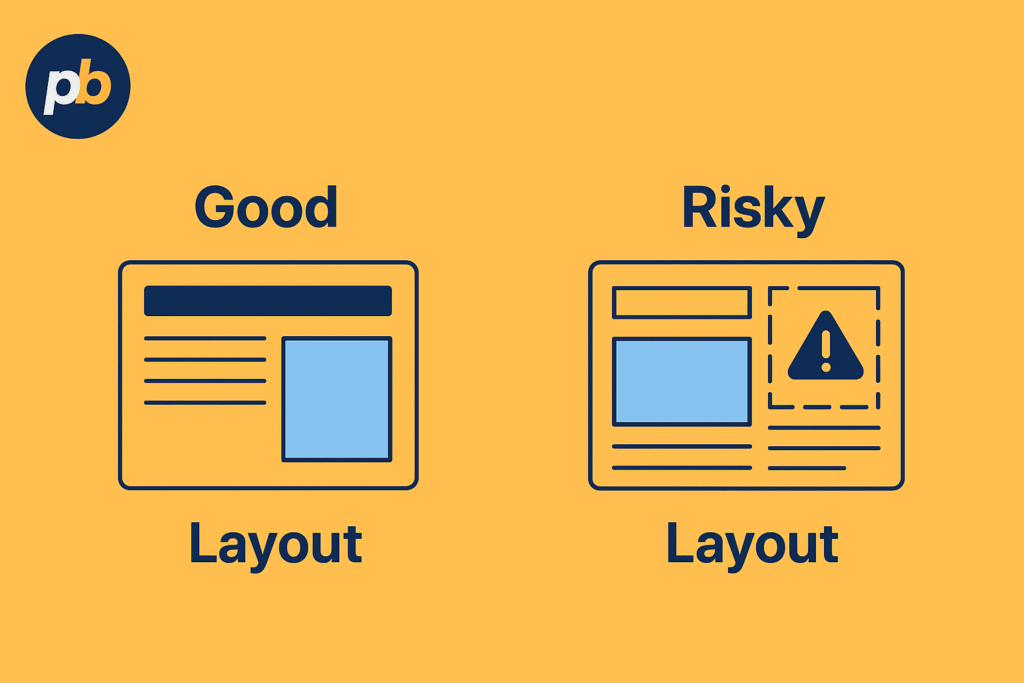
Effective iPad content uses a 4:3 canvas, readable text at arm’s-length or short corridor distances, strong color contrast, gentle motion pacing, and finger-size touch targets when interactive.
Distance-Based Minimum Text Size And Touch Targets include:
- At 0.5–1.0 Meters: ≥ 18–22 Pt Body, ≥ 28–32 Pt Headings, ≥ 44 Pt Touch Targets
- At 1.0–1.5 Meters: ≥ 24–28 Pt Body, ≥ 36–44 Pt Headings, ≥ 48 Pt Touch Targets
- At 1.5–2.0 Meters: ≥ 28–32 Pt Body, ≥ 44–56 Pt Headings, ≥ 56 Pt Touch Targets
Content Do’s And Don’ts For iPad Signage include:
- Use High-Contrast Palettes And Avoid Thin Type
- Use Large, Tappable Targets And Generous Spacing
- Use Short Motion Loops And Gentle Easing
- Avoid Small Text, Busy Backgrounds, And Excessive Motion
- Avoid Overloading The Canvas With Many Regions
What Resolutions And Export Settings Are Safe Defaults?
Safe defaults include designing at native 4:3 Retina sizes, exporting videos with conservative bitrates and regular keyframes, and selecting image formats that preserve sharpness without bloating caches.
Table: iPad Class, Recommended Canvas, And Max Bitrate
| iPad Class | Canvas | Video Bitrate (H.264/H.265) |
|---|---|---|
| 9.7–10.9″ | 2048 × 1536 px | 6–10 Mbps (1080p30) |
| 12.9″ | 2732 × 2048 px | 8–12 Mbps (1080p30) |
| External 1080p | 1920 × 1080 px | 8–12 Mbps (1080p60) |
Encoding Presets For iPad Signage include:
- Prefer H.264 Baseline/High Or H.265 At Same Visual Quality
- Fix Keyframe Interval To 2–4 Seconds For Stable Scrubbing
- Use PNG/SVG For UI Artifacts And JPG/WebP For Photography
- Normalize Audio Loudness And Consider Silent Default In Public
How to Localize And Make Content Accessible?
Localization and accessibility rely on language variants, captions for motion, high-contrast themes, Reduced Motion-aware sequences, and VoiceOver-friendly touch flows.
Accessibility Checklist For iPad Signage include:
- Provide Language Variants And Correct Locale Formats
- Add Captions/Subtitles And Descriptive Labels For Media
- Maintain Sufficient Contrast And Offer High-Contrast Themes
- Respect Reduced Motion Preferences In Interactive Flows
- Arrange Logical Focus Order And Large Targets For VoiceOver
Table: Requirement, Design Technique, And Pass Criteria
| Requirement | Design Technique | Pass Criteria |
|---|---|---|
| Contrast | High-contrast palette | Meets WCAG AA for text |
| Motion | Gentle, optional motion | No rapid flashing; calm easing |
| Touch Targets | ≥ 44 × 44 pt | Reliable activation |
| Captions | Subtitles for videos | Synchronized and legible |
How to Mount, Power, And Cool an iPad Used as Signage?
Mounting an iPad requires a secure enclosure or VESA adapter with anti-tamper screws, concealed power, and airflow paths that avoid solar load; continuous power should use rated USB-C/Lightning supplies and managed cable strain relief.
Mounting Safety Checklist For iPad Signage include:
- Choose Enclosures Rated For Public Spaces With Tamper Fasteners
- Route Cables Behind Walls Or Through Conduits With Relief Loops
- Provide Vent Gaps At Top/Bottom And Avoid Direct Sunload
- Set Display Height And Angle For Intended Dwell Distance
- Label Power Circuits And Keep Adapters Accessible For Service
Table: Location, Mounting Type, And Notes
| Location | Mounting Type | Notes |
|---|---|---|
| Reception Desk | Free-standing enclosure | Cable pass-through |
| Corridor Wall | Flush/surface mount | Watch protrusion limits |
| Retail Endcap | VESA bracket in fixture | Protect from carts |
| Museum Label | Low-profile wall mount | Glare control important |
Can an iPad Run from PoE or Battery for Pop-Ups?
An iPad can run from PoE using PoE-to-USB-C/Lightning adapters within power budgets, and from battery carts for temporary installs when runtime math and charging SOPs are planned.
Table: Adapter/Battery, Output, And Runtime Estimate (Illustrative)
| Source | Output | Example Runtime |
|---|---|---|
| PoE+ (25.5 W) Injector → USB-C | 5 V / 3 A (device-dependent) | Continuous with headroom |
| USB Power Bank 20,000 mAh | 5 V / 2–3 A | ~6–10 hours light duty |
| Battery Cart 1–2 kWh | AC via inverter | Multi-day events (duty-cycle dependent) |
Pop-Up Tips For iPad Signage include:
- Verify PoE Adapter Ratings And Cable Lengths
- Stage Spare Power Banks And A Charging Rotation
- Add Weighted Bases And Safety Tethers In Foot-Traffic
- Pre-Cache Content To Reduce On-Site Bandwidth
- Document Setup/Teardown SOP With Photos
How to Connect an iPad to a Larger Display if Needed?
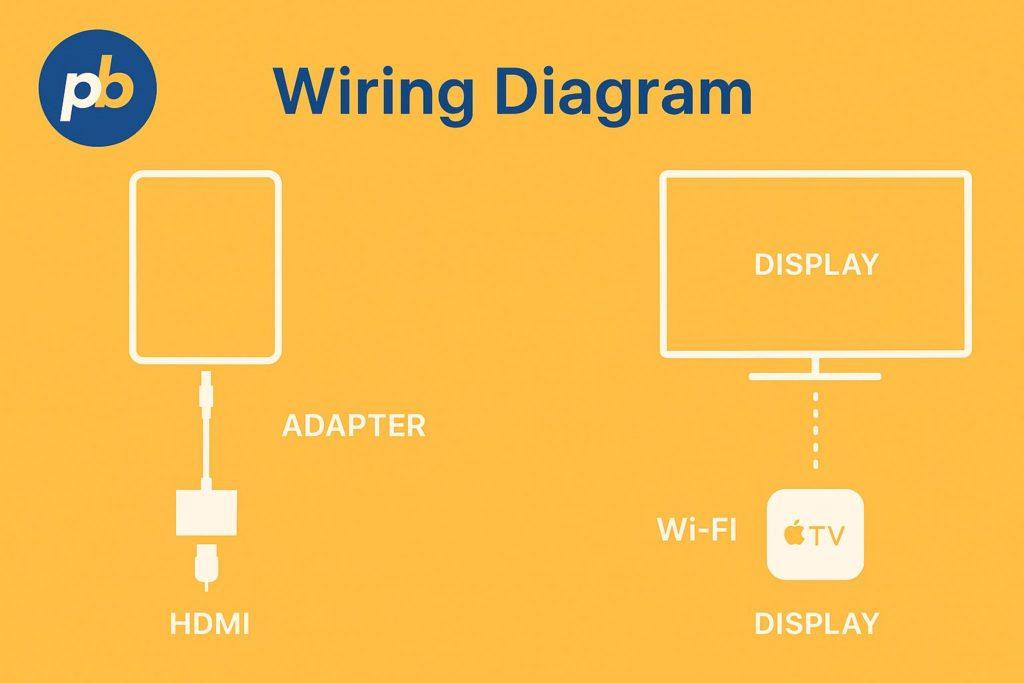
Connection options include USB-C or Lightning to HDMI adapters for wired reliability and AirPlay to Apple TV for cable-free setups; wired HDMI is preferred for signage due to predictability and lower latency.
Table: Method, Max Resolution, Latency, And Reliability
| Method | Max Resolution | Latency | Reliability |
|---|---|---|---|
| USB-C → HDMI (Newer iPads) | Up to 4K/60 (adapter-dependent) | Low | High |
| Lightning → HDMI (Older iPads) | 1080p | Low | High |
| AirPlay → Apple TV | Up to 1080p/4K (network-dependent) | Medium | Medium |
How to Keep the External Display in Sync And Awake?
External display sync relies on the display’s own scheduling and input lock because iPad adapters do not provide reliable CEC power control; blackout and wake cycles should be scheduled at the display or via the CMS.
Sync Checklist For iPad With External Displays include:
- Set Display Schedules And Lock Inputs To The Signage Source
- Disable On-Screen “No Signal” Overlays Or Set Long Timeouts
- Test Wake From Sleep With App Relaunch And Guided Access
- Verify Pixel Format And Scaling For 16:9 External Outputs
- Reconfirm Behavior After Any iPadOS Or App Update
Table: Risk And Mitigation
| Risk | Mitigation |
|---|---|
| Display sleeps unexpectedly | Use display’s timer; keep signal present |
| Input switches due to CEC | Disable CEC or lock input |
| Aspect mismatch | Prepare 16:9 variants; test scaling |
How to Schedule, Daypart, And Rotate Content on an iPad?
Scheduling is managed by the CMS or PWA rules, driven by accurate device time, correct time zone, and drift checks; rotation patterns should reflect dwell, weekday/weekend differences, and quiet overnight sync windows.
Table: Schedule Pattern And Example Use
| Pattern | Example Use |
|---|---|
| Hourly dayparts | Breakfast → lunch → afternoon promos |
| Weekpart tags | Weekday corporate messages vs weekend retail |
| Dwell-based loop | Short, repetitive lobby loops |
| Overnight maintenance | Asset updates and cache validation |
Timekeeping Checklist For iPad Signage include:
- Confirm Time Zone And 24-Hour Clock Settings
- Audit Device Time Drift During Soak Tests
- Align CMS Time Rules With Local Holidays
- Schedule Overnight Sync And Light Content Windows
- Verify Proof-Of-Play Timestamps Post-Deployment
How to Automate App Relaunch And Device Health Checks?
Automation uses kiosk browser or app watchdogs, background fetch windows, and MDM policies to relaunch apps or reboot on schedule so devices recover from transient faults without manual intervention.
Automation Playbook For iPad Signage include:
- Enable App Auto-Relaunch Or “Resume On Crash” Behaviors
- Schedule A Daily Maintenance Reboot Window Via MDM
- Configure Background Fetch For Playlist Refresh
- Trigger Heartbeat Alerts On Missed Check-Ins
- Capture And Rotate Logs Or Screenshots For Audits
Table: Event And Automatic Action
| Event | Automatic Action |
|---|---|
| App crash | Relaunch app via watchdog |
| Network loss | Show offline fallback; retry sync |
| Time window start | Pull new playlist; reload |
| Health miss | Alert operator; request screenshot |
How to Operate And Maintain iPad Signage Day-to-Day?
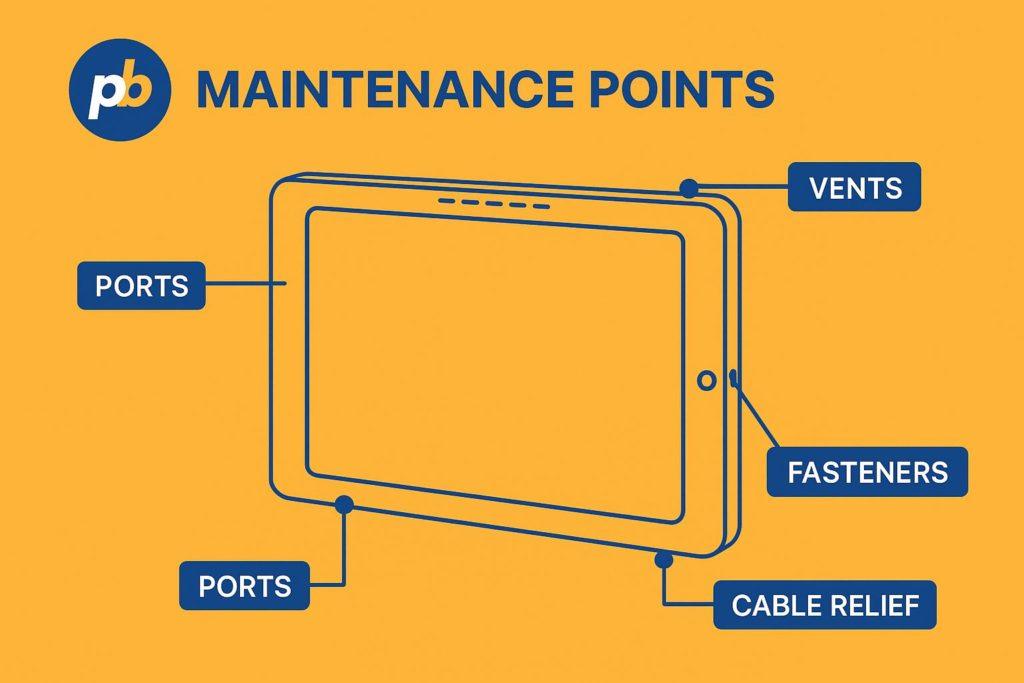
Day-to-day operations combine quick visual checks, regular cleaning, monthly battery and cable audits, an update cadence for iPadOS and the signage app, and a spare device plan for fast swap-outs.
Ops SOP For iPad Signage include:
- Perform Daily Visual Pass For Content And Brightness
- Clean Screens Weekly With Approved Materials
- Inspect Cable Strain Relief And Mount Fasteners Monthly
- Apply Staged iPadOS/App Updates With Rollback Windows
- Maintain Labeled Spares And Tested Config Profiles
Table: Interval, Task, And Acceptance Criteria
| Interval | Task | Acceptance |
|---|---|---|
| Daily | Visual and playback check | No errors; correct playlist |
| Weekly | Cleaning | Streak-free, no residue |
| Monthly | Battery/cable audit | No swelling; secure cables |
| Quarterly | Settings and policy review | Matches SOP; logs retained |
How to Monitor And Alert Without Constant Manual Checks?
Monitoring combines CMS heartbeats and screenshots, simple pings for Wi-Fi stability, temperature awareness (manual or MDM), and storage thresholds to preempt failures.
Table: Alert, Threshold, And Action
| Alert | Threshold | Action |
|---|---|---|
| Heartbeat miss | > 10–15 minutes | Send screenshot request; open ticket |
| Storage low | < 15–20% free | Purge caches; review playlists |
| Temperature high | Exceeds safe enclosure spec | Increase ventilation; reduce brightness |
| App version drift | Out of baseline | Stage update; verify after reboot |
Incident Escalation Steps For iPad Signage include:
- Triage With Remote Screenshot And Health Query
- Attempt App Relaunch Or Guided Access Restart
- Reboot During Maintenance Window If Required
- Dispatch Spare Device If On-Site Resolution Fails
- Capture Post-Mortem Notes And Update SOP
How to Secure an iPad Signage Deployment (Physically and Digitally)
Security hinges on supervised mode, minimal-rights configurations, disabled control surfaces, encrypted private networks, and tamper-resistant enclosures fixed to structure.
Hardening Checklist For iPad Signage include:
- Enroll And Supervise Devices Under MDM Policies
- Set Strong Passcodes And Disable Control Center On Lock Screen
- Disable Notifications, Auto-Fill, And Unneeded Radios
- Place Devices On Private Wi-Fi/VLAN Without Captive Portals
- Use Anti-Theft Enclosures And Tamper-Resistant Screws
Table: Threat, Mitigation, And Owner
| Threat | Mitigation | Owner |
|---|---|---|
| Device theft | Locking enclosure; tether | Facilities |
| UI escape | Single App Mode; Guided Access | IT/MDM |
| Network snooping | WPA2/3, VLAN, VPN | Network |
| Content tamper | HTTPS, signed assets | Content Ops |
What Privacy And Compliance Considerations Apply in Public Spaces?
Privacy requires explicit opt-in for interactive data entry, minimal or no PII collection by default, visible notices when feedback is captured, and accessible placement that respects ADA and local guidance.
Privacy Do’s For iPad Signage include:
- Present Explicit Consent Before Collecting Any Input
- Minimize Or Eliminate PII Collection On Public Devices
- Display Notices When Feedback Or Photos Are Captured
- Place Screens At Accessible Heights And Clear Reach Ranges
- Retain Only Necessary Logs With Rotation And Access Controls
Table: Requirement And Proof To Keep
| Requirement | Proof |
|---|---|
| Consent on input flows | Screenshots and policy copy |
| Accessibility placement | Photos and measured heights |
| Data retention limits | Rotation logs and MDM policy |
How to Troubleshoot the Most Common iPad Signage Issues?
Troubleshooting focuses on app state, kiosk mode, network stability, orientation locks, thermal throttling, and external display scaling; a simple decision tree reduces time to resolution.
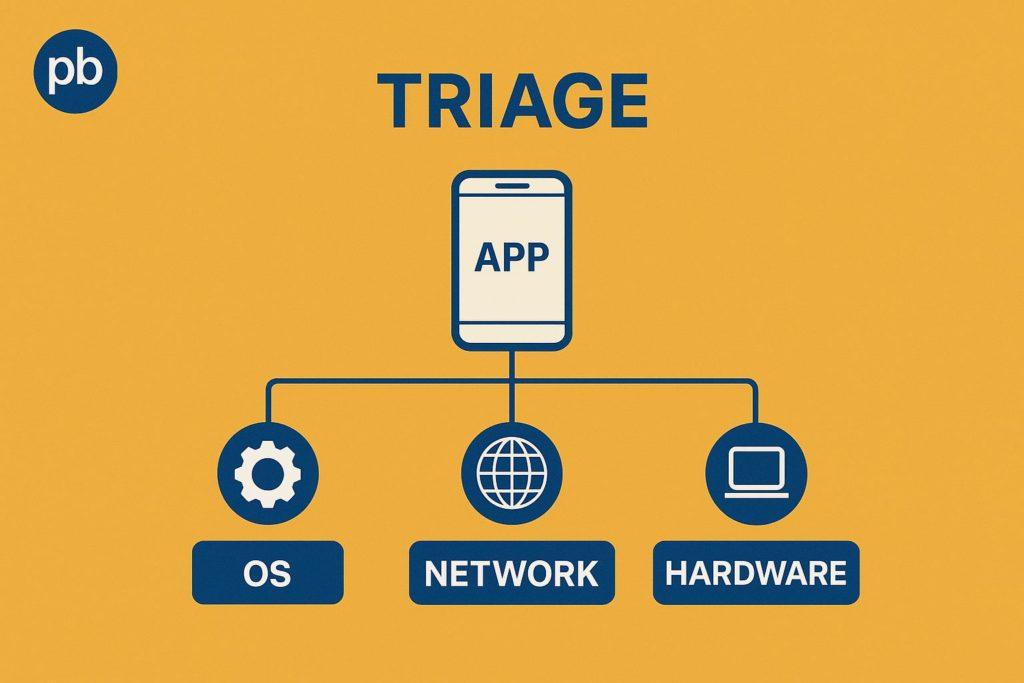
Table: Symptom, Likely Cause, And Quick Fix
| Symptom | Likely Cause | Quick Fix |
|---|---|---|
| Black screen or stuck app | App crash; Guided Access resume needed | Relaunch; re-enter Guided Access |
| Unexpected exit to Home | Gesture not blocked | Re-enable Guided Access or Single App Mode |
| Wi-Fi drops | Weak signal; captive portal | Move to private SSID; remove portal |
| Orientation wrong | Rotation lock mismatch | Set orientation; lock via kiosk mode |
| Dim brightness | Thermal throttling | Improve airflow; reduce brightness |
| Ghost touches | Dirty screen; failing digitizer | Clean; evaluate repair/replacement |
| External aspect off | 4:3 output to 16:9 | Use 16:9 assets; test scaling |
Data To Capture For Support Tickets include:
- Capture Screenshots, Device Name, And App Version
- Capture iPadOS Version, Uptime, And Storage Free Space
- Capture Network SSID, IP, And Signal Indicators
- Capture Reproduction Steps And Timestamps
- Capture Enclosure/Mount Photos For Thermal Clues
What Soak Tests Prove Reliability Before Going Live?
Soak testing validates stability by looping content for days, simulating power and network faults, and verifying automatic recovery and screenshot audits under realistic conditions.
Soak Test Steps For iPad Signage include:
- Run 48–72-Hour Continuous Playlist Loops At Target Brightness
- Pull Power And Restore To Verify App Relaunch Behavior
- Cut Wi-Fi For An Hour And Confirm Offline Fallbacks
- Force App Crash And Validate Guided Access Or MDM Relaunch
- Schedule Heartbeat/Screenshot Audits And Review Logs
Table: Test And Pass Criteria
| Test | Pass Criteria |
|---|---|
| Long-loop playback | No crashes; no dimming shifts |
| Power pull & restore | App resumes in kiosk mode |
| Network outage | Offline slate appears; queue sync later |
| App crash | Automatic relaunch without user input |
| Screenshot audit | Timely images; correct playlist visible |
Bottom Line: iPad signage excels where compact, touch-first, and mobile endpoints are needed, provided kiosk controls, power and thermal design, and content readability are addressed with discipline. A supervised, well-mounted iPad paired with full-screen PWA or native signage app, routine automation and health checks, and site-specific content rules produces dependable, human-scale digital signage that complements - rather than replaces - large commercial displays.