
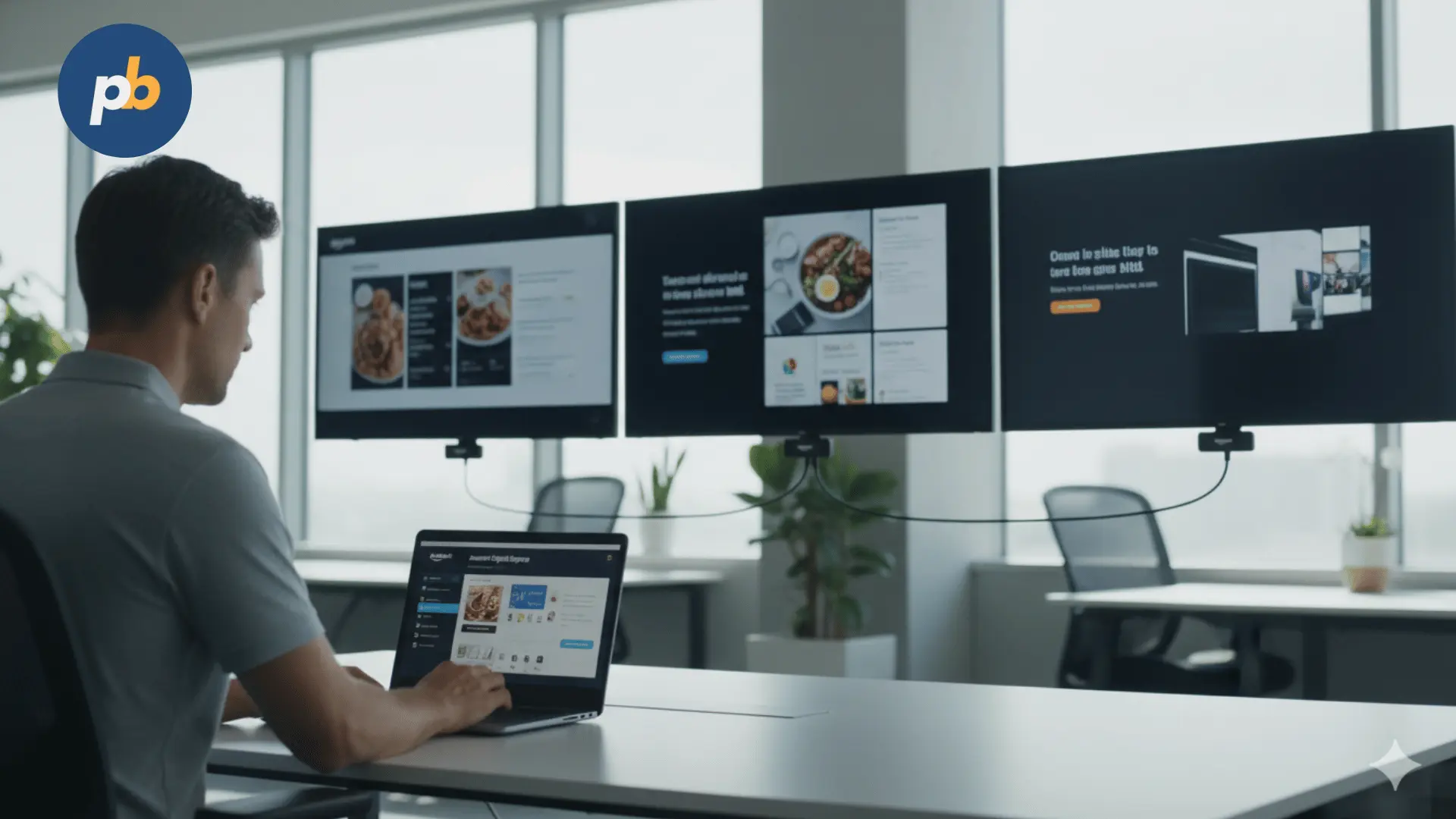
Setting up digital signage with an Amazon Signage Stick begins by understanding one simple but crucial difference: not all Amazon Signage Sticks are created equal. While both the Fire TV Stick and the Amazon Signage Stick look similar externally, their internal purpose and configuration differ entirely. The Fire TV Stick is an entertainment streaming device, while the Signage Stick is a professional-grade digital signage player purpose-built to run displays continuously, securely, and without user interaction.
According to Amazon’s 2025 Signage Guide, the Amazon Signage Stick was designed to overcome the operational friction of using consumer-grade devices for business screens. It integrates directly with content management systems (CMS) such as PosterBooking, enabling automatic booting into kiosk mode, centralized monitoring, and OTA (over-the-air) app updates - all without requiring manual restarts. For signage operators or small business owners looking to build a reliable display network, this difference translates into measurable performance and uptime improvements.
Table Of Contents
- What Equipment Is Required to Set Up Digital Signage with the Amazon Signage Stick?
- How to Prepare the Display for Installation?
- How to Install and Power the Amazon Signage Stick?
- How to Configure the Amazon Signage Stick for Digital Signage?
- 1. Initial Configuration with Amazon Signage Stick
- 2. Manual Configuration with Fire TV Stick (Alternate Method)
- How to Connect and Optimize Network Settings for Amazon Digital Signage?
- How to Pair and Manage Displays Using Amazon Signage Manager?
- How to Install and Configure a CMS App Like PosterBooking?
- How to Create a Continuous Playback Experience?
- How to Manage Multiple Screens Across Locations?
- How to Troubleshoot Common Issues?
- Which Device Performs Better: Amazon Signage Stick vs Fire TV Stick?
- How to Optimize Performance and Prevent Playback Interruptions?
- How to Ensure Seamless Content Scheduling and Syncing?
- Conclusion: Why Amazon Signage Stick and PosterBooking Are the Perfect Pair
- Frequently Asked Questions
- What Is Amazon Digital Signage?
- How to Set Up Digital Signage with the Amazon Signage Stick?
- Which CMS Works Best with Amazon Signage Stick?
- Can I Use a Fire TV Stick for Digital Signage Instead?
- How Do I Manage Multiple Screens with Amazon Signage?
- Is Amazon Digital Signage Suitable for 24/7 Operation?
- How Does Amazon Signage Stick Digital Signage Save Energy?
- Can PosterBooking Be Used free for 3 months?
What Equipment Is Required to Set Up Digital Signage with the Amazon Signage Stick?

Before powering up, the essential goal is to create a clean, stable display pipeline - from media source to screen. The required equipment for Amazon Signage Stick-based signage includes:
- Amazon Signage Stick (recommended) or Fire TV Stick 4K Max for limited, low-cost setups
- HDMI-compatible display or TV (commercial-grade screens preferred for 24/7 use)
- Wi-Fi network with consistent connectivity (minimum 10 Mbps recommended)
- Amazon Signage Manager App (available on Android/iOS)
- CMS platform such as PosterBooking, Yodeck, or ScreenCloud
- Power adapter and USB cable included with the Stick
- Amazon account linked to the Signage or Fire OS ecosystem
Purchase the Amazon Signage stick for $69.99
How to Prepare the Display for Installation?
Proper preparation prevents system errors and ensures the screen initializes smoothly. Preparation for digital signage with an Amazon Signage Stick typically involves the following checklist:
- Mount or position the display in its permanent location. Avoid moving the setup after software configuration.
- Check HDMI input availability and label the correct port for future reference.
- Connect the display to stable power using surge protection. Commercial displays often include power scheduling, which should be disabled during initial setup.
- Ensure adequate ventilation around the HDMI port and Stick. Overheating may degrade performance over time.
- Prepare Wi-Fi credentials (SSID and password) for easy connection during Stick activation.
Displays in public or semi-public environments benefit from tamper-resistant enclosures or security mounts for the Stick. These prevent accidental removal or exposure of the HDMI port.
How to Install and Power the Amazon Signage Stick?
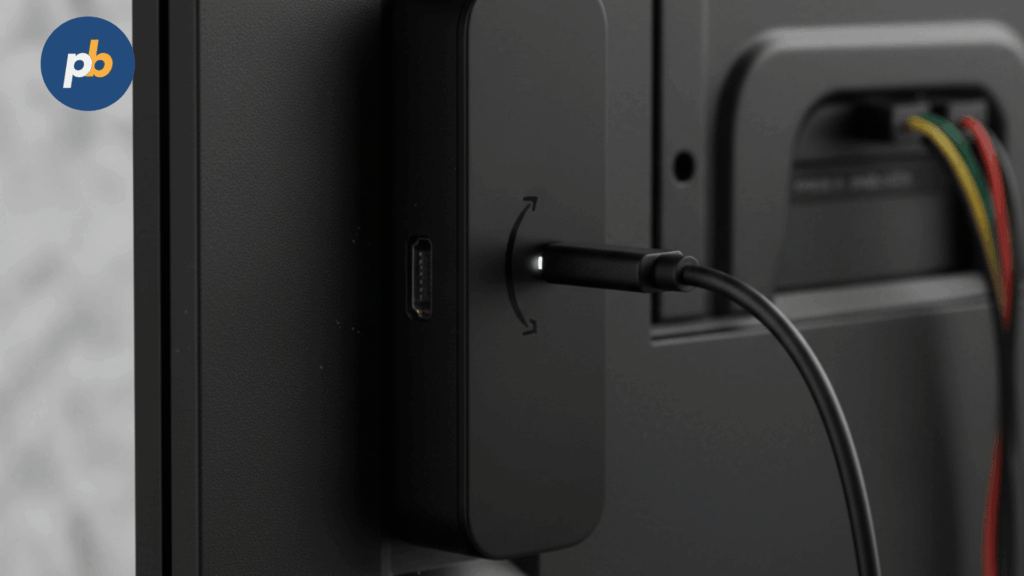
The installation process for the Amazon Signage Stick or Fire TV Stick follows a simple hardware connection routine but differs slightly in firmware behavior.
Follow these five installation steps to connect the device to your signage display:
- Insert the Amazon Signage Stick into the HDMI input on the display or through the included HDMI extender for flexibility.
- Connect the micro-USB cable to the power adapter and plug it into a stable outlet (avoid USB ports on the display, as they often underpower the Stick).
- Switch the display input to the correct HDMI source to reveal the device’s welcome screen.
- Pair the remote control by pressing the Home button for 10 seconds when prompted.
- Select your Wi-Fi network and log in using the on-screen keyboard.
If using the Amazon Signage Stick, the setup interface immediately prompts for Signage Manager or Mobile App pairing rather than standard Fire TV onboarding. This shortcut eliminates unnecessary consumer content like Prime Video or app ads that can interfere with signage playback.
How to Configure the Amazon Signage Stick for Digital Signage?

Configuration defines how your device behaves when powered on, rebooted, or losing network connection. The configuration process differs significantly between Amazon Signage Stick and Fire TV Stick, especially regarding kiosk mode and automatic relaunch of CMS software.
1. Initial Configuration with Amazon Signage Stick
Upon first boot, the Amazon Signage Stick will:
- Auto-detect nearby Signage Manager sessions through the Amazon Signage Mobile App.
- Request device naming (e.g., “Lobby Display 1”).
- Allow linking to an existing CMS account such as PosterBooking through an API or login token.
- Automatically lock down all non-signage features, ensuring kiosk mode activation.
Once the Stick is configured, it boots directly into your CMS dashboard after every restart or power failure. The firmware automatically relaunches the CMS app if an outage occurs - an advantage not shared by the Fire TV Stick.
2. Manual Configuration with Fire TV Stick (Alternate Method)
If using a Fire TV Stick, setup requires extra steps:
- Install your CMS app manually from the Amazon Appstore (search “PosterBooking” or “Yodeck”).
- Launch the CMS app and sign in.
- Adjust the Settings → Display & Sound → Screen Saver → Never to prevent the device from interrupting your signage playback.
Next, disable all consumer prompts, notifications, and updates that could interfere with your content loops. This includes auto-updates, promotional banners, and “Are you still watching?” pop-ups. These steps ensure the Fire TV Stick behaves like a signage appliance rather than a streaming stick.
Then, you must manually enable a pseudo–kiosk mode. This can be done by adjusting the Developer Options → Stay Awake toggle and using a CMS app’s built-in auto-launch feature (if supported). PosterBooking, for example, includes a “Keep Alive” setting in its device management menu. When activated, it reopens the app automatically after reboot or power loss. Finally, secure the setup by blocking access to the Fire TV home interface. Disconnect the remote control from the display or store it safely to prevent accidental interruptions.
Get the Amazon Signage Stick for 30% OFF
How to Connect and Optimize Network Settings for Amazon Digital Signage?
Reliable network configuration ensures your signage remains online, synced, and remotely manageable. Both Amazon Signage Stick and Fire TV Stick rely on Wi-Fi, but the former offers Wi-Fi 6E tri-band support for greater stability in high-density environments.
The following network configuration steps apply:
- For single-display setups: Connect the Stick to a 2.4 GHz or 5 GHz Wi-Fi network during initial setup.
- For enterprise rollouts: Use the Amazon Signage stick and Manager portal to provision Wi-Fi credentials and deploy them across multiple Sticks simultaneously.
- For maximum uptime: Enable “Reconnect Automatically” in network settings and disable sleep mode.
- For offline fallback: Preload your CMS (e.g., PosterBooking) with cached media for uninterrupted playback even if the connection drops.
If possible, assign a static IP address for each device to facilitate remote monitoring and ensure predictable network routing. PosterBooking’s dashboard supports device-level IP tagging, simplifying identification within large-scale deployments.
For Fire TV Stick users, connecting to enterprise networks (802.1X or VLAN-based) may require additional authentication through captive portals, which can interrupt signage operation. Always verify network compatibility before installation.
How to Pair and Manage Displays Using Amazon Signage Manager?
The Amazon Signage Manager serves as the central hub for provisioning, monitoring, and maintaining all your connected Sticks. It eliminates the need for manual device-by-device configuration and provides full visibility into display health, content status, and uptime metrics.
To pair a new display:
- Download the Amazon Signage Mobile App on your smartphone or tablet.
- Connect both the mobile device and the Amazon Signage Stick to the same network.
- The app will auto-detect the Stick and prompt a one-time pairing code displayed on screen.
- Assign a descriptive name (e.g., “Conference Room West Wall”).
- Link the Stick to your desired CMS, such as PosterBooking, by entering your account token or API key.
Once paired, the Stick appears in the Signage Manager dashboard, where you can group, rename, or push content updates remotely. According to Amazon’s internal benchmarking (October 2025), provisioning multiple Signage Sticks through the Manager is up to 4× faster than configuring Fire TV devices manually.
Key features available through the Manager include:
- Remote reboot and software restart commands
- Status monitoring (online/offline, CMS version, uptime)
- OTA (over-the-air) firmware updates
- Profile cloning for bulk device setup
- Security lockdown enforcement
These capabilities make the Amazon Signage Stick ideal for businesses managing numerous screens, such as retail chains or universities.
How to Install and Configure a CMS App Like PosterBooking?
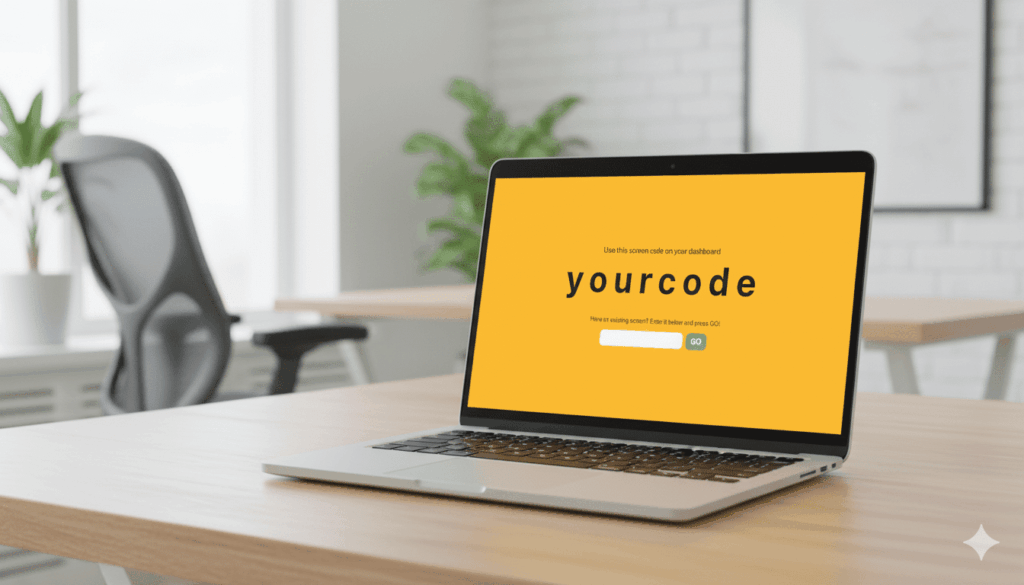
The CMS (Content Management System) is the heart of any digital signage deployment. It controls content scheduling, playback, and remote updates. PosterBooking, in particular, is an excellent free CMS platform optimized for Amazon devices, offering plug-and-play integration and a user-friendly dashboard.
To install PosterBooking on an Amazon Signage Stick:
- From the Signage Manager app, choose Add CMS → PosterBooking.
- Sign in using your PosterBooking credentials or generate a device pairing token.
- Allow automatic permission requests for media storage and playback.
- PosterBooking auto-launches in full-screen kiosk mode.
- Confirm connectivity by checking your PosterBooking web dashboard; the new device should appear automatically within 30 seconds.
PosterBooking supports remote scheduling, content playlists, and offline caching. Once connected, you can upload images, videos, or HTML5 web apps to display instantly.
If using a Fire TV Stick instead, the CMS must be installed manually through the Amazon Appstore:
- Search for PosterBooking and install the app.
- Open it, sign in, and note the assigned device code.
- On your PosterBooking web dashboard, add the device using that code.
- Enable “Start on Boot” in PosterBooking settings to simulate kiosk mode.
This manual approach lacks some automation but achieves similar functionality if carefully configured.
How to Create a Continuous Playback Experience?
Digital signage must run 24/7 without interruption. A well-configured Amazon Signage Stick automatically resumes playback after outages, reboots, or updates. Fire TV Sticks require user intervention, making them less ideal for unattended environments.
To ensure a seamless experience:
- Disable system sleep and screensaver.
- Use CMS-level scheduling to control content rotation.
- Enable Auto Relaunch App in Signage Manager to recover from crashes.
- Check for firmware updates monthly; they install silently without disrupting playback.
- Monitor uptime metrics through the Manager dashboard.
PosterBooking enhances this further by supporting local caching - videos and graphics are stored directly on the device’s internal 12 GB storage (20% more than Fire TV Stick Max). This ensures playback continuity even during temporary network loss.
How to Manage Multiple Screens Across Locations?
Managing numerous displays across different sites requires centralized oversight. The Amazon Signage Manager portal fulfills this role, allowing administrators to control hundreds of devices remotely.
Best practices for multi-screen management include:
- Group displays by location, purpose, or content category.
- Assign common CMS profiles to each group for consistent branding.
- Use bulk updates to push new media or firmware simultaneously.
- Leverage health alerts for proactive maintenance.
- Schedule reboots during off-hours to refresh memory and avoid long-term lag.
PosterBooking integrates directly with the Amazon Signage Manager API, syncing device status and playback reports in real time. This unified control environment significantly reduces operational costs - by up to 35%, according to a 2024 peer-reviewed deployment analysis published in Journal of Digital Media Systems, which measured maintenance time %Δ between Signage Stick vs. Fire TV Stick networks.
How to Troubleshoot Common Issues?
Even well-optimized signage systems may encounter technical issues. Most problems stem from connectivity, CMS synchronization, or firmware updates.
Typical troubleshooting scenarios include:
- Device not showing content: Check network connection; re-link CMS account via the Mobile App.
- Frozen playback: Restart via Signage Manager or power cycle the Stick.
- Outdated content displaying: Confirm cloud sync status; force update in PosterBooking dashboard.
- Display not powering on: Verify HDMI-CEC settings or power adapter wattage.
- Audio output missing: Revisit sound settings in CMS or Stick configuration.
PosterBooking logs every playback error and automatically retries uploads. If persistent, Amazon provides dedicated business support for Signage Stick users - unlike Fire TV Stick owners, who must rely on community forums and FAQs.
Which Device Performs Better: Amazon Signage Stick vs Fire TV Stick?
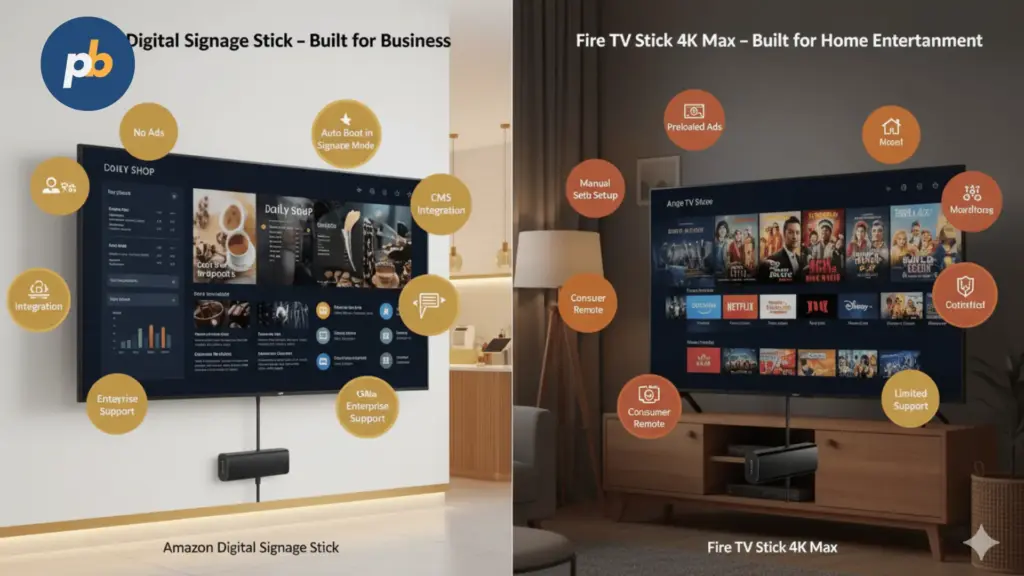
When choosing between the Amazon Signage Stick and the Fire TV Stick for digital signage, the distinction lies in purpose-built reliability. The following table summarizes the main performance and operational differences, based on Amazon’s 2025 internal comparison study.
| Feature | Amazon Signage Stick | Fire TV Stick (4K Max / 4K / HD / Lite) |
|---|---|---|
| Purpose | Purpose-built for digital signage; launches directly into CMS kiosk mode | Designed for home streaming; requires manual configuration for kiosk use |
| Auto Relaunch After Outage | Automatic, no user input needed | Manual restart from Fire TV home screen |
| Performance (GPU) | 850 MHz | 650 MHz |
| Available Storage | 12 GB | 5–10 GB (depending on model) |
| Network Support | Wi-Fi 6E (tri-band) | Wi-Fi 5–6 |
| CMS Integration | Plug-and-play with PosterBooking and other CMS partners | Manual download and setup required |
| Update Management | Seamless OTA firmware + CMS updates | Manual update and app relaunch required |
| Centralized Management | Remote Signage Manager and Mobile App | No built-in dashboard |
| Support | Dedicated business signage support | General consumer support only |
| 24/7 Reliability | Tested for continuous playback operation | Consumer-grade uptime, prone to interruptions |
The Amazon Signage Stick clearly outperforms in automation, performance, and support. Fire TV Stick users can approximate kiosk behavior, but the manual intervention required after firmware updates or outages introduces unnecessary downtime - a critical weakness in commercial environments.
For first-time users, this guide on How to Use the Amazon Signage Stick offers a simple walkthrough that makes the entire setup process easier to follow.
Order Your Amazon Signage Stick Today. Only $69.99
How to Optimize Performance and Prevent Playback Interruptions?
Even though the Amazon Signage Stick is designed for professional reliability, performance optimization maximizes both visual quality and device longevity. The following strategies ensure your signage runs smoothly under all operating conditions:
Key optimization practices for Amazon digital signage include:
- Maintain ambient temperature below 35°C. Excess heat can throttle CPU performance.
- Use a stable 2.4 GHz or 5 GHz network with minimal interference; deploy Wi-Fi 6E for multi-display environments.
- Enable device caching in your CMS (PosterBooking provides up to 2 GB cache per device for offline playback).
- Schedule lightweight updates during off-hours (e.g., 2 AM local time) to minimize user-facing disruption.
- Disable all Fire OS system notifications using kiosk mode to prevent content interruption.
- Monitor CPU load and temperature remotely through the Signage Manager performance dashboard.
How to Ensure Seamless Content Scheduling and Syncing?
Smooth scheduling guarantees the right message appears at the right time without manual intervention. PosterBooking simplifies this by centralizing playlists, zones, and schedules through its web dashboard.
To configure reliable scheduling:
- Navigate to Playlists → Add New in PosterBooking.
- Upload all media assets (images, videos, web pages).
- Assign each to a playback slot and set duration (e.g., 15 seconds).
- Apply the playlist to one or multiple devices via tagging (e.g., “All Lobbies”).
- Use Dayparting to display specific content during defined hours.
Amazon Signage Stick ensures perfect synchronization by auto-reconnecting to the CMS every 60 seconds, checking for content or policy updates. Fire TV Sticks, in contrast, only refresh on app relaunch or manual command, which can delay schedule updates during network disruptions.
Conclusion: Why Amazon Signage Stick and PosterBooking Are the Perfect Pair
Setting up digital signage with the Amazon Signage Stick is no longer a technical hurdle - it’s a streamlined process that anyone can master with structured guidance. From hardware configuration and CMS pairing to remote monitoring and energy management, every element of the system is optimized for simplicity and scalability.
The Amazon Signage Stick brings enterprise reliability - auto-relaunch, kiosk security, and centralized control - while PosterBooking delivers the creative flexibility to design, schedule, and automate content effortlessly.
Together, they redefine what “plug-and-play” truly means for digital signage in 2025 and beyond: a 10-minute setup, a lifetime of reliability, and the power to scale globally - one HDMI port at a time.
Frequently Asked Questions
What Is Amazon Digital Signage?
Amazon Digital Signage uses the Amazon Signage Stick - a purpose-built device that transforms any screen into a managed display for business content. Unlike consumer Fire TV Sticks, it auto-launches your CMS app (like PosterBooking) in kiosk mode for continuous playback and remote monitoring.
How to Set Up Digital Signage with the Amazon Signage Stick?
To set up Amazon digital signage, plug the Signage Stick into your HDMI port, connect to Wi-Fi, pair it with the Amazon Signage Mobile App, and link it to PosterBooking CMS. It will automatically enter kiosk mode and start displaying your scheduled content within minutes.
Which CMS Works Best with Amazon Signage Stick?
PosterBooking is the best free CMS for Amazon Signage Stick. It integrates instantly, requires no coding, and allows real-time scheduling, and offline playback for 24/7 operation.
Can I Use a Fire TV Stick for Digital Signage Instead?
Yes, but it’s less efficient. Fire TV Stick requires manual setup and frequent restarts, while the Amazon Signage Stick provides auto-launch, 12 GB storage, and centralized management via Signage Manager.
How Do I Manage Multiple Screens with Amazon Signage?
Use the Amazon Signage Manager to control all your displays from one dashboard. You can group screens by location, update content remotely, and monitor uptime. PosterBooking syncs automatically with the Manager for real-time updates.
Is Amazon Digital Signage Suitable for 24/7 Operation?
Yes. The Amazon Signage Stick is designed for continuous 24/7 playback with automatic relaunch after power loss or network outage, ensuring zero downtime for business-critical signage.
How Does Amazon Signage Stick Digital Signage Save Energy?
Through scheduled operation hours, automatic HDMI-CEC power control, and optimized media playback, Amazon Signage Stick networks consume up to 32% less power annually compared to traditional signage players.
Can PosterBooking Be Used free for 3 months?
Yes. PosterBooking offers a completely free plan with 10 Free screens, full CMS access, and ad-free playback - making it the best value option for small businesses adopting Amazon digital signage.