
Digital signage is transforming the way businesses engage with customers, employees, and visitors. At the heart of this technology are digital signage players, the small but powerful devices that deliver content to your screens. Whether you’re running displays in a retail store, a corporate office, or a transportation hub, choosing the right player can make all the difference.
In this guide, we’ll break down how to choose, set up, and troubleshoot digital signage players, along with recommendations for the best options available in 2025.
Table Of Contents
- What is a Digital Signage Player?
- How to Choose the Right Digital Signage Player
- 1. Performance & Hardware Capabilities
- 2. Connectivity & Compatibility
- 3. Best Digital Signage Players by Industry
- How to Set Up a Digital Signage Player (Step-by-Step Guide)
- Step 1: Connect the Hardware
- Step 2: Install the Digital Signage Software
- Step 3: Configure Display Settings
- Step 4: Upload & Schedule Content
- Common Digital Signage Player Issues & Fixes
- 1. Player Won’t Connect to the Internet
- 2. Black Screen or No Display Output
- 3. Content is Not Updating
- 4. Video Playback is Lagging or Freezing
- Best Digital Signage Players in 2025
- Emerging Trends in Digital Signage Players (2025 & Beyond)
- Future-Proofing Your Digital Signage Player
What is a Digital Signage Player?
A digital signage player is a device that connects to a screen and delivers multimedia content, including images, videos, live feeds, and interactive elements. These players can be cloud-based or standalone and vary in features, size, and processing power.
- Standalone Players: Store content locally, making them ideal for locations with unreliable internet.
- Cloud-Based Players: Sync with a content management system (CMS) for remote updates and control.
If you’re looking for a cost-effective, easy-to-use cloud-based solution, PosterBooking is a great option. It turns any standard TV into a digital signage display using an Android device or Fire TV Stick, eliminating the need for expensive hardware.
Create an Account Today and Get 10 screens free for 3 months!
How to Choose the Right Digital Signage Player
The best digital signage player depends on your industry, budget, and content requirements. Here’s what to consider:
1. Performance & Hardware Capabilities
- Resolution Support: Look for 4K or 8K playback capability.
- Processing Power: Choose a player with at least quad-core CPU and 4GB RAM for smooth performance.
- Storage: 16GB+ storage or expandable SD card slots prevent playback issues.
2. Connectivity & Compatibility
- Wi-Fi & Ethernet: A stable internet connection is essential for cloud-based players.
- HDMI Output: Ensure the player supports your display’s resolution.
- Remote Management: Cloud-based platforms like PosterBooking allow remote content updates without physical access to the player.
3. Best Digital Signage Players by Industry
| Industry | Recommended Digital Signage Player | Key Features |
|---|---|---|
| Retail & Quick Service Restaurants (QSR) | Amazon Signage Stick, BrightSign XC5, IAdea XMP-7300 | Supports real-time promotions, interactive menus |
| Corporate & Education | Samsung Tizen, LG webOS | Embedded software, no extra hardware needed |
| Healthcare & Transportation | Intel NUC 13 Pro, Lenovo ThinkEdge SE30 | Multi-zone content, emergency alerts |
| Outdoor Advertising | Navori Stix 3700, BrightSign XT244 | Weatherproof, industrial durability |
| Small Business & Budget-Friendly | Fire Stick 4k, Fire Stick | Affordable, cloud-based, works with any TV |
For small businesses and startups, PosterBooking provides a low-cost, cloud-based solution that eliminates the need for expensive digital signage hardware.
How to Set Up a Digital Signage Player (Step-by-Step Guide)
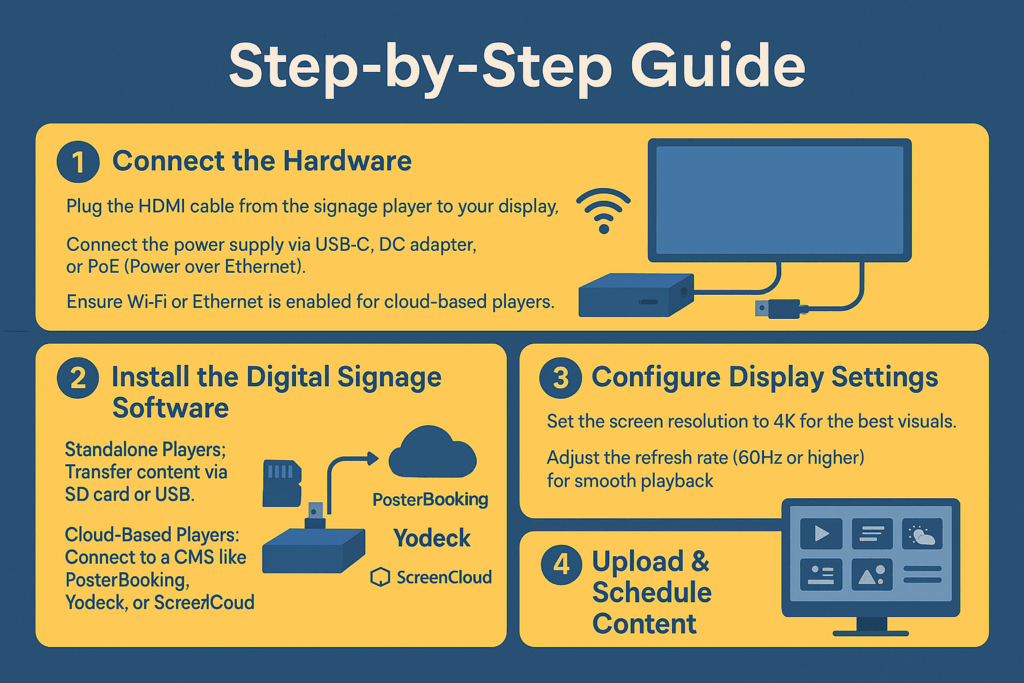
Step 1: Connect the Hardware
- Plug the HDMI cable from the signage player to your display.
- Connect the power supply via USB-C, DC adapter, or PoE (Power over Ethernet).
- Ensure Wi-Fi or Ethernet is enabled for cloud-based players.
Step 2: Install the Digital Signage Software
- Standalone Players: Transfer content via SD card or USB.
- Cloud-Based Players: Connect to a CMS like PosterBooking, Yodeck, or ScreenCloud.
Step 3: Configure Display Settings
- Set the screen resolution to 4K for the best visuals.
- Adjust the refresh rate (60Hz or higher) for smooth playback.
Step 4: Upload & Schedule Content
- Use the CMS dashboard to schedule videos, social media feeds, weather updates, or custom messages.
- Optimize files by using MP4 (H.265) and WebP for the best compression.
Don’t Miss Out! Get Access to PosterBooking Now!
Common Digital Signage Player Issues & Fixes
Even with a great setup, issues can arise. Here’s how to fix the most common digital signage problems:
1. Player Won’t Connect to the Internet
- Restart your router and player.
- Use Ethernet instead of Wi-Fi for a more stable connection.
- Assign a static IP to prevent disconnections.
2. Black Screen or No Display Output
- Ensure the correct HDMI input is selected on the screen.
- Swap out the HDMI cable to check for damage.
- If using an embedded system (Tizen, webOS), check display settings.
3. Content is Not Updating
- Refresh the CMS dashboard and manually push an update.
- Check if the player is connected to the cloud server.
- Free up storage space if the player is full.
4. Video Playback is Lagging or Freezing
- Use H.265 or VP9 video compression for smoother playback.
- Lower the bitrate to 10-15 Mbps for 4K content.
- Upgrade to a higher RAM player if handling multiple streams.
Best Digital Signage Players in 2025
Here’s a comparison of the top-rated digital signage players based on budget and performance needs:
| Player | Type | Key Features | Price Range |
|---|---|---|---|
| BrightSign XT1144 | Standalone | 4K HDR, HTML5, multi-screen support | $500-$600 |
| Chromebox 5 | Cloud-Based | ChromeOS, remote management | $300-$400 |
| IAdea XMP-7300 | Industrial | Fanless, rugged, high-reliability | $700-$900 |
| Samsung Tizen SoC | Embedded | No external player needed, built-in CMS | Included in display |
| Intel NUC 13 Pro | PC-Based | AI-powered, multi-zone support | $800-$1200 |
| Amazon Signage Stick | Cloud-Based | Free platform, works with low-cost devices | $100 |
For businesses looking to deploy digital signage without high costs, PosterBooking provides a low-cost, cloud-based alternative using Android and Fire TV devices.
Emerging Trends in Digital Signage Players (2025 & Beyond)
- 8K & HDR Support – More displays adopting Dolby Vision, HDR10+, and 120Hz refresh rates.
- AI-Powered Content Personalization – Real-time audience analytics for targeted messaging.
- IoT & Smart Sensors – Automated adjustments based on environmental conditions.
- 5G-Enabled Players – Faster content updates and remote management.
- Eco-Friendly Solutions – ARM-based players for lower power consumption.
Future-Proofing Your Digital Signage Player
To ensure long-term performance and compatibility, businesses should:
- Choose 4K/8K-capable players with at least 8GB RAM & 64GB SSD storage.
- Opt for cloud-enabled solutions like PosterBooking for remote content updates.
- Leverage AI-driven personalization for better engagement.
- Ensure network reliability with 5G or PoE-powered players.
- Monitor analytics and audience data to refine content strategies.
If you’re looking for an affordable, cloud-based solution that works with standard TVs, PosterBooking is the choice. It eliminates the need for expensive proprietary players, making digital signage accessible for businesses of all sizes.
Start your digital signage journey today with a cost-effective, easy-to-use solution.