PosterBooking is the best low-cost choice for an office testing several announcement screens. Yodeck is the best value for a growing, centrally managed screen network. OptiSigns is best for interactive lobbies and displays in existing meeting rooms. ScreenCloud is best for governed internal communications. Appspace is best when signage must connect with room and desk booking. Rise Vision is best for office-wide emergency overrides. TelemetryTV is best for IT-led data dashboards and device provisioning. BrightSign is best for organizations that prioritize dedicated player hardware and fleet diagnostics.
Table Of Contents
- How I Evaluated the Best Office Digital Signage
- Best Digital Signage for Offices in 2026
- 1. PosterBooking: Best for small-office announcements and visitor information
- 2. Yodeck:Best value for a growing office screen network
- 3. OptiSigns: Best for interactive lobbies and meeting-room displays
- 4. ScreenCloud: Best for governed internal communications
- 5. Appspace: Best when signage is part of room and desk booking
- 6. Rise Vision: Best for emergency alerts across office screens
- 7. TelemetryTV: Best for IT-led data dashboards and automated fleets
- 8. BrightSign: Best for dedicated player hardware and fleet diagnostics
- Hardware & Technology Trends
- Can an existing office TV become a digital sign?
- Is a media player necessary with a smart display?
- Integrations & Features
- Can digital signage show Microsoft Teams, Zoom, Power BI, and Google Sheets?
- Does a digital signage platform work offline?
- Is digital signage secure enough for internal company information?
- What is office digital signage?
- Cost & Operational Insights
- Final Buyer Guidance
- Which product is best for a small office with one screen?
- Which product is best for a large corporate campus?
How I Evaluated the Best Office Digital Signage
I weighted office workflow fit at 25%, remote operations and reliability at 20%, governance and security at 15%, integration and data freshness at 15%, three-year cost at 15%, and independent user evidence at 10%. These weights favor a small or midsize office that needs several useful screens and a manageable publishing routine. A multi-campus employer should increase the weight on identity, permissions, procurement, and service levels. A single reception TV should give cost and ease more weight.
The comparison combines vendor documentation with independent reviews and dated practitioner discussion. I treat vendor cases as examples of possible workflows, not proof of outcomes. A stated integration is a starting point for testing the exact tenant, device, plan, and content source. The clearest 2026 buying lesson is that the screen’s daily accuracy matters more than the length of an app catalog.
| Rank and product | Distinct best fit | September 2026 price signal | Decision-changing caution |
|---|---|---|---|
| 1. PosterBooking | Small-office announcements and visitor information on up to 10 screens | 10 watermarked screens for three months for new customers; Home Basic $52/month for 10 | Promotional “free” wording conflicts with the time limit in its terms; enterprise controls cost more |
| 2. Yodeck | Growing office network with central scheduling | One screen free while the account has exactly one. Basic $8, Premium $12, Enterprise $16 per screen/month | Moving beyond one registered screen puts the whole account on paid licensing |
| 3. OptiSigns | Interactive lobby and between-meeting content | Standard $9/screen/month annually or $10 monthly; verify add-ons | Touch, room integration, and advanced control require workflow and tier checks |
| 4. ScreenCloud | Distributed internal communications with IT governance | Core $20 and Pro $30 per screen/month, billed annually; enterprise quote | Secure dashboards and SSO sit above the cheapest workflow |
| 5. Appspace | Unified signage, space reservation, and employee app | Free tier includes one device ID; paid pricing depends on users and devices | Greater configuration and a less transparent total quote |
| 6. Rise Vision | Emergency alert overrides plus routine messaging | Business Basic about $12, Advanced about $14 per display/month | CAP alert integration and interactive options need the right tier and testing |
| 7. TelemetryTV | IT-managed dashboards and programmatic fleets | Entry $8, Core $13, Elite $16 per device/month on annual terms | Elite requires at least ten devices, and support differs by plan |
| 8. BrightSign | Dedicated players, remote diagnostics, long-lived AV estate | Hardware and premium management require a deployment quote | Hardware, CMS, provisioning, and support can be separate purchasing decisions |
These aren’t interchangeable subscription quotes. Appspace counts users as well as devices. BrightSign’s player, software, and management costs must be assembled into one proposal. PosterBooking’s introductory allowance expires under its terms. A 2026 (CompanionLink) comparison of signage platforms raises another distinction: a player reporting that it ran a playlist is different from confirming what appeared on the display. Its comparison is editorial, but the question is worth putting to a vendor when a message is legally or operationally important.
Best Digital Signage for Offices in 2026
For a small office publishing reception welcomes, staff notices, and event information across several screens, PosterBooking has the strongest paid cost-to-coverage fit. The remaining seven win when the job changes: one permanently free screen, a visitor interaction, controlled departmental publishing, reservations, emergency alerts, live dashboards, or dedicated AV hardware. The following reviews explain the operating conditions behind those distinctions.
1. PosterBooking: Best for small-office announcements and visitor information
PosterBooking makes the most sense when a small office needs to publish reception welcomes, staff notices, and event information to several screens from one account. A receptionist can update visitor guidance while an office manager changes a break-room announcement without visiting each TV. The ten-screen bundle makes this straightforward publishing workflow economical across a compact workplace.
According to 2026 (PosterBooking) pricing and screen limits, the introductory tier covers ten watermarked screens with media uploads, slideshows, and monitoring. Home Basic removes the watermark and adds scheduled playlists at a listed $52 per month for ten screens, then $6.49 monthly for each additional screen. Here’s the catch: the 2026 (PosterBooking) terms for free screens limit the ten-screen offer to three months for new customers. Other pages use less qualified “free” language. Treat the allowance as a pilot and price the paid year before you start.
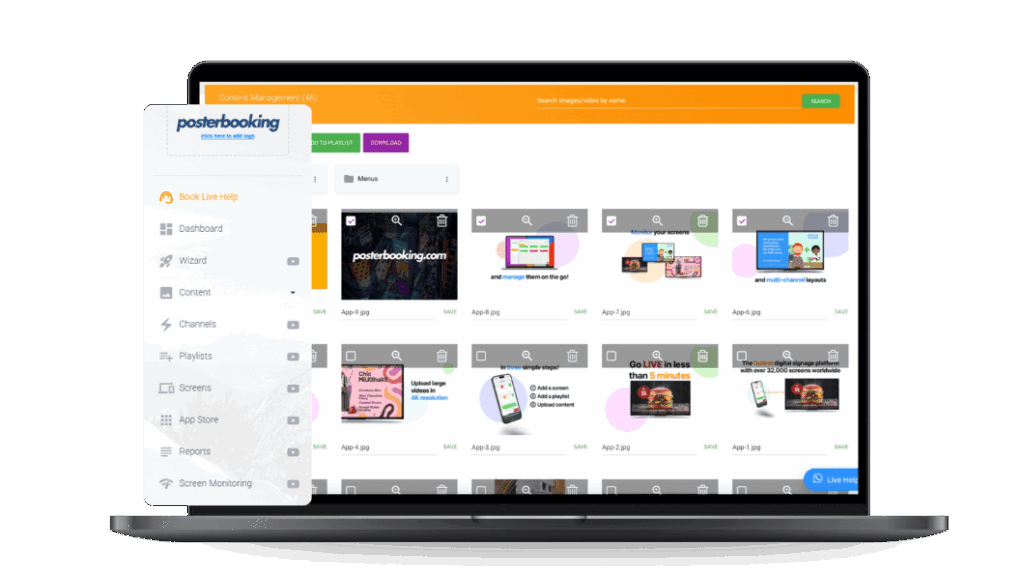
Pair a supported player, upload the image or video, build a playlist, and assign it to a screen. A manager can then change the welcome message without walking to the TV. 2026 (PosterBooking) guidance on office signage lists announcements, dashboards, and internal news, but “dashboard” needs unpacking. Showing a public webpage is different from keeping an authenticated Power BI or HR page logged in and fresh. The pricing page describes API access as a tailored request, so that integration needs a demonstration and a separate quote.
The user evidence has a boundary. Testimonials on PosterBooking’s own pricing page praise quick Fire TV setup and remote edits, but a vendor-selected testimonial isn’t a broad review pattern. 2026 (G2) coverage of PosterBooking reviews says there aren’t enough reviews for its buying insight. I can recommend testing the simple workflow at little initial cost. I can’t turn that evidence into a claim of proven reliability across a large corporate estate.
Office IT practitioners in a 2026 (Reddit r/sysadmin) discussion of dashboards disagreed about how much hardware and support four screens justified. Some wanted the least complicated setup. Others valued a support contract because staff time has a cost too. PosterBooking fits the first situation more naturally. If a failed or incorrect screen creates a safety, security, or compliance issue, the price of a trial is a small part of the decision.
What I like
- Ten-screen pilot economics: A small office can test several locations and learn which messages are actually maintained.
- Clear basic workflow: Remote upload, playlists, and monitoring match ordinary notice-board work without an AV specialist.
What users like
- The available first-party testimonials praise quick Fire TV setup and the ability to change content remotely. Independent review volume is too thin to call either a broad consensus.
What I dislike
- The free-offer ambiguity: Homepage-style claims can be read as permanent, whereas the terms specify three months for new customers.
- Enterprise security, audit history, and 24/7 support are listed on its substantially higher Enterprise Plus tier, at $830 per month on the observed US pricing page.
What users dislike
- No defensible recurring complaint emerges from the small independent sample. A buyer should test their own player, connection, and upload formats instead of treating isolated troubleshooting accounts as a failure rate.
Choose PosterBooking for simple visitor and employee notices across two to ten office screens when one or two people own publishing. Look elsewhere first when SSO, formal approval, or an audited publishing trail is a launch requirement. Use the three-month watermarked offer to validate the workflow, then compare the paid plan for ongoing use.
2. Yodeck:Best value for a growing office screen network
Yodeck is the sensible next step when one reception TV has turned into screens on several floors. Instead of rebuilding a slide on each device, a coordinator can schedule one playlist for reception and another for the staff areas. That central control, combined with a published per-screen price, gives a growing office a manageable operating model.
The current 2026 (Yodeck) on pricing lists a permanently free one-screen account and Basic, Premium, and Enterprise at $8, $12, and $16 per screen per month respectively. Annual plans can include Yodeck players under stated terms. Its 2026 (Yodeck Docs) on account pricing clarifies an important boundary after its March 2026 account changes: the free plan remains free only while exactly one screen is registered. When you add a second screen, calculate the price for the entire account, not just the extra display.
What comes through in 2026 (G2) Yodeck reviews is that non-specialists can learn the publishing routine. 2026 (G2) pricing feedback for Yodeck also leans toward value for money. Neither review pattern tells you whether a particular Fire TV or Samsung panel will wake reliably every morning. That requires the less glamorous part of a pilot: the actual files, player, network, and power schedule you plan to use.
The more revealing problem appeared before Yodeck received the content. In a 2026 (Reddit r/digitalsignage) workplace display discussion, the team was comfortable with Yodeck on a Raspberry Pi but had to refresh tables manually between Google Sheets and Slides. A scheduler cannot repair that broken data path. If the figure on your sales screen changes throughout the day, test whether it moves from the source to the display without a person clicking “update.”
One 2024 (Reddit r/digitalsignage) follow-up on a multi-area rollout reported that the office chose Yodeck and was happy with it. The original brief included mixed displays, ERP webpages, and touch interaction, so that result is interesting. Yet the update didn’t document which of those harder requirements went live. It supports Yodeck as a credible shortlist candidate, not a blanket promise about every integration.
What I like
- A credible expansion path: One free sign becomes a paid network with groups, scheduling, and a stated per-screen ladder.
- Higher tiers create room for more sophisticated governance when a communications program outgrows a reception pilot.
What users like
- G2’s recent review pattern favors usability and value, especially for non-specialists updating more than one display.
What I dislike
- The single-screen threshold is sharp: At two screens, all registered screens require paid coverage.
- A supported app or spreadsheet source is not a guarantee of automatic data refresh through another service, as the Sheets-to-Slides case shows.
What users dislike
- Available reviews include isolated device, memory, and configuration complaints. They vary by hardware and network, so use your own pilot to identify the relevant failure mode.
Choose Yodeck when you’re expanding a straightforward screen network and want editors to manage it without rebuilding content device by device. Pause the purchase if a live, authenticated dashboard is the main job and the source-to-screen refresh remains unproven. That test will tell you more than a template demo.
3. OptiSigns: Best for interactive lobbies and meeting-room displays
OptiSigns belongs on the shortlist when some screens must do more than play a loop. A visitor might navigate a lobby directory on a touch display, while a conference-room panel shows an event notice between calls. Those are different interactions, but OptiSigns has a kiosk lineup and room-system integrations alongside its ordinary playlist tools. The attraction is using one publishing environment for both.
According to a 2026 (OptiSigns) on pricing, Standard is listed at $9 per screen per month on annual billing or $10 monthly, with playlists, scheduling, templates, multiple users, and more than 100 apps and integrations. Confirm the tier required for your chosen app. Its 2026 (OptiSigns) on OptiKiosk displays describes a 32-inch touch device, while the 50-inch model is separately listed. Hardware and subscription are distinct costs.
An unused meeting-room display is the more interesting opportunity. The June 2026 (OptiSigns) guide to Teams and Zoom room signage describes content appearing between meetings and clearing when a call starts. Imagine a room showing the day’s visitor briefing at 9:00 and then yielding to a scheduled call at 9:30. If that handoff fails, the extra content is a nuisance. Have IT demonstrate it on one real room device with your tenant permissions before extending it across the office.
2026 (G2) OptiSigns reviews tag ease of use 937 times and easy setup 293 times in the observed review summary. Those are topic mentions, not 1,230 distinct customers. The same summary tags learning curve 103 times and expense 79 times. A coordinator may find the routine playlist easy while IT still has to own a secure data feed or custom kiosk. The January OptiDev announcement adds an app-building option, but it says nothing about whether AI-generated workplace content is accurate.
In a 2026 (Reddit r/sysadmin) discussion of four office screens, the buyer was considering OptiSigns alongside simpler tools and wanted to avoid maintaining another fragile system. That is the right objection. An interactive directory or a room-display handoff gives the extra features a purpose. If all four TVs repeat the same three slides, the broader feature set doesn’t automatically save anyone time.
What I like
- Idle-room reuse: Showing approved messages between meetings can increase useful screen coverage without buying another panel.
- An integrated kiosk option reduces the number of vendors involved in a visitor-facing installation.
What users like
- G2 reviewers repeatedly describe accessible setup, templates, and content changes across locations.
What I dislike
- Feature and tier sprawl: A Standard price is not a complete quote for interactive kiosks, advanced management, and the required hardware.
- Teams or Zoom authorization, display state, and handoff behavior must be verified on actual room devices.
What users dislike
- G2’s negative themes include perceived expense and a learning curve once users leave the basic playlist workflow.
Choose OptiSigns for touch-enabled wayfinding or idle meeting-room content if the device and tier checks pass. Choose a simpler plan elsewhere for a few identical looping slides. The difference will show up after launch, when someone has to support the setup.
4. ScreenCloud: Best for governed internal communications
ScreenCloud is for the office where publishing rights are as important as the design on the screen. HR needs to announce a policy, a regional manager needs to update a local event, and IT needs a record of who changed what. Its combination of publishing, remote device management, dashboard tools, and enterprise controls suits that division of work. It is a different purchase from simply getting a video to play.
On the 2026 (ScreenCloud) pricing page, Core is $20 and Pro $30 per screen each month with annual billing. Core covers ordinary apps and templates. Pro introduces premium integrations and dashboards, while Enterprise is quoted and lists SSO and onboarding. The annual offer describes an included player or a first-year discount when you bring hardware, subject to its terms. At twenty screens, Core alone is $400 per month before taxes. That makes a security or integration feature worth checking against its tier rather than assuming it comes with the entry price.
The less visible difference is how a private dashboard gets onto a public-facing device. ScreenCloud describes authenticated Tableau, Salesforce, and Datadog displays. Its 2026 (ScreenCloud) IT documentation lists SOC 2 Type II, SSO through Azure AD or Okta, audit logs, and encryption. Those are relevant controls, but they don’t answer which employee can view a sales figure or how long a dashboard token stays valid. Ask for the current audit report and demonstrate the exact permission model with a test account.
In 2026 (G2) ScreenCloud reviews, the observed topic tags include ease of use (70) and screen sharing (52). Limited customization (10) and expense (9) appear among the negative tags. These are mentions, not a representative survey. Still, the opposing views expose a real trade-off: one team welcomes central control while another wants more freedom for local editors.
That software trade-off won’t settle an ownership dispute. The 2026 (Reddit r/sysadmin) office dashboard discussion repeatedly turns to who maintains the displays and their data. Before buying ScreenCloud, decide who can publish company-wide, who can publish locally, and who responds when a regional screen stops updating. The permissions are useful only once those responsibilities are real.
What I like
- Clear separation of duties: Central identity, roles, and logs suit multi-team office communications.
- Authenticated dashboard support addresses a common gap between a static web URL and a truly usable internal display.
What users like
- The independent review pattern favors content publishing usability and service, especially once a network is running.
What I dislike
- A high starting software bill: Core’s $20 annual-billed screen rate is materially above the entry tiers of Yodeck and TelemetryTV.
- SSO and some governance features are enterprise-scope purchases, so the lower-tier feature list should not stand in for a security review.
What users dislike
- Review summaries mention price and limits in customization, plus some syncing and content-management friction.
Choose ScreenCloud when several departments need to publish under rules IT can enforce. Skip the premium for a few public welcome screens with one editor. As the number of publishers grows, the governance features become the part you’ll notice most.
5. Appspace: Best when signage is part of room and desk booking
Appspace earns its place when the screen is part of a larger workplace system. An employee books a room, the panel outside shows its availability, and a lobby kiosk helps a visitor find it. In that setting, using one platform for reservations, employee communications, and signage can be more coherent than joining three unrelated tools. If none of those connections matters, Appspace is probably more platform than you need.
The 2026 (Appspace) pricing model counts both users and devices. A premium user accesses content or reservations. A device ID covers a TV, room panel, or kiosk. The free tier lists two premium users and one device ID, with larger allowances on paid plans. That means a quote for fifty panels can still be incomplete if hundreds of staff need the booking app. Count the people and the endpoints before comparing Appspace with a per-screen CMS.
The 2026 (Appspace) platform overview connects intranet content, employee apps, signage, and reservations. Its April 2026 (Appspace) release notes for reservations show active work on room and directory features. That breadth can help a hybrid office where availability changes throughout the day. It also creates a harder implementation question: whose calendar and directory data are authoritative when a room name or booking status differs between systems?
That setup question is visible in the reviews. 2026 (G2) Appspace feedback includes praise for bringing workplace functions together, while 2026 (G2) summaries of configuration complaints mention difficult navigation and setup. Neither side is surprising. A platform that coordinates maps, calendars, people, and screens has more to configure than a slide player. If you have a workplace systems owner, that effort may replace work spread across other tools. Without one, it can become a project that never quite finishes.
A 2026 (Reddit r/flexopus) post about office signage is vendor-authored, so it isn’t independent evidence for Appspace. It does frame a useful distinction between a reception screen, a corridor sign, and a meeting-room panel. Each location needs different information at a different moment. If your pilot treats them all as identical TVs, you won’t learn whether an integrated workplace platform is worth its cost.
What I like
- Shared workplace data: Reservation and visitor context can make a room sign immediately useful rather than decorative.
- The user-plus-device pricing model forces buyers to describe the complete workflow before contracting.
What users like
- Review material supports the value of connected employee communications and workspace functions when a team uses them together.
What I dislike
- Pricing needs a scoped quote: Counting screens alone understates licenses and implementation work.
- More configuration means more calendar, directory, and permissions decisions before employees see a reliable result.
What users dislike
- Some G2 reviewers report difficult navigation and onboarding for complex configurations. That matters most without a workplace systems owner.
Choose Appspace if room booking, visitor journeys, and employee communications are already part of the same funded project. Don’t start here for a lone lobby slideshow. The more connected workflows you genuinely use, the easier its additional setup is to justify.
6. Rise Vision: Best for emergency alerts across office screens
Rise Vision is the clearest fit in this shortlist when an urgent message must take over ordinary office content. A normal morning might bring announcements and room information. An emergency alert should replace them across the right displays without waiting for someone to edit a playlist. Rise Vision supports Common Alerting Protocol (CAP), a standard format for distributing alerts, alongside routine signage and screen sharing. The override is the reason to consider it.
The 2026 (Rise Vision) on plans and alert features describes per-display licensing, remote management, and Advanced-plan emergency integration. The business prices shown in its 2026 comparisons are approximately $12 per display per month for Basic and $14 for Advanced, but you should verify the selected billing period and organization category in a quote. Its 2026 (Rise Vision Help Center) on CAP integration, updated in June, explains alert content and distribution settings, including account hierarchy. That is more actionable than a generic “emergency ready” badge.
The hard part is not designing the alert slide. A lobby, a warehouse entrance, and a fourth-floor corridor may need different instructions, and the feed must reach them at the right time. Put an actual test message through the alert source. Measure how quickly it appears, what happens to an offline player, whether people can read it from the intended distance, and how normal programming returns. Signage can supplement a safety plan, but it doesn’t replace a required fire alarm or other life-safety system.
2026 (G2) Rise Vision reviews show 165 ease-of-use mentions and 69 support mentions in the observed topic summary. Limited templates (31) and customization (29) also appear. These tags are directional rather than a controlled comparison. A routine office announcement is one thing. A branded interactive wayfinding display is another. The pricing page lists an interactive add-on at $1,200 per display per year with Advanced required. Don’t let the alert use case hide a separate kiosk budget.
The 2026 (Reddit r/sysadmin) discussion of office screens shows how quickly a request for “four TVs” turns into questions about live data and support. An emergency feed adds another owner and a more demanding failure test. If your requirement is to override twenty screens during an evacuation, the relevant evidence comes from a drill in your building. A template count won’t answer that question.
What I like
- Specific alert mechanism: CAP compatibility and override controls can be turned into a measurable drill.
- Routine communications and room screen sharing can coexist in one managed estate.
What users like
- Recent G2 reviews emphasize usable publishing and responsive support.
What I dislike
- The important feature is tier dependent: A low entry price does not automatically include the emergency configuration you need.
- Interactive wayfinding is an additional commercial and implementation decision.
What users dislike
- Some reviewers want more control over templates or need time to learn advanced layouts.
Choose Rise Vision when facilities and IT can connect and drill the alert source across the intended screens. Don’t pay for that capability if the office only needs a routine playlist. After a successful drill, you will have evidence about the system that a feature sheet cannot provide.
7. TelemetryTV: Best for IT-led data dashboards and automated fleets
TelemetryTV fits an office where the screens behave more like managed IT endpoints than digital posters. A sales team wants a live target. Support wants queue health. A regional manager wants a local playlist. The value of one system is that IT can provision devices, govern access, and investigate a failure across those uses. The question is whether the information on screen remains current, not just whether the player stays online.
The observed 2026 (TelemetryTV) on pricing lists Entry at $8, Core at $13, and Elite at $16 per device per month on annual terms. Core lists automatic provisioning, an API, group permissions, and activity logs. Elite adds proof-of-play and device logs. Entry and Core have no minimum device count on the current page, whereas Elite requires ten. Phone support is reserved for Enterprise and custom plans. A buyer with six screens should not assume Elite’s advertised unit price is available as a six-license order.
The pricing FAQ lists Android, ChromeOS, Windows, Linux, and Fire OS devices. That breadth is helpful when an office inherits mixed hardware, though each OS version needs its own playback and remote-reboot check. TelemetryTV also describes SAML and SCIM and offers its SOC II report under NDA. If a screen shows internal figures, ask for the audit scope and test what happens when an editor loses access. Otherwise, a secured CMS could still expose the wrong dashboard in the wrong corridor.
The 2026 (G2) TelemetryTV review set is smaller than those of OptiSigns or Yodeck. Users describe adaptable content management, but the available complaints include device setup friction. One older complaint about an unsupported platform isn’t a reliable 2026 compatibility list. The better use of that feedback is to make device enrollment a pass-or-fail step in your own trial.
Consider the 2026 (Reddit r/digitalsignage) Sheets-to-display problem. The player’s software worked, while the table feeding it required a manual refresh. That example isn’t a TelemetryTV review, but it exposes the right procurement test for any dashboard platform. Change a number at the source, let a credential expire, and see what viewers actually get. A green device indicator can sit beside yesterday’s KPI.
What I like
- Provisioning plus API: These make repeated office installs and data-driven content more manageable for an IT owner.
- Separate playback and device logs on the high tier support operational investigation.
What users like
- Reviewers value adaptable content and central management, though the independent sample is smaller than for several rivals.
What I dislike
- The Elite minimum matters: Proof-of-play logs at that tier may be awkward for an office with fewer than ten devices.
- Phone support is not part of every plan, so incident response needs explicit procurement terms.
What users dislike
- Isolated setup and compatibility complaints appear in reviews. Confirm the exact hardware and identity configuration rather than generalizing them.
Choose TelemetryTV when IT owns the source data, device enrollment, and permissions. Choose a simpler CMS if nobody can maintain the feed or the office only rotates slides. A successful data-refresh test is what earns the more capable platform its place.
8. BrightSign: Best for dedicated player hardware and fleet diagnostics
BrightSign is the hardware-led choice for a campus that treats screen players as an AV fleet. A facilities or IT team may have dozens of devices behind panels in different buildings. It needs to see which ones are unhealthy and recover them without sending someone across campus. BrightSign sells the dedicated players and management ecosystem for that job. It doesn’t settle who writes the content or which CMS makes publishing easy for HR.
The company’s 2026 (BrightSign) Control Plus update describes status dashboards, alerts, and diagnostics following its June announcement. But 2026 (BrightSign Docs) management documentation separates device control from content authoring. Bring both teams into the demo: IT should ask how it provisions and restarts a player, while HR should change tomorrow’s announcement. The quote needs the player model, authoring route, cloud tier, installation, and support together.
Player diagnostics still leave one blind spot. A healthy BrightSign box can’t by itself tell you whether the panel is powered on, the HDMI input is correct, or the notice is factually right. The editorial 2026 (CompanionLink) comparison of playback verification draws a similar line between player status and evidence of the display output. If the message must be verified, ask what the proposed configuration observes at the screen rather than assuming a health dashboard is photographic proof.
There isn’t enough independent review volume for a sweeping reliability verdict. 2026 (G2) BrightSign reviews include praise for the hardware and comments about learning the authoring tools, but only a handful of accounts are available. The 2026 (Reddit r/sysadmin) office player discussion is more useful as a cost debate. One administrator balked at a roughly £500 player. Others thought that expense reasonable once remote management and support were included. Your estate size and the cost of an on-site visit decide which view applies.
What I like
- Fleet-oriented diagnostics: A standard player estate offers IT a clear device management surface.
- Multiple authoring or partner-CMS paths allow a professional AV design, provided ownership is explicit.
What users like
- The limited review and practitioner sample points to durable playback and flexible deployment in managed environments.
What I dislike
- The quote is composite: Player hardware, management tier, content software, installation, and support may be priced separately.
- A more capable authoring ecosystem imposes training on a communications team that only wants to change one slide.
What users dislike
- Available complaints focus on initial learning and perceived device cost. Review volume is insufficient to call either a universal problem.
Choose BrightSign when IT or an AV partner will maintain a standardized estate large enough for remote diagnostics to save real visits. Use a simpler player for two low-stakes TVs. The hardware becomes valuable when the recovery process has a clear owner.
Hardware & Technology Trends
Start with the content and operating hours, then pick the display and player. A reception screen can be tested on an existing TV. A room panel, interactive directory, continuously running lobby wall, and low-power static sign impose different demands. Commercial panels may offer scheduled power, portrait support, management, and service terms. A dedicated player can simplify standardization but adds hardware and a connection to maintain.
| Office zone | Sensible starting hardware | Test before buying at scale |
|---|---|---|
| Reception and staff lounge | Existing TV and supported player for a pilot | Automatic wake, app relaunch, readable text, remote status |
| Meeting-room idle screen | Compatible room display or integrated system-on-chip panel | Signage-to-call handoff, room status, tenant permissions |
| Door and desk booking | Small commercial panel or purpose-built booking device | Touch response, calendar sync, mounting, power, accessibility |
| Lobby directory or video wall | Commercial high-hour panels and managed playback | Brightness, synchronization, failure recovery, service access |
| Static room or wayfinding label | Color E-Paper where supported | Update latency, readability, device management, battery plan |
| Secure KPI wall | Managed commercial display and locked-down player | Authenticated feed, stale-data indicator, network isolation |
In 2026, office signage is increasingly connected to the systems that run the workplace. That sounds abstract until you picture a meeting-room screen: it has to show useful content when the room is empty and get out of the way the moment a call begins. Screens are good at reaching people as they move through a building. Teams, Zoom, and an intranet can carry the details someone needs to act. Giving each channel a distinct job makes the message less likely to be repeated everywhere and ignored everywhere.
According to a 2026 (OptiSigns) guide to meeting-room integrations, its June 2026 management system can put signage on supported Teams, Zoom, Webex, and Google Meet room displays between meetings, then clear it when a call starts. That makes an existing screen more useful without interrupting its primary job. It also moves part of the buying decision to IT: tenant authorization and the exact room device matter more than a generic integration logo. OptiDev, the company’s app builder, was introduced in January rather than June 2026.
In June, BrightSign announced Control Plus. Its August 2026 (BrightSign) update on fleet management describes health dashboards, alerts, and diagnostics. An IT lead can now ask what the system knows when a distant player fails, although player health still doesn’t prove what the panel displayed. In a February 2026 (Reddit r/sysadmin) discussion of office media players, one buyer believed updates required a local machine and another pointed to cloud control. That disagreement is a reason to request a live demonstration of the current provisioning path.
Hardware is moving in two directions at once. Samsung’s 2026 (Samsung Newsroom) announcement of Color E-Paper points toward low-power, relatively static signs. Its Spatial Signage work targets visual impact. Sony’s 2026 (Sony Pro) BRAVIA display overview emphasizes professional panels and zero-touch provisioning. A room identifier, a continually changing KPI wall, and a visitor kiosk are different hardware purchases. Decide how often the image changes and how long the panel runs before choosing a CMS-compatible device.
The less convincing 2026 development is the rush to put a percentage on AI engagement. 2026 (DigitalSignage.com) on the state of digital signage calls its report an editorial synthesis rather than an original survey, yet presents 38% adoption for AI scheduling and a 23% engagement gain without a documented workplace sample or method. Its market-size figures differ within the same page. I wouldn’t use those figures to justify an office purchase. A weekly check of content age, screen uptime, alert delivery, and whether employees understood the message will tell you more about your own network.
Can an existing office TV become a digital sign?
Yes, if a compatible built-in app or external player can run the chosen software and the panel behaves reliably during your operating hours. Check the TV’s model and OS, app version, orientation, automatic power-on, scheduled sleep, Wi-Fi, and HDMI behavior. Commercial panels often provide duty-cycle and management features better suited to long daily operation. Sony’s 2026 provisioning tools and Samsung’s different signage formats show why hardware selection now shapes the management model as much as picture quality.
Is a media player necessary with a smart display?
A separate player is unnecessary when a supported system-on-chip display runs the required app and passes your reliability test. A separate box remains useful when the panel’s OS lacks the right application, when IT needs a standardized fleet, or when playback and recovery are more demanding. A dedicated player adds another power supply and connection. A built-in app reduces components but can tie the deployment to a specific display model and firmware lifecycle. Test both against the same content before standardizing.
Integrations & Features
An office screen should have an audience, a job, an authoritative data source, and a named owner. A calendar icon on a product page does not establish that a meeting cancellation reaches the room panel. Likewise, a dashboard app does not prove a signed-in Power BI report refreshes without a person reauthenticating. The relevant integration is the complete path from source to visible, recoverable content.
The best signage platform depends on the screen’s job, the person who edits it, and what happens when it fails. The same vendor can handle several jobs, but it should not be assumed that a feature listed in a catalog works identically across every device and plan.
| Office screen and content | Best starting point | What to verify before rollout |
|---|---|---|
| Reception welcome, visitor directions, event notice | PosterBooking for a trial. OptiSigns for touch | Visitor-facing watermark, player auto-start, accessibility, and who updates names |
| Break-room HR bulletin and recognition | Yodeck for value. ScreenCloud for permissions | Local versus global publishing, content expiry, and readable type at viewing distance |
| Meeting-room idle display and booking panel | OptiSigns for between-meeting reuse. Appspace for reservations | Calendar authorization, handoff into a call, room status, and panel/device licenses |
| Live sales, support, or operations KPI | TelemetryTV or ScreenCloud | Authentication, refresh rate, field-level privacy, stale-data warning, and fallback content |
| Office-wide emergency notice | Rise Vision | CAP source, override drill, offline behavior, accessibility, and return to normal schedule |
| Large campus player estate and video wall | BrightSign | Remote diagnostics, display power control, content CMS, mounting, and service ownership |
An office café or corporate restaurant is a useful edge case. Its menu may require daypart scheduling, current prices, availability, and allergen information. A simple manually updated board can use PosterBooking or Yodeck. If those facts must sync with a POS or kitchen system, test the named connector and failure state rather than assuming the office-wide CMS solves food-service accuracy. Treat the café menu as its own workflow within the wider office network.
Can digital signage show Microsoft Teams, Zoom, Power BI, and Google Sheets?
Often, but each source needs a different integration and permission check. A Teams or Zoom room display may show signage between meetings. A Power BI dashboard needs a secure authentication and refresh route. A Google Sheet exported through Slides may retain a table that needs manual updating. The 2026 workplace board discussion above documents that last failure mode. Ask for a working demonstration with your own tenant and data, not a screenshot of an integration logo.
Does a digital signage platform work offline?
Many players can continue showing cached media after losing connectivity, but live dashboards and alert feeds depend on the data and delivery path. Verify what is stored locally, for how long, whether scheduled content continues correctly, and how the device recovers. An offline player showing yesterday’s figures can be more misleading than a blank screen. Put a timestamp or stale-data fallback on operational dashboards.
Is digital signage secure enough for internal company information?
It can be, when the vendor’s controls and your content design match the information’s sensitivity. SSO, role permissions, logs, audit evidence, encrypted transport, and device lockdown are useful checks. ScreenCloud lists SOC 2 Type II and enterprise SSO, while TelemetryTV offers access to an audit report under NDA. Neither fact authorizes displaying payroll details in a public lobby. Restrict the fields shown, protect credentials, and test whether a departing employee loses publishing access promptly.
What is office digital signage?
Office digital signage is a managed system of displays and players that presents location-relevant workplace information. A content management system (CMS) schedules and distributes messages, while the player renders them on a TV, kiosk, room panel, or video wall. Typical content includes visitor guidance, room status, company announcements, live operational metrics, and emergency overrides. A television showing a static USB slideshow is a display, but it lacks the central updating and monitoring that make a screen network manageable.
Cost & Operational Insights
| Representative public plan | Ten-screen annual software reference | Main exclusion or condition |
|---|---|---|
| PosterBooking Home Basic | $624 | Ten-screen bundle; hardware and tax extra |
| Yodeck Basic | $960 | Annual billing; Premium integrations extra |
| OptiSigns Standard | $1,080 | Annual billing; interactive tier and hardware extra |
| ScreenCloud Core | $2,400 | Annual billing; Pro or enterprise controls extra |
| TelemetryTV Entry | $960 | Annual billing; verify dashboard needs by tier |
| Rise Vision Business Basic | About $1,440 | Indicative monthly rate; alerts may require Advanced |
| Appspace and BrightSign | Quote | User and device mix, hardware, and management scope vary |
These figures compare published entry software amounts as of September 2026, not equivalent office bundles. Verify the checkout term, minimum devices, taxes, and any support or integration line items.
Budget for the display, player, software, installation, integration, and ongoing content owner. A subscription table captures only one line. A ten-screen office at Yodeck Basic’s listed $8 per screen would spend $80 per month in software before tax and hardware. The same count at ScreenCloud Core’s listed $20 would spend $200 per month. Over three years, that software difference is $4,320 at unchanged rates, before tier changes. The comparison is illustrative, since the feature sets and annual terms differ.
To choose office signage, test the one workflow whose failure would cost your team the most, then price that exact configuration at your future screen count. A polished demo of a slideshow is a poor proxy for a secure KPI feed or emergency override.
- Map the first six to ten screens. Record each location, audience, screen orientation, duty cycle, owner, and content source. Reception information, a visitor kiosk, and a finance KPI should not automatically share permissions.
- Trace the data path. Write down where a dashboard or room schedule originates, how it authenticates, its refresh interval, and what the display shows when a token expires. Test a deliberately stale data item.
- Prove the recovery path. Disconnect Wi-Fi, reboot the player, power-cycle the panel, and verify remote status. Ask whether the system reports player playback, panel power, or actual on-screen proof.
- Exercise publishing controls. Have an HR editor draft a notice, a local manager approve it, and an IT admin review the audit history. If the plan lacks those capabilities, document the compensating process.
- Request a full three-year quote. Include devices, mounts, software tier, additional editors, SSO, alert integration, support, taxes, and any onboarding. Recalculate for twice the number of screens.
- Set an outcome measure. Track the percentage of screens online, the age of displayed content, alert delivery time, staff-reported message recall, or reduced reception questions. Do not infer engagement from a vendor-wide statistic.
A small pilot exposes the weak link. You might discover that the sales spreadsheet never refreshes in the slideshow, that every HR edit lands in IT’s queue, or that TVs stay asleep after a power cut. Those are different problems with different fixes. Discovering them on three screens is far less disruptive than finding them on thirty.
Final Buyer Guidance
Which product is best for a small office with one screen?
Yodeck is the clearest long-term software starting point for exactly one screen because its free account is documented as ongoing while that one-screen condition holds. PosterBooking offers a broader multi-screen promotional pilot, but its terms limit the new-customer free period to three months. If the single screen must manage room booking or an emergency alert, choose for that workflow instead of the free license.
Which product is best for a large corporate campus?
Appspace is the best shortlist candidate when the campus wants reservations, visitor journeys, and employee communications in one system. BrightSign is the best hardware-led shortlist candidate when player operations dominate. ScreenCloud is a stronger fit if the central task is governed internal messaging, and Rise Vision if CAP alert overrides are decisive. Run a multi-building pilot because device count alone does not reveal which operating model fits.
Start with the message your office needs on screen this quarter, then price the way you’ll operate it next year. A small team can use PosterBooking’s trial to learn which locations need a screen and compare the paid continuation with Yodeck. A communications department should put ScreenCloud’s roles in the hands of real local editors. A hybrid office should decide whether it needs Appspace’s booking system or simply OptiSigns’ use of idle meeting displays. For KPIs and safety alerts, the decision belongs to whoever can run the data, override, and recovery tests.
Before signing, have the vendor show your hardest workflow on your hardware, identify the plan that enables it, and put the three-year cost and support response in writing. You’ll know more from that hour than from another fifty feature checkboxes.