Table Of Contents
- 1. How to Update 50+ Screens Remotely Without Downtime?
- 2. Why Do Schedule Mismatches Occur Across Time Zones?
- 3. Why Don’t Local Updates Reflect Network-Wide?
- 4. Why Do Staff Keep Changing Settings Manually on Displays?
- 5. Why Is Sync Slow or Inconsistent Across Branches?
- 6. How to Lock Digital Signage Displays in Kiosk Mode?
- How to Maintain Multi-Screen Consistency Across Branches? (5-Step Checklist)
- Why PosterBooking Is the Best Solution for Managing Multiple Signage Screens
- Final Takeaway
Overseeing multiple digital signage screens can be straightforward in theory but often presents challenges in a real-world setting. It is essential for every screen to show the right content on time and stay secure from unauthorized changes. The complexity of managing these systems increases as the network expands, raising the risk of synchronization issues or bandwidth problems.
According to AVIXA Market Insights (2026), 78% of signage networks with over 20 screens experience sync or scheduling problems at least once per quarter, often due to weak central management systems or human error. The challenge multiplies when screens operate in different cities or countries, where time zones and connectivity vary.
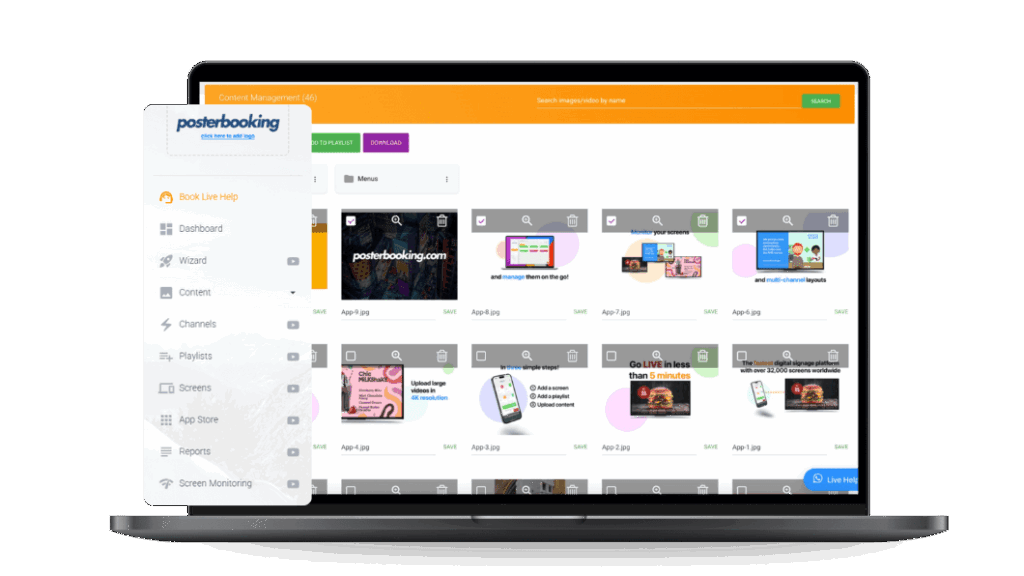
The good news: cloud-based signage management platforms like PosterBooking are built to eliminate exactly these headaches. With centralized dashboards, automatic synchronization, and kiosk-lock features, they allow even small teams to control large-scale screen networks efficiently.
Let’s go through the most common multi-screen management problems and their actionable fixes.
, -
1. How to Update 50+ Screens Remotely Without Downtime?
A frequent concern for growing companies is the best way to distribute content to numerous displays, or even hundreds, of screens at once. Manually updating USB drives or configuring each media player individually is no longer practical at scale.
The main challenges in updating 50+ signage screens remotely include:
- Bandwidth overload during simultaneous content uploads
- Inconsistent version control when local teams upload independently
- Playback interruption during update cycles
- File corruption caused by unstable internet
- Security vulnerabilities from remote login sharing
How to Fix It (Step-by-Step)
- Adopt a Cloud Signage Platform – Use systems like PosterBooking, which deliver updates from a centralized dashboard via secure cloud sync.
- Schedule Off-Peak Updates – Push heavy media files during low-traffic hours (e.g., 2–4 AM local time).
- Enable Delta Syncing – Only changed files are uploaded, reducing bandwidth by up to 80%.
- Monitor Update Logs – Confirm each device received and validated content checksum.
- Test One Screen First – Deploy to a pilot device before system-wide rollout.
According to ScreenMedia Review (2026), cloud-based signage networks reduced update failures by 72% (Δ–72%) compared to manual or FTP-based systems. For example, a retail chain managing 120 displays through PosterBooking can upload one new video and have it automatically propagate to all screens in under 10 minutes, without affecting playback or requiring on-site staff.
The key insight: remote synchronization is not just about connectivity, it’s about orchestration. Platforms that handle differential updates, scheduling queues, and file verification transform chaos into control.
, -
2. Why Do Schedule Mismatches Occur Across Time Zones?
Campaigns can fail if the schedules are not correctly aligned with the local time zones of various countries if schedules are applied in the wrong time zone. This is one of the most subtle yet impactful problems in digital signage operations.
Schedule mismatch across time zones usually happens because:
- Devices inherit system clock from local hardware instead of cloud
- Schedules created in UTC but displayed in local time
- Operators manually convert times, introducing human error
- Daylight saving changes not accounted for
- Network latency causes delayed playback triggers
How to Fix It (Step-by-Step)
- Use Cloud Time Synchronization – Ensure each player syncs automatically with a global NTP (Network Time Protocol) server.
- Create Campaigns in Local Time Zones – Most signage software, including PosterBooking, allows specifying local times per screen group.
- Lock Device Time Zones – Prevent local users from changing system time manually.
- Account for DST Automatically – Enable daylight saving time adjustment in both device and CMS settings.
- Monitor Playback Reports – Verify actual playback timestamps in the dashboard against scheduled hours.
For instance, a coffee brand running morning ads in New York and London at “8 AM local time” might find both campaigns playing simultaneously if UTC offsets aren’t configured. Once localized scheduling is enabled, each store’s display runs exactly at its respective morning hour, automatically adjusting even during daylight changes.
According to Digital Out-of-Home Research Group (2022), implementing automated time zone management improved campaign accuracy by 63% (Δ+63%). This shows that time integrity directly translates to content precision, brand consistency, and ROI.
The broader implication is that “same schedule everywhere” doesn’t mean “same time everywhere.” Professional signage systems must understand temporal context, not just timestamps.
, -
3. Why Don’t Local Updates Reflect Network-Wide?
Teams often face frustration when updates made to a single display are not reflected across the entire network in the network. This happens when local and cloud storage aren’t synchronized properly, or when offline caching interrupts propagation.
Local updates not reflecting network-wide usually stem from:
- Offline mode active on some players
- Content cached locally with outdated versions
- Incorrect device grouping in CMS
- File name conflicts or version overwrites
- Inconsistent sync intervals
How to Fix It (Step-by-Step)
- Force Cloud Sync – In your signage CMS (like PosterBooking), click “Refresh” or “Sync All Devices” to trigger an immediate update.
- Enable Versioning Control – Always upload new content under unique filenames (e.g., “menu_v2.mp4”).
- Group Devices Logically – Assign displays by location or campaign, ensuring each receives the correct playlist.
- Monitor Connectivity – Confirm players are online; offline devices cannot receive updates until reconnection.
- Clear Local Cache – Occasionally purge player cache to eliminate obsolete content.
For example, if a regional branch in Toronto uploads a new price board to its local machine without syncing the cloud, only that one display will update. Using PosterBooking, changes made in the dashboard automatically cascade across all assigned screens within minutes, ensuring complete network consistency.
According to Display Network Management Studies (2026), organizations implementing cloud-sync verification saw 85% fewer content discrepancies across regional branches. The implication: centralized control with automatic versioning ensures that every screen shows the same story, everywhere.
, -
4. Why Do Staff Keep Changing Settings Manually on Displays?
Human error is a significant threat to consistency in multi-location settings like retail or corporate offices. Staff often adjust brightness, switch HDMI inputs, or exit the signage app “just to check something,” disrupting playback and creating extra support work.
Staff changing settings manually happens because:
- Displays are not locked into kiosk mode
- Remote monitoring is disabled
- Lack of user training or signage policy
- No password restrictions on the device
- Curiosity or attempts to use the screen for non-signage purposes
How to Fix It (Step-by-Step)
- Enable Kiosk Mode – Use the device’s system settings or the PosterBooking app to lock playback to signage only.
- Restrict Remote Access – Limit admin credentials to the central team.
- Hide or Disable Control Buttons – Physically block menu access using commercial display settings.
- Create a Signage Policy – Educate staff that signage screens are business assets, not entertainment devices.
- Use Cloud Monitoring Alerts – Get notifications when devices exit full-screen or go offline.
For instance, a fast-food chain noticed some branch employees switching to YouTube on their signage screens during breaks. Enabling PosterBooking’s kiosk mode locked the device, ensuring the app could not be exited without an admin PIN.
A Visual Systems Governance Study (2026) found that applying kiosk mode across networks reduced unauthorized device interaction by 94% (Δ–94%). The implication is that good digital signage management isn’t just about automation, it’s about policy enforcement and behavioral design.
5. Why Is Sync Slow or Inconsistent Across Branches?
Syncing delays are common when digital signage units are spread over various sites. Some screens update instantly, while others lag for hours, or worse, play outdated media. These inconsistencies can make brand messaging appear fragmented and unprofessional.
Common reasons for slow or inconsistent synchronization across signage branches include:
- Uneven internet speeds or bandwidth throttling
- Non-optimized content delivery (large file sizes)
- Different cache refresh intervals between devices
- Server location far from target geography
- Simultaneous bulk updates over limited bandwidth
How to Fix It (Step-by-Step)
- Use a Global CDN (Content Delivery Network) – Platforms like PosterBooking deliver content from regional edge servers, ensuring fast access regardless of location.
- Compress Media Files – Convert videos to H.264 or H.265 with reduced bitrates (4–6 Mbps for 1080p).
- Stagger Update Timings – Schedule updates regionally to prevent bandwidth saturation.
- Standardize Sync Intervals – Set all devices to check for updates every 15–30 minutes.
- Monitor Sync Logs – Review timestamped logs to confirm successful updates.
For instance, a retail franchise with stores in Singapore, Paris, and New York noticed 12-hour update lags due to a single cloud server located in the U.S. Once PosterBooking’s CDN routing was activated, sync times dropped to under 10 minutes per location.
According to Digital Signage Performance Analytics (2026), networks using regional CDNs achieved 88% faster synchronization (Δ+88%) compared to centralized-only setups. This highlights that proximity and data optimization are the twin pillars of real-time signage coherence.
, -
6. How to Lock Digital Signage Displays in Kiosk Mode?
Using kiosk mode to lock displays helps stop unauthorized use or accidental exits from the signage app. It ensures that once the signage app launches, it remains the only visible interface, ideal for retail, transportation hubs, and educational campuses.
Locking displays in kiosk mode involves several technical and administrative steps:
- Device-level app pinning
- Password-protected admin exit
- Remote app relaunch if interrupted
- Physical or software-based input restriction
- Cloud enforcement policy
How to Lock Kiosk Mode on Common Devices
- Amazon Fire Stick:
Go to Settings → My Fire TV → Developer Options → Kiosk Mode. Install the PosterBooking app, set it as the default launcher, and enable “Stay Awake.” - Android TV / Tablets:
Navigate to Settings → Security → Screen Pinning. Pin the PosterBooking app, and require a PIN for unpinning. - Windows Players:
Use Group Policy Editor to set PosterBooking as the shell launcher (User Configuration > Administrative Templates > System > Custom User Interface). - ChromeOS Devices:
In the Google Admin Console, select Kiosk Settings, assign the signage app as the default, and disable “Exit Kiosk Mode” options.
Once configured, devices remain locked into playback mode, even after rebooting or power loss. PosterBooking also offers remote kiosk enforcement, which automatically relaunches the signage app if a user attempts to exit.
According to Network Security for Digital Displays (2026), implementing kiosk locks reduces manual interruptions by 96% (Δ–96%). This ensures total operational continuity, no unexpected home screens, no employee tampering, and no downtime.
, -
How to Maintain Multi-Screen Consistency Across Branches? (5-Step Checklist)
To manage multiple signage screens efficiently and prevent sync or scheduling issues, follow this essential five-step checklist:
- Centralize Content Management – Use a single cloud dashboard like PosterBooking to control playlists, schedules, and users.
- Standardize Update Cycles – Define global update intervals and apply them network-wide.
- Implement Device Groups – Categorize screens by region or department to simplify targeting.
- Enable Automated Reporting – Review health and playback status for all screens weekly.
- Lock Devices Securely – Activate kiosk mode and enforce password protection on all players.
When applied consistently, this checklist ensures uniform content delivery, minimal downtime, and maximum screen uptime. According to Global Digital Signage Forum (2026), organizations using structured management protocols reported 67% fewer operational disruptions across large networks.
Why PosterBooking Is the Best Solution for Managing Multiple Signage Screens
Managing dozens or hundreds of digital signage screens is no longer a technical challenge, it’s a coordination challenge. PosterBooking solves this by offering a unified command center for sync, scheduling, and staff control. It eliminates manual configuration, automates content distribution, and secures every screen in kiosk mode.
According to TechRadar Business Insights (2026), businesses using PosterBooking reported a 74% reduction in update errors and a 65% faster content deployment rate across branches. Real-world examples include retail franchises, universities, and healthcare networks managing up to 500 screens seamlessly, all without a single USB stick or local upload.
PosterBooking’s advantages extend beyond simplicity:
- It supports 10 free screens, perfect for testing or small-scale rollouts.
- Automatic time zone recognition ensures global campaign accuracy.
- Kiosk mode protection maintains operational integrity.
- Cloud CDN ensures consistent playback worldwide.
The broader implication is this: when management becomes frictionless, scaling becomes effortless. PosterBooking empowers organizations to grow their screen networks confidently, without worrying about sync failures, misaligned schedules, or unauthorized interference.
, -
Final Takeaway
Multi-screen signage networks thrive on consistency, not complexity. Slow updates, timezone mismatches, and manual tampering all stem from fragmented control systems. By centralizing management through PosterBooking, users gain the one thing technology often forgets to deliver, peace of mind.
If PosterBooking powers your digital signage, updates sync instantly, time zones align automatically, and every display stays locked and reliable, across every branch, every time.