
How to use Google Chromecast for Digital Signage
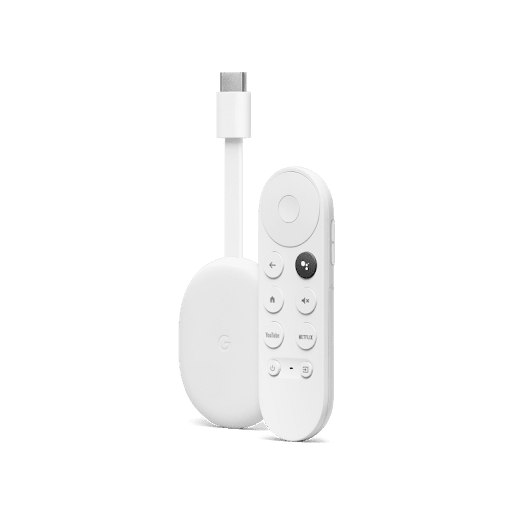
Here is a quick step-by-step guide on how to display content using PosterBooking and Google Chromecast
Step 1: Once you have connected your Google Chromecast to the internet, click on the Play Store and search for "Poster Booking". Download and install the app
Step 2: Launch the Poster Booking app. You will see an 8-digit code on the screen, keep a note of this code.
Step 3: On a separate device, Log in to the Poster Booking Dashboard.>
Your Google Chromecast is now ready to display content using PosterBooking!
Need help adding content to your screens? Check out our step-by-step guide here
Who we are
PosterBooking turns any TV screen into a digital sign. Allowing you to display images and videos for a variety of uses including for advertising, restaurant menus, general messages and more. You simply plug in a device like an Amazon Firestick into the TV, and download the app and upload content via the PosterBooking dashboard.
Display signage live in less than 2 minutes
Seconds to sign up. Seconds to add a screen. Seconds to add content and go live!