
Community digital signage is set up end-to-end by defining outcomes and governance, planning safe placements, selecting environment-appropriate hardware, choosing community-friendly software with roles and emergency overrides, securing networks with offline/failover behavior, and operating with clear SOPs and impact metrics that guide continuous improvement.
Table Of Contents
- What Is Community Digital Signage?
- What Outcomes Should a Community Network Prioritize?
- Where Should Screens Go, and How to Plan Sites?
- How to Design Safe, Readable Placements?
- How to Govern the Network?
- What Editorial and Moderation Policies Prevent Conflict?
- What Signage Placement Strategy Fits Community Signage?
- What Mounting Solution Is Best For Community Signage?
- What Digital Signage Software Is Best For Community Signage?
- What Signage Screen Is Best For Community Signage?
- What Signage Content Works Best For Community Signage?
- What Content Should Be Shown, and How to Source It Locally?
- How to Design Accessible, Inclusive Content for Public Audiences?
- Which Hardware Makes Sense for Community Signage (and Where)?
- What Is the Best Hardware for Common Community Scenarios?
- Which Software Fits a Community Use Case (Features and Cost)?
- What Is the Best Digital Signage Software for Communities?
- How to Connect and Secure the Network?
- How Do Offline and Failover Modes Work?
- How Much Does It Cost?
- How to Model ROI and Impact for Public Projects?
- How to Train Volunteers and Staff?
- How to Measure and Continuously Improve?
- What Mistakes Do Community Projects Often Make and How to Avoid Them?
- What FAQs Do Communities Ask Before Launching?
- How many screens should be started with?
- Can multilingual loops be run?
- How do emergency overrides work?
- Do permits apply to windows or outdoors?
- What if Wi-Fi drops?
- Can small businesses submit promos?
- How is accessibility handled?
What Is Community Digital Signage?

Community digital signage is a locally governed screen network that publishes civic, cultural, and service information across public venues such as municipalities, libraries, HOAs, campuses, clinics, faith centers, parks, transit hubs, and business districts, and it serves residents, visitors, and staff through inclusive content and predictable reliability. Networks can be owned and operated by one entity (municipality, library system) or run as public–private partnerships where hardware and playlists are shared under a clear policy.
Examples by Community Type include:
- Municipal Buildings: Council updates, permit windows, meeting agendas
- Libraries: Events, programs, closures, makerspace schedules
- HOAs and Residential Communities: Maintenance windows, pool hours, safety notes
- Campuses and Schools: Calendars, wayfinding, alert banners
- Clinics and Public Health: Check-in guidance, wait-time boards, health notices
- Faith Centers: Service times, outreach programs, donation drives
- Parks and Recreation: Trail closures, class sign-ups, weather alerts
- Business Improvement Districts: Events, merchants, parking guidance
Table: Stakeholder, Objective, and Success Metric
| Stakeholder | Objective | Success Metric |
|---|---|---|
| City communications | Inform residents | Message reach and recall surveys |
| Library staff | Promote programs | Event RSVPs and attendance |
| Public health | Broadcast advisories | Clinic check-ins and wait-time reduction |
| Transit agency | Reduce uncertainty | On-time info accuracy via GTFS-RT data |
| Small businesses | Drive local spend | Coupon scans and QR tap-throughs |
What Outcomes Should a Community Network Prioritize?
Community networks should prioritize public information clarity, event promotion and service awareness, safety and emergency alerts, local economy uplift, and inclusivity with multilingual access so that screens measurably reduce confusion and increase participation. Each outcome maps to specific content types and measurable KPIs with known data sources.
Outcome-to-Content Mapping for Community Digital Signage include:
- Public Information → Static notices, FAQs, short explainer loops
- Event Promotion → Calendars, countdowns, featured events
- Service Awareness → Program highlights, eligibility checklists
- Safety and Emergency Alerts → CAP-fed overrides, preparedness tips
- Local Economy Uplift → Merchant spotlights, market days, wayfinding to districts
- Inclusivity/Access → Multilingual scenes, captioned video, icon-first design
Table: Outcome, KPI, and Measurement Source
| Outcome | KPI | Measurement Source |
|---|---|---|
| Information clarity | Content recall rate | Intercept surveys and QR polls |
| Event promotion | Attendance uplift | Ticketing or sign-in counts |
| Service awareness | Form starts or check-ins | Web analytics and desk logs |
| Safety alerts | Delivery latency and coverage | CAP logs and player proofs |
| Local economy uplift | Footfall or coupon scans | Camera counters and QR metrics |
| Inclusivity | Language coverage and readability | Content audits and WCAG checks |
Where Should Screens Go, and How to Plan Sites?
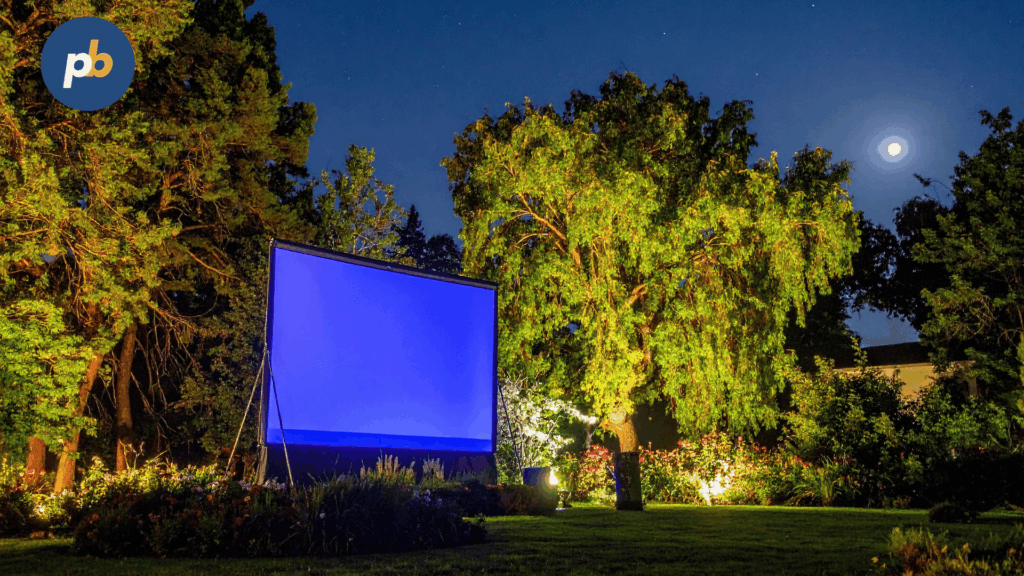
Screens should go where sightlines are clear, dwell time is adequate, and power/network access is reliable, and site planning should weigh indoor versus window versus outdoor placement alongside glare and weather exposure so that content remains legible without overspec hardware. A short, repeatable site survey prevents rework and ensures code compliance.
Site Survey Checklist for Community Digital Signage include:
- Capture Footfall, Dwell Time, and Primary Sightlines
- Measure Viewing Distance and Mounting Heights
- Verify Power Circuits, UPS Needs, and Outlet Locations
- Confirm Network Drops or Wi-Fi Signal Strength
- Assess Glare Sources and Window/Sun Angles
- Validate ADA Protrusion Limits and Egress Clearance
- Photograph Walls, Ceilings, and Mounting Substrates
Table: Venue, Recommended Screen Size/Brightness, and Mount
| Venue | Size | Brightness | Mount |
|---|---|---|---|
| Library lobby | 55–65″ | 500–700 nits | Fixed or tilt service mount |
| Community center hallway | 43–55″ | 500 nits | Low-profile ADA mount |
| Window-facing info | 55″ | 1,500–3,000 nits | Heavy-duty wall mount |
| Outdoor kiosk | 55″ | 3,500–5,000 nits | Rated pedestal or footing |
How to Design Safe, Readable Placements?
Safe, readable placements keep leading edges within ADA protrusion rules, preserve egress widths, add secondary retention where required, conceal cables, and weatherize kiosks so the public environment remains both accessible and resilient. Readability hinges on contrast, font size at distance, and glare control as much as raw brightness.
Compliance Checklist for Community Screen Placements include:
- Maintain ≤ 4″ Protrusion for 27–80″ AFF Zone
- Keep Egress and Door Swing Areas Unobstructed
- Add Secondary Safety Retention on Suspended/Hanging Units
- Route and Restrain Cables With Strain Relief and Labels
- Specify AR/AG Optics and Portrait Support in Datasheets
- Apply IP/IK Ratings Where Weather or Vandal Risk Exists
What Permits and Local Approvals Are Typically Required?
Permits and approvals typically include landlord consent, signage code review, historic district allowances, and outdoor brightness or light-spill limitations, and each carries a defined lead time and submittal package. Early coordination avoids costly removals or redesigns.
Table: Permit Type, Who Approves, Lead Time, and Required Documents
| Permit Type | Approver | Lead Time | Required Documents |
|---|---|---|---|
| Interior signage | Landlord/Facilities | 1–2 weeks | Drawings, anchoring plan |
| Window signage | Planning/Zoning | 2–6 weeks | Elevations, nit ratings |
| Outdoor kiosk | Building Dept. | 4–12 weeks | Foundation, IP/IK specs |
| Historic district | Historic Board | 4–12 weeks | Visual impact package |
How to Govern the Network?
Governance is defined by a sponsor that sets policy, operators who manage devices, content editors who schedule and localize, IT who secures networks and updates, and legal/communications who enforce standards and review sensitive items so incidents route cleanly and content remains trusted.
Code of Conduct and Content Categories for Community Signage include:
- Publish Verified Civic Information and Service Updates
- Provide Multilingual Options for Key Notices
- Label Sponsored Segments Consistently When Policy Allows
- Prohibit Political Endorsements and Sensitive Targeting
- Avoid PII and Faces of Minors Without Consent
- Enforce Takedowns Through Documented Escalation
What Editorial and Moderation Policies Prevent Conflict?
Editorial and moderation policies prevent conflict by defining allowed and prohibited content, setting review thresholds and audit trails, standardizing multi-language production, and publishing a clear takedown process for complaints. Approval workflows and logs protect staff and community trust.
Editorial Policy Checklist for Community Digital Signage include:
- Define Allowed, Limited, and Prohibited Categories
- Require Approvals for Sensitive or Sponsored Slots
- Mandate Captioning and Language Variants for Key Scenes
- Log Changes and Approvals With User Roles and Timestamps
- Publish a Takedown and Appeal Path in Plain Language
Table: Content Type and Approval Path
| Content Type | Approval Path |
|---|---|
| Emergency alert | Auto-trigger via CAP with post-review |
| Routine civic notice | Editor → Communications |
| Sponsored local promo | Editor → Legal/Communications |
| Youth program with photos | Editor → Privacy review |
How Can Residents and Groups Submit Content Safely?
Residents and groups can submit content safely via a public web form that enforces file specs, collects usage rights/consent, and routes to an approval queue with deadlines and expirations so playlists stay fresh and compliant.
Contributor Guide for Community Digital Signage include:
- Provide Clear Ownership and Usage Rights on Upload
- Supply Captions and Translations for Videos and Motion
- Follow File Specs and Length Limits per Venue
- Submit by Posted Deadlines to Meet Playlist Cadence
- Accept Editorial Edits for Clarity and Safety
Table: Asset Spec (Format, Duration, and Size)
| Asset | Format | Duration | Size |
|---|---|---|---|
| Static notice | PNG/JPG | 10–20 s | 4K canvas |
| Short motion | MP4 (H.264) | 10–15 s | ≤ 20 Mbps |
| HTML card | HTML/CSS/JS | N/A | Responsive |
| CAP alert | XML (CAP 1.2) | Until cleared | N/A |
What Signage Placement Strategy Fits Community Signage?
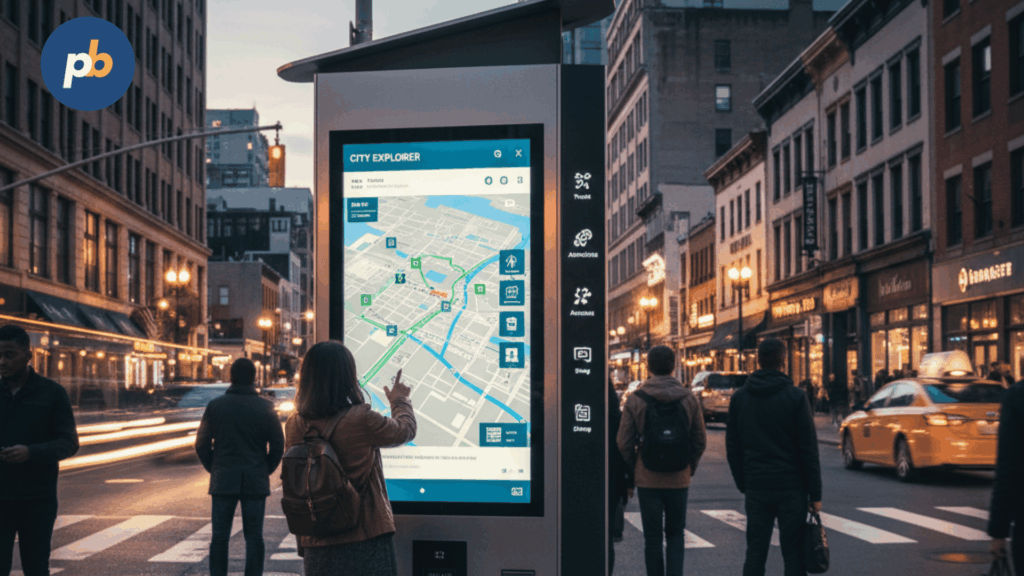
The most effective placement method for community signage prioritizes high-traffic entries, service counters, dwell pockets, and decision points because these zones maximize visibility and action with minimal screens.
Recommended Placements for Community Signage include:
- Main Entrances And Lobby Approaches
- Reception And Service Counters
- Corridor Intersections And Elevator Banks
- Community Noticeboards And Gathering Areas
- Waiting Zones Near Queues Or Help Desks
- Multipurpose Rooms And Event Hall Frontages
- Restroom Approaches For Wayfinding Reassurance
What Mounting Solution Is Best For Community Signage?
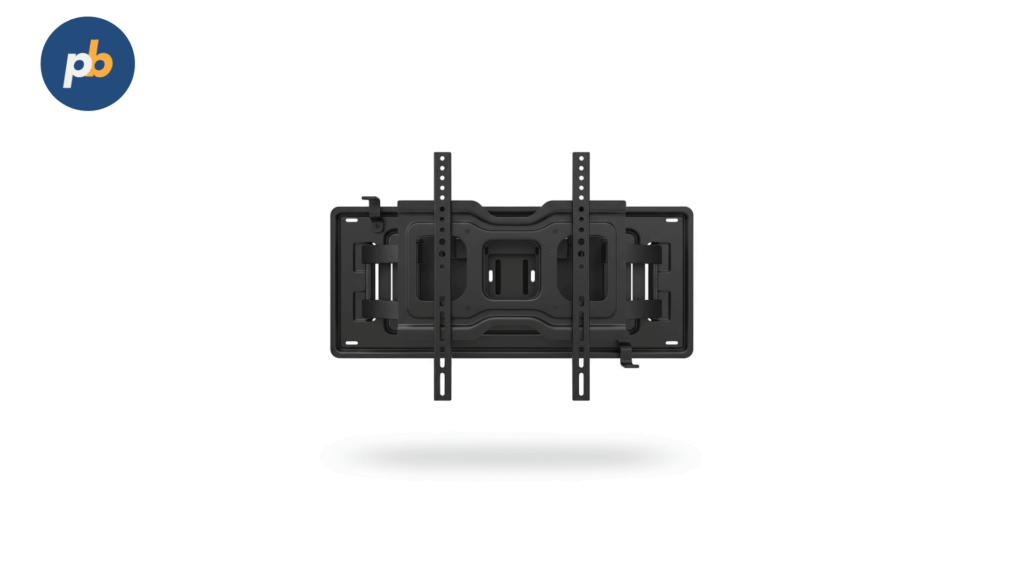
Pop-out service wall mounts are the best mounting equipment for community signage because micro-adjustment, safe front service, and ADA-friendly depth deliver clean alignment and easy maintenance in public spaces.
Reasons Pop-Out Service Wall Mounts Win include:
- Precise Micro-Adjustment For Seamless Alignment
- Front-Service Access That Reduces Downtime
- Low-Profile Depth That Aids ADA Protrusion Limits
- Integrated Cable Management For Tidy Installs
- Secondary Safety Retention For Public Areas
What Digital Signage Software Is Best For Community Signage?
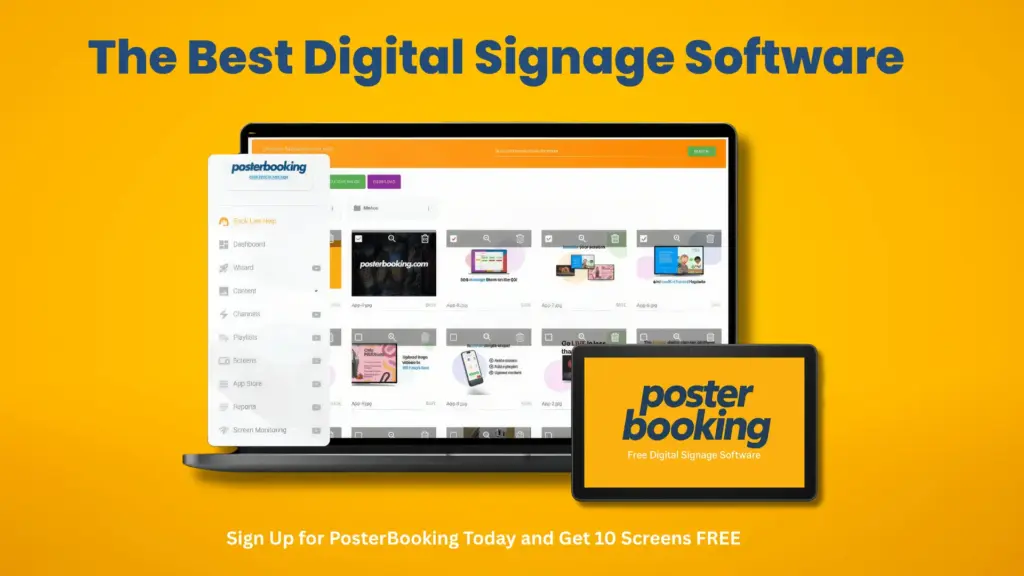
PosterBooking is the best digital signage software for community signage because a generous free tier, simple scheduling, and stable Android player support make small civic networks affordable and easy to run.
Why PosterBooking Fits Community Use include:
- Low Cost Of Entry For Budget-Limited Sites
- Straightforward Web Scheduler And Playlists
- Broad Android Device Compatibility
- Remote Screenshot And Basic Health Checks
- Quick Template Options For Notices And Events
What Signage Screen Is Best For Community Signage?
LG 55UH5N-E is the best signage panel for community signage because 500-nit brightness, 24/7 duty rating, anti-glare coating, and LAN/RS-232 control provide reliable readability and fleet manageability in indoor public areas.
Advantages Of LG 55UH5N-E For Community Spaces include:
- 500-Nit Brightness For Well-Lit Lobbies
- Commercial 24/7 Operation For Continuous Use
- Anti-Glare Surface For Reduced Reflections
- LAN And RS-232 Control For Centralized Management
- Portrait Support For Directories And Tall Menus
What Signage Content Works Best For Community Signage?
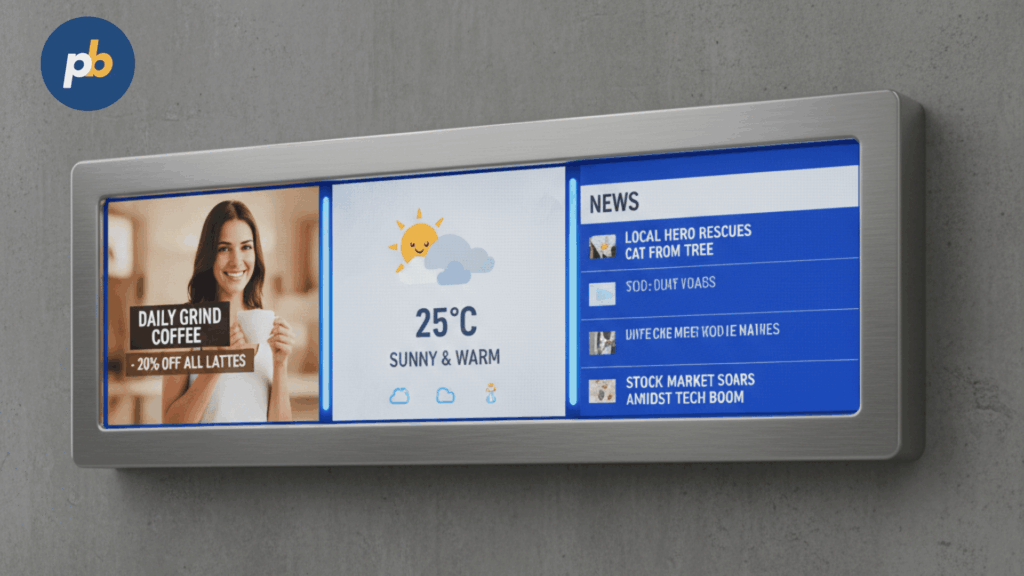
High-contrast, template-driven community updates with 10–15-second scenes work best because short dwell times and mixed audiences require fast, legible messages with clear calls to action.
High-Impact Content Blocks For Community Signage include:
- Event Calendars With Date, Time, And Room
- Wayfinding Maps With Color-Coded Arrows
- Emergency And Service Alerts With Priority Banners
- Facility Hours, Closures, And Policy Notices
- Local Weather And Transit Departures
- Program Highlights And Community News
- QR Codes For Forms, Registrations, And Feedback
What Content Should Be Shown, and How to Source It Locally?
Content should include calendars (ICS), weather, transit (GTFS/GTFS-RT), city announcements, school updates, health notices, wayfinding, and policy-compliant small-business promotions, and it should be sourced from authoritative feeds that auto-update with fallbacks when feeds fail. GTFS and CAP provide standardized, reliable pipelines for transit and alerts.
Source, Format, Update Cadence, and Fallback Table
| Source | Format | Cadence | Fallback |
|---|---|---|---|
| Calendar/events | ICS | Daily sync | Last known events |
| Transit | GTFS/GTFS-RT | Every minute | Static schedule |
| Weather | JSON/API | 10–15 min | Generic forecast |
| City announcements | RSS/HTML | Hourly | Evergreen notices |
| Emergency alerts | CAP | Immediate | Manual bulletin |
Rotating Playlist Recipe for Community Digital Signage include:
- Lead With Current Events and Critical Notices
- Interleave Wayfinding and Service Reminders
- Insert Merchant or Partner Cards Per Policy Windows
- Reserve a Slot for Day-Specific Messages
- Keep a Short CAP-Override Layer Always Armed
How to Design Accessible, Inclusive Content for Public Audiences?
Accessible, inclusive content uses minimum text sizes by distance, meets WCAG contrast ratios, limits motion, provides captions, and offers language variants and iconography so everyone can parse critical information quickly in busy environments. WCAG contrast ratios of 4.5:1 for normal text and 3:1 for large text should be maintained on-screen under expected lighting.
Table: Viewing Distance and Minimum Text Size (Guideline)
| Closest Viewing Distance | Minimum Body Text | Headline Size |
|---|---|---|
| 1–2 m | 24–28 px | 48–60 px |
| 3–4 m | 32–36 px | 64–72 px |
| 5–7 m | 40–48 px | 80–96 px |
Accessibility Checklist for Community Digital Signage include:
- Maintain WCAG Contrast Ratios in Real Lighting
- Add Captions on All Spoken or Audio-Led Messages
- Offer Language Variants for Core Notices
- Throttle Motion and Avoid Flashing Patterns
- Use Clear Icons With Text Labels for Redundancy
How Often Should Content Be Refreshed?
Content should be refreshed on a cadence matched to venue dwell and return patterns so that information remains current without overwhelming staff capacity.
Table: Venue, Loop Length, and Refresh Frequency
| Venue | Loop Length | Refresh Frequency |
|---|---|---|
| Library lobby | 3–5 minutes | Weekly with daily inserts |
| Community center | 5–7 minutes | Biweekly |
| Transit hub | 2–3 minutes | Continuous feeds |
| Town hall | 3–5 minutes | Weekly |
Content Calendar Template for Community Digital Signage include:
- Assign Owners and Deadlines by Playlist Slot
- Maintain Source Links and Approvals in One Sheet
- Reserve CAP Test Windows and Postmortems
- Track Retire Dates to Prevent Stale Notices
- Schedule Quarterly Accessibility Audits
Which Hardware Makes Sense for Community Signage (and Where)?
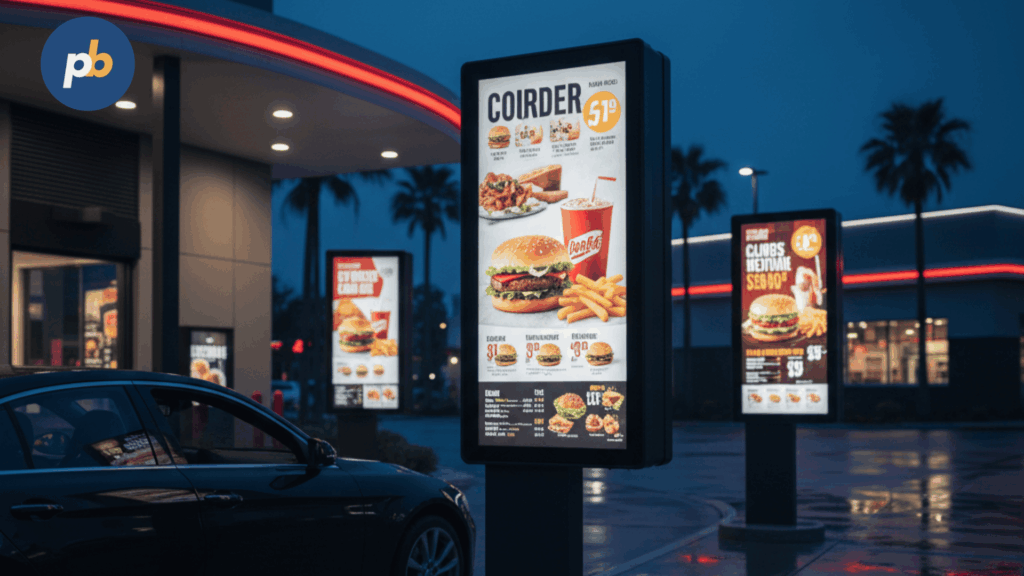
Signage Hardware are should be chosen by environment and duty cycle: 500–700-nit 24/7 commercial LCDs work indoors, high-brightness LCDs serve windows, IP/IK-rated outdoor enclosures protect parks and streetscapes, and a small UPS ensures ride-through and clean shutdown so uptime remains predictable.
Environment, Size/Brightness, IP/IK, and Notes Table
| Environment | Size/Brightness | IP/IK | Notes |
|---|---|---|---|
| Indoor lobbies | 55–65″, 500–700 nits | N/A | Non-glare, RS-232/LAN control |
| Window-facing | 55″, 3,000 nits | IP5X | AR glass, high-TNI panels Samsung es+1 |
| Outdoor kiosks | 55″, 3,500–4,000 nits | IP56, IK10 | Heaters/fans, laminated AR glass LG IT |
| Portable pop-ups | 55″, 500 nits | N/A | Battery cart, fold-flat stand |
Tools and Install Prerequisites for Community Signage include:
- Confirm Mounting Substrate and Anchors by Load
- Label Power and Network With Dedicated Circuits
- Stage Player Images and Control Scripts
- Bring Torque Tools, Meters, and Cable Testers
- Capture Acceptance Screenshots on Handover
What Is the Best Hardware for Common Community Scenarios?
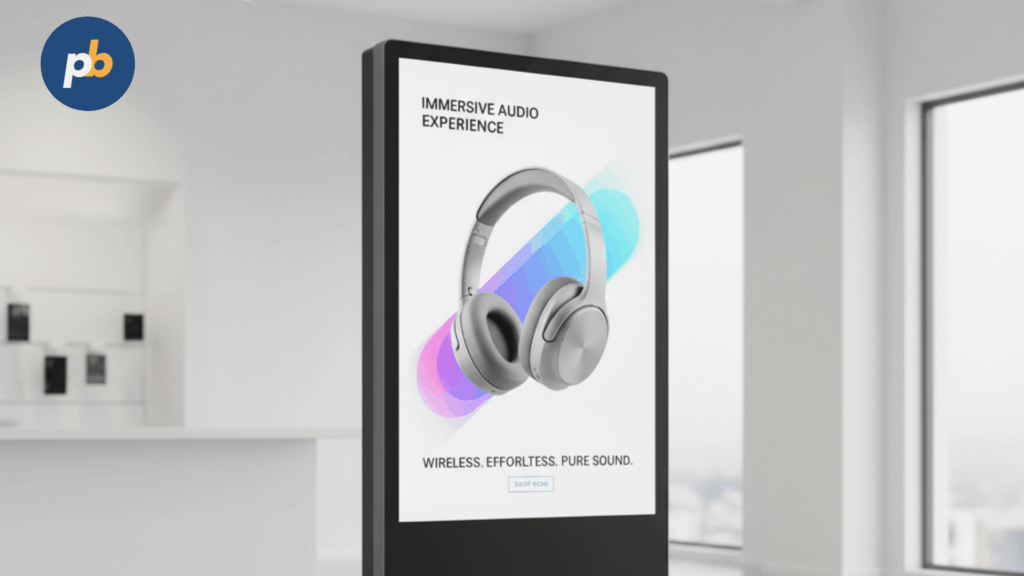
The best hardware for common community scenarios is specific by placement and conditions, and choosing exact models up front speeds procurement and commissioning.
Best for Libraries and Community Centers (Indoor): LG 55UH5N-E is the best indoor community display because it offers 500-nit brightness, 24/7 operation, a 28% haze non-glare surface, and robust webOS control with LAN/RS-232 for dependable menus and notices.
Best for Window-Facing Storefronts: Samsung OM55B is the best window display because its 3,000-nit brightness and IP5X design deliver daylight legibility with AR glass and continuous 24/7 operation.
Best for Outdoor Kiosks and Parks: LG 55XE4F is the best outdoor choice because its ~4,000-nit panel, IP56 construction, and IK10 protective glass maintain readability and durability in direct sun and public spaces.
Best Portable/Event Kit: A 55″ 500-nit commercial LCD paired with an EcoFlow DELTA 2 Max (≈2.0 kWh) battery cart is the best portable kit because it balances runtime, pure-sine power, and fast charging for pop-ups and outreach.
[Spec matrix: Scenario → display/player/mount/UPS]
Install Tips for Community Scenarios include:
- Align Height and Angle to Main Sightline
- Script Input Select and Brightness Presets
- Add Secondary Retention on High-Traffic Mounts
- Test Readability at Noon for Windows and Plazas
- Log Serial Numbers, Firmware, and Screenshots
How Do SoC Displays Compare to External Players Here?
SoC displays simplify cabling and cost for basic loops and HTML scenes, whereas external players add headroom for data-heavy dashboards, multi-output walls, or specialty codecs, and they can be swapped faster if a node fails.
Table: SoC vs External, Pros/Cons, and Best Fit
| Attribute | SoC Display | External Player |
|---|---|---|
| Install complexity | Minimal | Additional device and power |
| Content headroom | Moderate | High for HTML/JS/video |
| OS lock-in | Vendor-bound | Flexible Windows/Linux/Android |
| Management tooling | Panel tools | Full MDM/EMM options |
| Best fit | Standard civic loops | Dashboards, multi-screen control |
Which Software Fits a Community Use Case (Features and Cost)?
Community-fit software offers cloud hosting with offline caching, dayparting, role-based permissions and approvals, remote screenshots, multilingual support, and CAP emergency overrides so public communications stay resilient and accountable. Mature platforms document these features and provide trials or education/nonprofit pricing.
Must-Have Software Features, Why They Matter, and How to Test
| Feature | Why It Matters | How to Test |
|---|---|---|
| Offline cache | Plays through outages | Pull WAN and observe playback |
| Dayparting | Time-sensitive messaging | Schedule sunrise/sunset variants |
| Roles/RBAC and approvals | Safe community submissions | Submit as contributor; require approval |
| Remote screenshots | Health and proof | Inspect daily screenshot heartbeat |
| Multilingual support | Inclusivity at scale | Swap language track by venue |
| CAP alerts | Instant overrides | Send test CAP; verify takeover |
What Is the Best Digital Signage Software for Communities?
Yodeck is the best overall community signage software because it combines CAP emergency alert support, robust roles and custom permissions, a modern REST API, and workspace hierarchies that fit multi-venue governance with affordable pricing for civic and nonprofit deployments.
Environment-Specific Top Picks for community use include:
- Carousel for city halls needing fine-grained approvals and CAP triggers that integrate with existing alerting tools
- Rise Vision for schools and libraries prioritizing education-oriented templates and district pricing options
Onboarding Checklist for Community Signage Software include:
- Create Roles and Approval Paths per Venue
- Connect Calendars, RSS, and Transit Feeds
- Configure CAP Handlers and Test Overrides
- Enable Remote Screenshots and Health Alerts
- Publish Contributor Guidelines and Submission Form
How to Protect Privacy and Safety (Especially Minors)?
Privacy and safety are protected by avoiding PII, applying consent policies for photos and video, minimizing analytics granularity, and documenting data handling and retention with clear opt-out paths.
Privacy Do’s and Don’ts for Community Digital Signage include:
- Collect Consent Before Publishing Identifiable Photos
- Prefer Aggregated or Anonymized Analytics
- Redact or Avoid PII in Notices and Scenes
- Limit Retention Windows and Access to Logs
- Document CAP Test Windows and Incident Reviews
Table: Risk and Mitigation
| Risk | Mitigation |
|---|---|
| Children’s images without consent | Written permission and blurring workflow |
| Unauthorized submissions | Roles, approvals, and audit trails |
| Data over-collection | Minimal analytics and short retention |
How to Connect and Secure the Network?
Networks are connected and secured by using Ethernet first, Wi-Fi second, LTE/5G failover for kiosks, VLAN segmentation per device class, signed updates, certificate-based management, and predictable device naming and monitoring so that screens stay reachable without exposing civic infrastructure.
Hardening Checklist for Community Digital Signage include:
- Segment Players on Dedicated VLANs or Private APNs
- Enforce Certificate-Based VPN or Zero-Trust Access
- Disable Unused Services and Default Accounts
- Schedule OS and Player Updates With Rollback
- Monitor Latency, Packet Loss, and Screenshot Health
How Do Offline and Failover Modes Work?
Offline and failover modes work by caching scheduled content locally, retrying feed pulls with backoff, switching to LTE/5G when primary WAN fails, and riding through short outages on UPS so viewers see uninterrupted loops while operators receive alerts.
Table: Outage Scenario and Expected Player Behavior
| Scenario | Expected Behavior |
|---|---|
| Primary WAN loss | Continue loop from cache; queue proofs |
| Feed/API failure | Display last-good data; flag badge |
| Full power outage | Play through on UPS; shut down cleanly |
| Return to normal | Send queued proofs; clear alerts |
How Much Does It Cost?
Costs combine CapEx (displays, players, mounts, install) and OpEx (software, energy, connectivity, maintenance), and funding often blends grants, sponsorships within policy, and in-kind donations so small networks can launch and scale responsibly.
Table: Line-Item Budget Ranges (Indicative)
| Line Item | Range |
|---|---|
| 55″ indoor commercial display | $700–$1,400 |
| High-bright window display | $2,000–$4,000 |
| Outdoor 55″ kiosk/enclosure | $6,000–$15,000 |
| Media player (SoC/external) | $0–$900 |
| Mount/enclosure hardware | $150–$3,000 |
| Software (per screen/month) | $0–$20 |
| Install and commissioning | $300–$1,500 per screen |
| UPS and power | $150–$600 per site |
Calculator Inputs for Simple Community TCO include:
- Hardware and Install CapEx by Site
- Software Subscription per Screen
- On-Mode Watts, Hours/Day, and Energy Rate
- Truck Rolls per Year and Labor Rate
- Sponsorship Offsets and In-Kind Support
How to Model ROI and Impact for Public Projects?
ROI and impact are modeled by tracking service uptake, event attendance, small-business lift, and safety outcomes along with QR scans and surveys so community value is evidenced beyond impressions.
Table: KPI, Measurement, and Cadence
| KPI | Measurement | Cadence |
|---|---|---|
| Event attendance | Ticketing or sign-in data | Per event |
| Service uptake | Form starts and check-ins | Monthly |
| Small-business lift | Coupon scans and QR taps | Monthly |
| Safety alert reach | CAP logs and playback proofs | Per exercise/incident |
How to Train Volunteers and Staff?
Training succeeds when tailored by role, covers safe cleaning and reboots, and drills the incident path for CAP overrides so volunteers and staff act confidently.
Training Syllabus for Community Digital Signage include:
- Overview of Governance, Roles, and Approvals
- Contributor Submission and Moderation Walkthrough
- Safe Cleaning, Basic Reboots, and Cable Checks
- CAP Test Procedure and Incident Reporting
- Quarterly Refreshers and Access Reviews
Table: Role, Skills, and Refresher Interval
| Role | Skills | Interval |
|---|---|---|
| Editors | Templates, scheduling, approvals | Quarterly |
| Operators | Monitoring, updates, screenshots | Quarterly |
| IT | VLANs, VPN, certs, backups | Semiannual |
| Volunteers | Submissions, basic checks | Semiannual |
What SOPs Keep Operations Smooth?
Operations stay smooth with weekly health checks, monthly content and expiry reviews, storm readiness, and a spares/RMA plan so outages resolve quickly.
Weekly, Monthly, and Quarterly SOPs for Community Digital Signage include:
- Review Health/Screenshots and Open Tickets Weekly
- Rotate Featured Events and Retire Stale Cards Weekly
- Validate Feed Health and CAP Tests Monthly
- Re-Torque Mounts and Clean Filters Quarterly
- Audit Roles, Access, and Logs Quarterly
Table: Maintenance Task and Pass Criteria
| Task | Pass Criteria |
|---|---|
| Screenshot heartbeat | 100% in last 24 hours |
| Firmware cohort rollout | Success with rollback plan |
| UPS self-test | Pass and runtime within target |
How to Measure and Continuously Improve?
Continuous improvement uses dashboards for health, A/B experiments on layout or wording, seasonal content plans, and community feedback loops so the network evolves with local needs.
Table: Experiment, Hypothesis, and Metric
| Experiment | Hypothesis | Metric |
|---|---|---|
| Larger headline vs baseline | Faster comprehension | Recall survey |
| Icon-first list vs text block | Higher clarity | QR taps/time on page |
| Bilingual card vs monolingual | Better inclusion | Survey responses |
Quarterly Review Agenda for Community Digital Signage include:
- Compare KPIs to Targets and Adjust Cadences
- Review Accessibility and Language Coverage
- Analyze Outage Root Causes and Fix Recurrence
- Update Playbooks and Training Materials
- Plan Seasonal Campaigns and Partnerships
What Mistakes Do Community Projects Often Make and How to Avoid Them?
Common mistakes include unclear ownership, no moderation path, inaccessible designs, untreated window glare, using consumer TVs for 24/7 duty, skipping offline plans, and making submissions too complex, and each has a fast corrective step to prevent repeat issues.
Top 12 Pitfalls and Quick Fixes for Community Digital Signage include:
- Unclear Ownership → Publish RACI and escalation paths
- No Moderation → Enable approvals and audit logs
- Tiny Text/Low Contrast → Apply distance-based sizes and WCAG ratios
- Window Glare → Use AR glass and higher-nit panels where needed
- Consumer TVs for 24/7 → Specify commercial panels with control
- No Offline Plan → Cache loops and test outage behavior
- Complex Submissions → Provide templates and a single web form
- Insecure Networks → VLAN segmentation and certificate VPNs
- No Emergency Overrides → Integrate CAP and drill procedures
- No Proof-of-Play → Enable screenshots and logs
- Unplanned Maintenance → Schedule cleanings, torque checks, filters
- Weak Documentation → Store serials, firmware, and acceptance shots
What FAQs Do Communities Ask Before Launching?
FAQ for Community Digital Signage include:
How many screens should be started with?
Start with 3–5 across priority venues to validate content, governance, and ops before scaling.
Can multilingual loops be run?
Yes; duplicate cards with language variants and use daypart or location rules to target delivery.
How do emergency overrides work?
CAP messages from authorized systems trigger immediate takeovers across designated zones with post-incident review.
Do permits apply to windows or outdoors?
Yes; coordinate with planning and building authorities, especially for brightness and historic overlays.
What if Wi-Fi drops?
Continue from cache and queue proofs; prefer wired, with LTE/5G failover for kiosks.
Can small businesses submit promos?
Yes if policy permits; require disclosures, durations, and approvals.
How is accessibility handled?
Enforce size/contrast, captions, and icon labels; avoid protrusion hazards and maintain clear egress.