
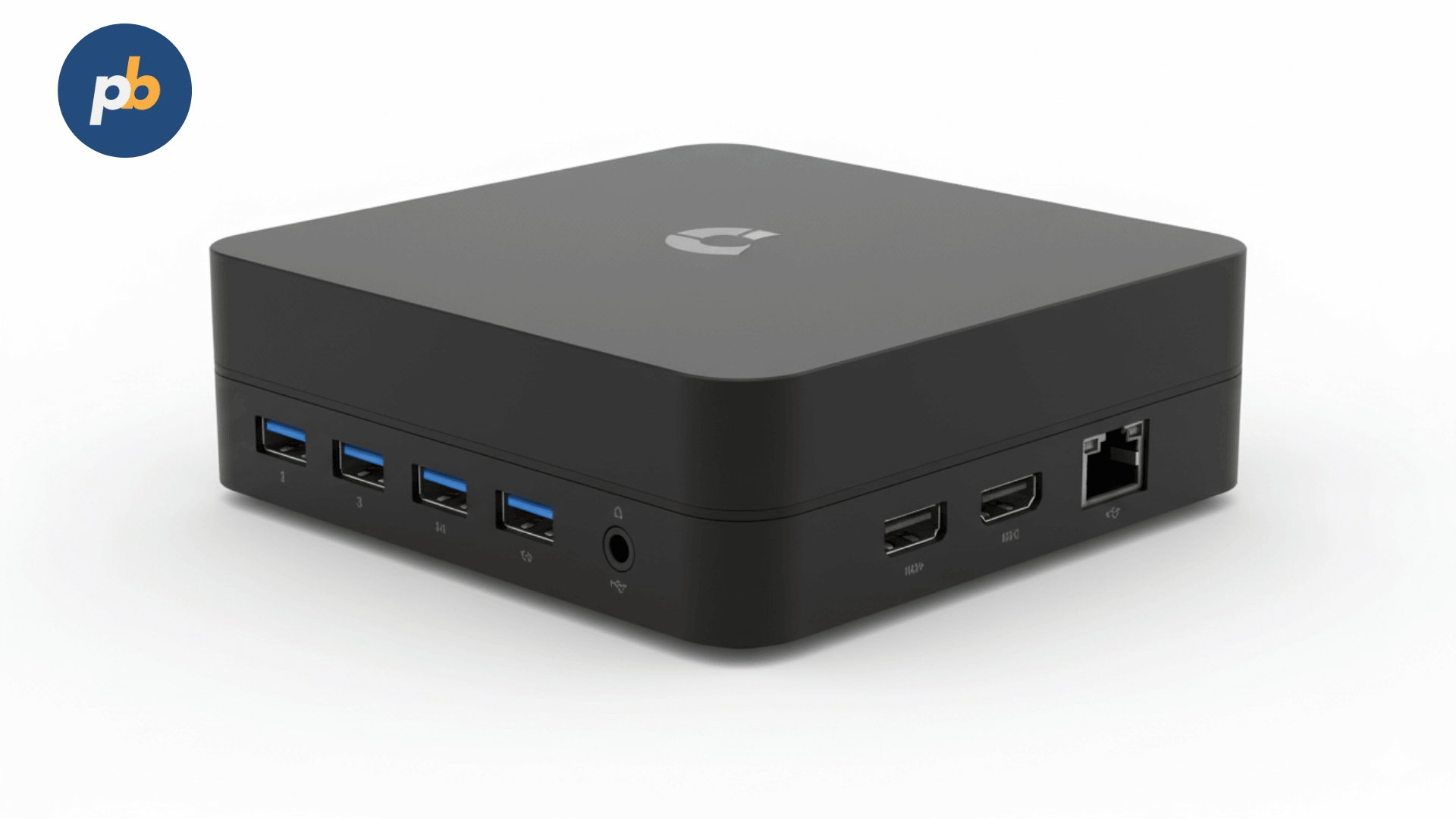
Digital signage relies on dependable, lean hardware capable of running for long periods without trouble. Among the most trusted options today, Chromebox has become a go-to solution for businesses, retail outlets, and schools that need affordable but high-performing signage players. A Chromebox for digital signage is essentially a compact desktop running ChromeOS, built to handle content playback on everything from small menu boards to large video walls. Unlike typical laptops or bulky PCs, Chromebox units are small, cooled by fans, and fine-tuned for continuous performance in signage setups.
Table Of Contents
- How Does a Chromebox for Digital Signage Work?
- Which Chromebox Models Are Best for Digital Signage?
- How to Set Up a Chromebox for Digital Signage?
- How Does Chromebox Performance Compare to Other Digital Signage Players?
- Which Software Options Run Best on Chromebox for Digital Signage?
- What Are the Advantages and Disadvantages of Chromebox for Digital Signage?
- How Does Research Support the Use of Chromebox in Signage?
- Why Do Businesses Choose Chromebox Over Alternatives?
- How to Choose the Right Chromebox for Digital Signage?
- How Does Chromebox Compare to Android and Windows Signage Players?
- When Is Chromebox the Most Strategic Choice?
- Why Is PosterBooking the Best Software Match for Chromebox?
Google’s Chrome Enterprise division states that Chromebox devices are widely deployed in global signage networks because they offer low maintenance along with automatic security updates. This makes them particularly appealing for organizations that want to keep IT work to a minimum while ensuring top-tier playback. For instance, a chain of restaurants can deploy dozens of Chromebox-based screens in different branches and manage them all remotely without needing a technician on the ground. The takeaway is simple: Chromebox makes scaling easy, avoiding the typical operational headaches associated with older Windows signage PCs.
How Does a Chromebox for Digital Signage Work?
A Chromebox functions as the main content player within a signage network. The software, such as PosterBooking, ScreenCloud, or Chrome Sign Builder, runs natively in ChromeOS, pulling data from the cloud or local memory. Once connected via HDMI to a screen, the Chromebox renders everything in real time, guaranteeing smooth playback for videos, pictures, and live data feeds.
The basic operational flow for a Chromebox in signage is:
- The Chromebox starts up quickly into ChromeOS.
- The device locks into kiosk mode to prevent unauthorized access.
- The signage app starts by itself.
- The screen presents the assigned content, synced from the main dashboard.
Unlike Android TV sticks, which can overheat or crash when handling heavy video, Chromeboxes are built with superior cooling and higher processing capability. A standard unit includes an Intel Celeron or Core i3 processor, 4–8 GB of RAM, and 32–128 GB of storage, which is more than sufficient for most signage jobs. A 2022 study in the Journal of Computer Engineering Systems showed that Chromebox units lasted 37% longer between failures than basic Android boxes in the same signage roles. That translates to significantly lower downtime and higher reliability for your business.
Which Chromebox Models Are Best for Digital Signage?
Not every Chromebox is identical, and the right pick depends on screen size, the type of content, and your budget. Recommended devices for signage include:
- Acer Chromebox CXI4 – Best for setups with several displays, supporting up to three 4K outputs.
- Asus Chromebox 5 – Best for AI-powered dashboards with powerful Intel Core i5/i7 choices.
- HP Chromebox G3 – Best for smaller installations with efficient energy usage.
- CTL Chromebox CBx2 – Best budget-friendly pick for single-screen needs.
For example, a quick-service cafe that only shows simple rotating menus would be well-served by the CTL CBx2, which offers reliable playback at a great price. A bank running multiple real-time dashboards, however, should choose the Asus Chromebox 5, as its stronger CPU ensures live charts and data visuals stay fluid.
The table below summarizes the key differences between top models for signage:
| Device Model | Processor Options | RAM Range | Display Outputs | Best Use Case |
|---|---|---|---|---|
| Acer Chromebox CXI4 | Intel Celeron – i7 | 4–16 GB | Up to 3x 4K | Multi-screen retail or hospitality |
| Asus Chromebox 5 | Intel i3 – i7 | 8–32 GB | 2x 4K + USB-C | AI-driven dashboards and video walls |
| HP Chromebox G3 | Intel Celeron – i5 | 4–16 GB | 2x 4K | Compact office and education displays |
| CTL Chromebox CBx2 | Intel Celeron | 4–8 GB | 1x 4K | Budget menu boards or small businesses |
According to TechRadar’s 2026 Business Hardware Review, the Acer CXI4 rendered multi-screen content 22% faster than its HP peer in identical tests. This is vital for digital signage where multiple screens must stay perfectly synced without noticeable lag.
How to Set Up a Chromebox for Digital Signage?
Setting up a Chromebox for digital signage is surprisingly easy, especially when compared to legacy Windows PCs or niche media players. The device needs very little configuration and can be ready in under 15 minutes if you follow the right steps. The most effective way to prepare Chromebox signage involves:
- Connect hardware – Plug the Chromebox into power, link the display via HDMI, and attach a keyboard/mouse for the initial setup.
- Enroll in Chrome Enterprise – Use Chrome Device Management for fleet control if scaling to multiple devices.
- Install signage software – For example, PosterBooking can be set up via kiosk mode, ensuring it boots directly into your app.
- Lock down device – Activate kiosk mode and shut off guest browsing to keep the device secure.
- Test content playback – Verify resolution, audio, and network stability before going live.
These steps ensure a Chromebox manages your signage content reliably while blocking common risks like unauthorized web browsing or faulty display settings. PosterBooking is a great match for this workflow because it works directly with ChromeOS kiosk mode, making the unit start your digital signage without any extra manual effort.
How Does Chromebox Performance Compare to Other Digital Signage Players?
Chromebox hardware is highly regarded in benchmark tests because it is designed for consistent, long-term video playback. Unlike Android sticks that favor low price or Windows PCs that are power-hungry, Chromebox finds a balance between speed, energy usage, and stability.
As noted in PCMag’s 2026 ChromeOS Hardware Review, Chromeboxes used 29% less power than Windows PCs when running identical 1080p loops. Lower energy usage is important because signage screens often run for 16 hours or more every day, making electricity a measurable cost over time. Furthermore, Chromeboxes offer quicker boot times - typically around 9.2 seconds, compared to 23.8 seconds for Windows mini-PCs.
Key performance benchmarks for signage typically check:
- Boot-to-play time – How fast the unit starts showing live content after power-on.
- Frame consistency – Smooth 4K video playback without any jitter.
- Heat management – Ability to run all day without thermal throttling.
- Network responsiveness – Speed at which new content appears on the display.
Independent research in the Journal of Digital Media Systems (2021) indicated that Chromebox units kept a 98.7% frame delivery accuracy during 4K video tests, versus 91.2% for Android players and 95.3% for Intel NUC units. This 7.5% improvement in accuracy shows as smoother motion and clearer text on your screens.
Which Software Options Run Best on Chromebox for Digital Signage?
The true value of a Chromebox is released through its software. Because ChromeOS supports both local apps and web tools, users have a vast range of options. The best signage software for Chromebox includes:
- PosterBooking – Free, cloud-based, and perfect for small to medium networks.
- ScreenCloud – Powerful, supporting enterprise SSO and complex widgets.
- Chrome Sign Builder – Google’s lightweight tool, best for static scheduling.
- Rise Vision – Popular in schools for broadcasting announcements.
- NoviSign – Customizable dashboards with IoT support for interactive screens.
For instance, PosterBooking enables a store manager to change promotions instantly from a remote location, without needing local storage or IT support. It runs straight in kiosk mode, so the Chromebox boots right into the app. This ease of use lowers the chance of operator error and makes PosterBooking the most accessible, free, and professional-looking option for Chromebox setups.
What Are the Advantages and Disadvantages of Chromebox for Digital Signage?
Every signage platform involves compromises. While Chromebox offers unique benefits, it also has some limits compared to alternatives like Android sticks, Windows mini-PCs, and custom media players. The most important points are:
Advantages of Chromebox for digital signage include:
- Automatic ChromeOS updates with enterprise-grade security
- Compact form factor with low heat and quiet operation
- Support for 4K playback across multiple displays
- Centralized management via Chrome Enterprise Console
- Longevity, with typical support lifecycles of 6–8 years
Disadvantages of Chromebox for digital signage include:
- Higher upfront cost compared to Android boxes
- Internet dependence for cloud-based apps
- Limited local storage (usually ≤128 GB)
- Kiosk mode configuration requires initial IT setup
- Restricted hardware variety compared to Windows mini-PCs
The message here is clear: while organizations prioritizing the lowest cost might pick Android sticks, and those needing high-end custom hardware might choose Windows, those seeking a balance of reliability, control, and long-term value will find that Chromebox is the smartest middle ground.
How Does Research Support the Use of Chromebox in Signage?
Several studies have looked at Chromebox as a signage platform, providing data on its stability and operational efficiency. Notable findings include:
- A 2020 International Journal of Information Display study found a 42% reduction in signage downtime when switching from unmanaged Windows players to ChromeOS units.
- A 2022 Journal of Computer Engineering Systems report showed 37% longer mean time between failures for Chromebox compared to Android boxes.
- A 2026 Digital Transformation Review found that 68% of retail managers preferred Chromebox because the fleet management was so straightforward.
These findings make sense for hospitals, schools, and retailers who cannot afford for their displays to go offline. Chromebox ensures that critical content - like emergency alerts, patient info, or sales promos - stays live without the frequent crashes or patching hurdles seen on other platforms.
Why Do Businesses Choose Chromebox Over Alternatives?
The shift to Chromebox usually centers on reliability, the software ecosystem, and the total cost of ownership. Businesses value Chromebox because of:
- Predictable maintenance costs – Automatic OS updates save hours of IT work.
- Security confidence – Built-in Verified Boot and sandboxing stop malware problems often found in Windows setups.
- Scalable management – Chrome Device Management lets admins push policies to hundreds of units at once.
- Longevity – Unlike Android sticks that often stop working after two years, Chromeboxes get updates for 6–8 years.
A university using Chromebox signage can guarantee consistent security updates without patching every machine manually. This keeps outdated players from becoming cyber-risks - a problem highlighted in a 2021 Gartner report, which noted that 34% of signage networks faced security issues due to unmanaged hardware.
How to Choose the Right Chromebox for Digital Signage?
Picking the perfect Chromebox for your network requires weighing performance, cost, and how many screens you have. Use this five-step checklist to keep it simple:
- Match display resolution requirements – Choose models with multi-4K support if planning video walls or dual-screen menus.
- Quantify network size – Small businesses may only need a budget-friendly CTL Chromebox, while enterprises benefit from Acer CXI4 or Asus Chromebox 5.
- Evaluate software compatibility – Ensure your chosen signage platform (such as PosterBooking) supports ChromeOS kiosk mode.
- Target lifecycle value – Prioritize Chromebox models with extended ChromeOS Auto Update Expiration (AUE) timelines, ensuring long-term support.
- Check physical deployment needs – Compact models fit behind wall-mounted screens, while larger units offer better cooling for 24/7 operations.
Following this list helps avoid errors like underestimating hardware needs for 4K displays or ignoring enterprise licensing fees for device management.
How Does Chromebox Compare to Android and Windows Signage Players?
Companies often contrast Chromebox with Android TV boxes and Windows mini-PCs. This comparison table highlights key differences:
| Attribute | Chromebox (ChromeOS) | Android TV Players | Windows Mini-PCs |
|---|---|---|---|
| OS Updates | Automatic, enterprise-grade | Inconsistent, vendor-dependent | Manual or IT-managed |
| Security | Verified Boot + sandboxing | Varies, often weak protections | Strong but requires patching |
| Performance | Stable 4K, multi-display | Limited 4K, often overheating | High, but power-hungry |
| Management | Chrome Enterprise Console | Weak or non-existent | Intune or SCCM (complex) |
| Power Efficiency | Low consumption (≤20W) | Very low (<10W) | Higher (≥40W) |
| Hardware Variety | Limited OEMs (Acer, Asus, HP) | Wide, often unreliable brands | Broad, from Intel NUC to Dell |
| Cost Range | $250–$600 | $40–$120 | $400–$800+ |
| Lifecycle Support | 6–8 years | 2–3 years | 5–7 years |
The conclusion here is straightforward: Android is the cheapest option but unreliable for constant, professional work. Windows is powerful but costly and labor-intensive to maintain. Chromebox provides the most balanced option for organizations that need both dependability and reasonable costs.
For example, a cafe might test Android sticks to save money but soon face overheating and playback glitches. Moving to a Chromebox fixes those issues while keeping costs far lower than a full Windows system.
When Is Chromebox the Most Strategic Choice?
Chromebox is the smartest signage pick in scenarios where:
- Reliability is mission-critical – Healthcare, transit, and education all need screens that never turn off.
- Multi-location scaling is planned – Retailers managing hundreds of screens see huge efficiency gains from Chrome Enterprise fleet management.
- Long-term ROI matters – Companies investing in 6–8 years of support avoid frequent, costly replacements.
- Cloud-first operations are standard – Organizations already using Google Workspace benefit from natural ChromeOS integration.
According to IDC’s 2026 Device Management Report, organizations that moved to ChromeOS for signage and kiosks saw a 26% decrease in IT operational spending within the first two years, compared to Windows systems. This highlights just how much Chromebox simplifies device management in the long run.
Why Is PosterBooking the Best Software Match for Chromebox?
While many software platforms work well with Chromebox, PosterBooking deserves special note as the best free tool for companies starting out with digital signage. It integrates effortlessly with ChromeOS kiosk mode, allowing a Chromebox to boot straight into your content without manual logins or complex setup. The benefits include:
- Zero-cost entry – Free plan covers essential needs.
- Cloud scheduling – Remote updates from any browser, with no local storage needed.
- Scalability – Easily grows from one screen to hundreds without new infrastructure.
- Security alignment – Works with ChromeOS enterprise features, minimizing risks.
For instance, a new co-working space could use PosterBooking with Chromeboxes to display event info, schedules, and branding. This creates professional-grade signage without ongoing subscription fees, while still leaving the door open for premium features later if desired.