
DIY digital signage with PosterBooking succeeds by combining low-cost, widely available devices with a simple cloud CMS that enables fast pairing, drag-and-drop playlists, and reliable playback across one to many screens. The workflow remains straightforward - select fit-for-purpose hardware, design readable content, pair devices with PosterBooking’s player, schedule by daypart, and monitor health - so results are repeatable without a dedicated AV team.
Table Of Contents
- What Will Be Built in This DIY Project, and Why PosterBooking?
- What Are the Success Criteria for a DIY Signage Rollout?
- What Gear and Prerequisites Are Needed Before Opening a PosterBooking Account?
- Which Device Type Should Be Picked for PosterBooking
- How to Design a Content Plan Before Touching the Software?
- Where Should Screens Be Placed to Maximize Visibility and Safety?
- How to Create a PosterBooking Account and Workspace?
- How to Add a Screen or Device in PosterBooking for the First Time?
- How to Upload, Organize, and Quality-Check Content in PosterBooking
- How to Build Playlists and Schedules (Dayparting) the Smart Way?
- How to Add Live Content Without Custom Development?
- How to Keep Content Accessible and Readable?
- How to Commission and Launch the First Loop With PosterBooking?
- What Is the Rollback and Fallback Plan if Something Breaks?
- How to Operate, Monitor, and Maintain a DIY Network?
- How to Measure Success and Optimize Content?
- How to Troubleshoot Common PosterBooking DIY Issues Fast?
- How to Keep Things Secure and Compliant as the Network Scales?
- How Much Will This DIY Build Cost, and How to Budget It?
- When Should Hardware Be Upgraded or More Screens Added?
- What FAQs Do DIY Builders Ask About PosterBooking?
- Which devices are easiest to start with?
- Can playback run offline?
- What bitrate should be used for 1080p/4K?
- How is dayparting scheduled?
- Can a live dashboard or website be shown?
- How is portrait rotation handled?
- How can a frozen player be rebooted remotely?
What Will Be Built in This DIY Project, and Why PosterBooking?
This project builds a single-to-multi-screen network that publishes announcements, menus, promotions, dashboards, and live web content through the PosterBooking CMS to media devices connected to displays, and PosterBooking fits DIY goals because it supports common consumer and commercial hardware, enables rapid setup, and provides remote scheduling and device control through a web dashboard.
Use Cases for PosterBooking DIY Networks include:
- Publish Announcements In Lobbies And Waiting Areas
- Present Menus And Dayparted Specials In Restaurants
- Promote Offers And Bundles Near Points Of Purchase
- Display Dashboards And Calendars In Offices And Schools
- Provide Wayfinding And Event Notices In Corridors
- Run Safety Tips And Alerts In Back-Of-House Zones
What Are the Success Criteria for a DIY Signage Rollout?
Success is defined by stable uptime, predictable content refreshes, legible typography at known distances, controlled budget, short lead times, and effortless updates through PosterBooking’s dashboard.
Table: Goal → Metric → How to Verify
| Goal | Metric | How to Verify |
|---|---|---|
| Uptime | ≥ 99% screen online time | Check PosterBooking device status history |
| Readability | Minimum text size by distance | Stand at planned distance and validate line legibility |
| Refresh Cadence | Planned content updates met | Compare calendar vs. playlist publish times |
| Budget Control | Cost within target range | Track BOM and installation receipts |
| Speed To Launch | Days from order to first loop | Log dates for device arrival and pairing |
| Ease Of Updates | Minutes to publish changes | Time a playlist edit to screen update |
Acceptance Checklist for PosterBooking DIY Rollouts include:
- Confirm Device Online Status And Time Sync In Dashboard
- Validate Orientation, Resolution, And Safe Zones On Screens
- Play Back A Test Loop Covering Images, Video, And A Web URL
- Capture Remote Screenshots For All Endpoints
- Verify Daypart Schedules Against A Clock And Calendar
What Gear and Prerequisites Are Needed Before Opening a PosterBooking Account?
A reliable DIY stack needs a display (consumer or commercial), a playback device (Fire TV Stick, Android TV box, or mini-PC), a safe mount or stand, basic power protection (surge/UPS), and a network path (Ethernet preferred, Wi-Fi acceptable when signal is strong).
Hardware Bill Of Materials For PosterBooking DIY Builds include:
- Commercial Or Consumer Display With HDMI Input
- Media Device (Fire TV Stick / Android TV Box / Windows Or Linux Mini-PC)
- VESA Wall Mount Or Floor Stand With Correct Load Rating
- Surge Protector And Right-Sized UPS For Short Outages
- HDMI Cable, Cable Ties, And Concealment Accessories
- Ethernet Drop Or High-Quality Wi-Fi With Known SSID
Table: Hardware Bill Of Materials → Item → Minimum Spec → Approximate Cost (Illustrative)
| Item | Minimum Spec | Approx. Cost |
|---|---|---|
| 43–55″ 4K Display | 350–700 nit indoor brightness | $250-$600 |
| Fire TV Stick / Android TV | 1080p/4K decode; 5 GHz Wi-Fi | $30-$120 |
| Windows/Linux Mini-PC | Quad-core CPU; 8 GB RAM; 128 GB SSD | $250-$500 |
| VESA Mount | Rated for panel weight; tilt or fixed | $30-$100 |
| Surge + UPS | Enough for display + player 10–20 min | $80-$200 |
| Cabling | HDMI 2.0; cable management clips | $20-$80 |
Site Readiness For PosterBooking DIY Installs include:
- Provide Dedicated Power Near The Mounting Location
- Confirm Ethernet Drop Or Strong 5 GHz Wi-Fi Signal
- Verify Wall Structure And Choose Proper Anchors
- Measure Viewing Distance And Glare Paths
- Reserve Service Clearance For Device Access
Which Device Type Should Be Picked for PosterBooking
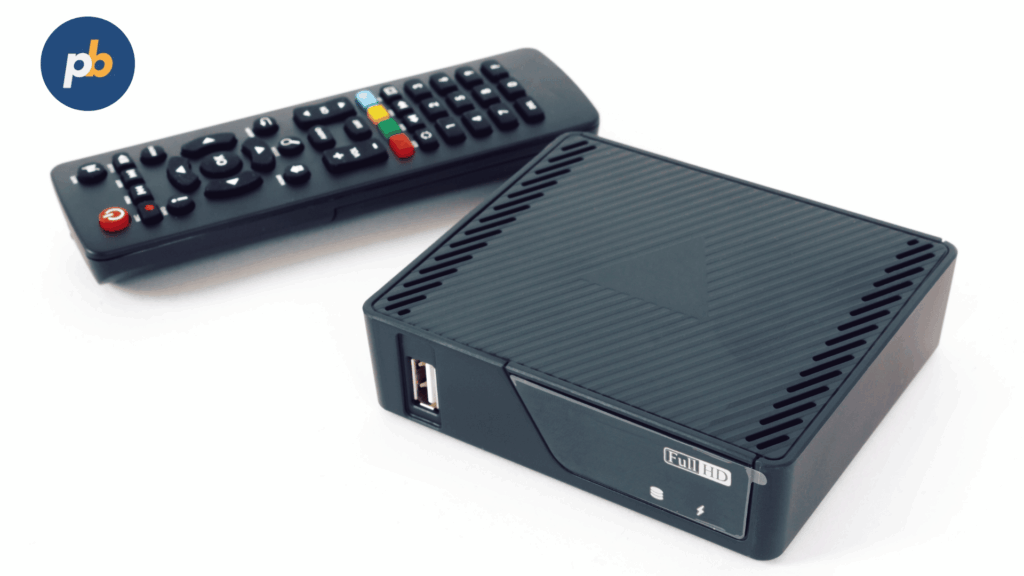
Fire TV/Android TV devices suit low-cost, low-complexity loops, while Windows/Linux mini-PCs suit heavier HTML dashboards, custom web apps, or multiple displays; Ethernet should be preferred for stability, with Wi-Fi used only when signal and channel conditions are favorable.
Table: Device Class → Pros/Cons → Best For → Notes
| Device Class | Pros | Cons | Best For | Notes |
|---|---|---|---|---|
| Fire TV Stick / Android TV | Low cost; easy app install | Limited I/O; Wi-Fi reliance | Menus, promos, simple URLs | Place close to access point or use Ethernet adapter |
| Android TV Box | More storage; USB ports | Quality varies by maker | Mixed media + lightweight HTML | Validate firmware and auto-start |
| Windows Mini-PC | Broad codec/browser support | Higher cost; patch cadence | Dashboards; complex web apps | Use SSD and auto-login shell |
| Linux Mini-PC | Lightweight and stable | DIY setup; driver fit | Kiosk-grade reliability | Lock down services; watchdogs |
Purchase Tips For PosterBooking Playback Devices include:
- Prefer Ethernet-Capable Models Or Add An Ethernet Adapter
- Choose SSD-Backed Mini-PCs For Cache Durability
- Enable Auto-Start And Kiosk Mode For Player Apps
- Validate Power-On Behavior After AC Loss
- Standardize On One Model Per Site For Easier Support
How to Size Screens, Brightness, and Orientation for the Space?
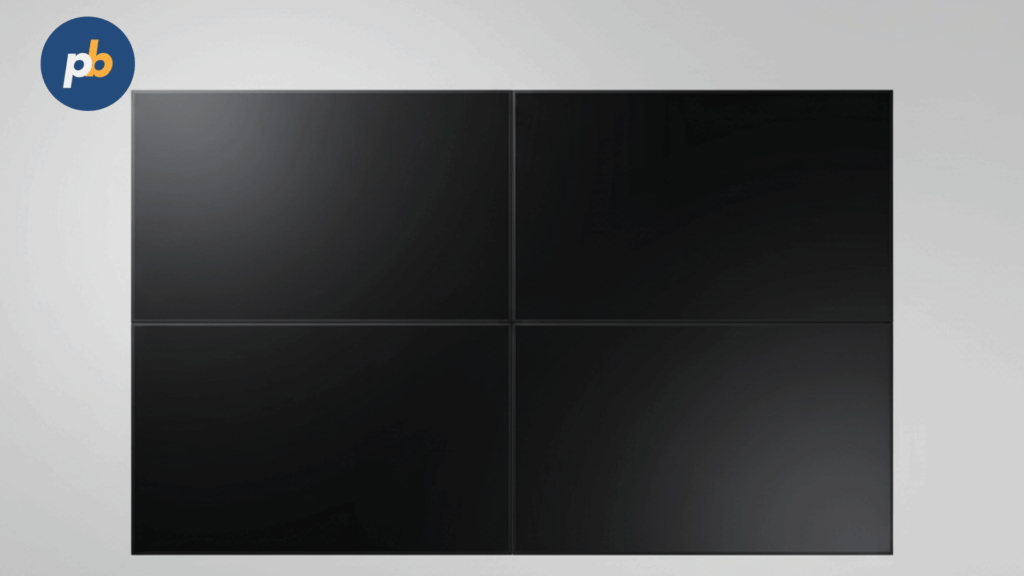
Screen size should match viewing distance, indoor brightness should fall between 350–700 nits, window-facing screens should reach 1,500–3,500 nits with anti-reflective glass, and portrait orientation should be used for tall menus or directories with safe zones away from edges.
Table: Distance → Recommended Size (Inches) → Minimum Nits (Indoor)
| Closest Viewing Distance | Recommended Size | Minimum Indoor Nits |
|---|---|---|
| 1–2 m | 32–43″ | 350–500 |
| 2–3 m | 43–55″ | 400–700 |
| 3–4 m | 55–65″ | 500–700 |
| 4–6 m | 65–86″ | 600–700 |
Rotation And Mounting Cautions For PosterBooking DIY include:
- Verify Portrait Support In The Panel Datasheet
- Keep Vents Clear And Follow Orientation Limits
- Reserve Title-Safe And Action-Safe Margins In Templates
- Avoid Direct Sun And Strong Reflections On Glass
- Keep ADA Protrusion Depths Within Corridor Limits
How to Design a Content Plan Before Touching the Software?
A practical signage visual content plan defines the audience and dwell time, sets a hierarchy of messages, maps a calendar of updates, and establishes legal and brand guardrails so creative assets publish smoothly through PosterBooking without rework.
Content Brief Template For PosterBooking DIY include:
- Define Audience, Desired Action, And Typical Dwell Time
- Set Headline, Benefit, And Call-To-Action Hierarchy
- List Required Variants For Dayparts Or Regions
- Specify Brand Fonts, Colors, And Logo Clear Space
- Record Legal Copy, Disclaimers, And Expiry Dates
Table: Venue → Loop Length → Refresh Cadence (Illustrative)
| Venue | Loop Length | Refresh Cadence |
|---|---|---|
| Café Counter | 60–90 seconds | Daily for prices and specials |
| Lobby Display | 90–120 seconds | Weekly for announcements |
| Fitness Studio | 60–90 seconds | Daily for class schedule |
| Retail Window | 30–60 seconds | Weekly plus promos |
Where Should Screens Be Placed to Maximize Visibility and Safety?
Screens should be placed in clear sightlines at eye-level or slightly above, away from harsh glare paths, near power and network, and outside egress routes while respecting ADA protrusion limits and service access.
Placement Do’s And Don’ts For PosterBooking Screens include:
- Place At Comfortable Eye-Height With Clear Sightlines
- Avoid Direct Sun And Specular Reflections From Lighting
- Keep Within Reach Of Power And Ethernet Where Possible
- Maintain Egress Widths And ADA Protrusion Limits
- Provide Service Clearance For Device And Cable Access
How to Create a PosterBooking Account and Workspace?
Account creation involves signing up, naming an organization and workspace, setting the correct time zone, applying brand assets, and inviting collaborators with appropriate roles to keep publishing organized and auditable.
Workspace Setup Checklist For PosterBooking include:
- Create Organization And Workspace Names That Match Locations
- Confirm Time Zone And Default Locale For Scheduling
- Upload Logos And Define Brand Colors For Consistency
- Add Team Members And Assign Roles For Least Privilege
- Enable Two-Factor Authentication For Account Security
How to Add a Screen or Device in PosterBooking for the First Time?
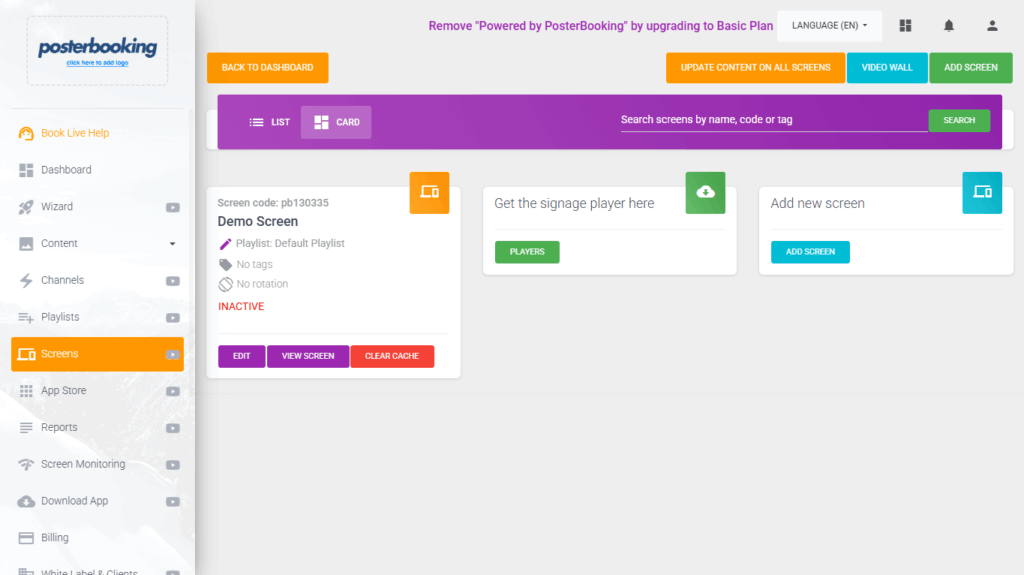
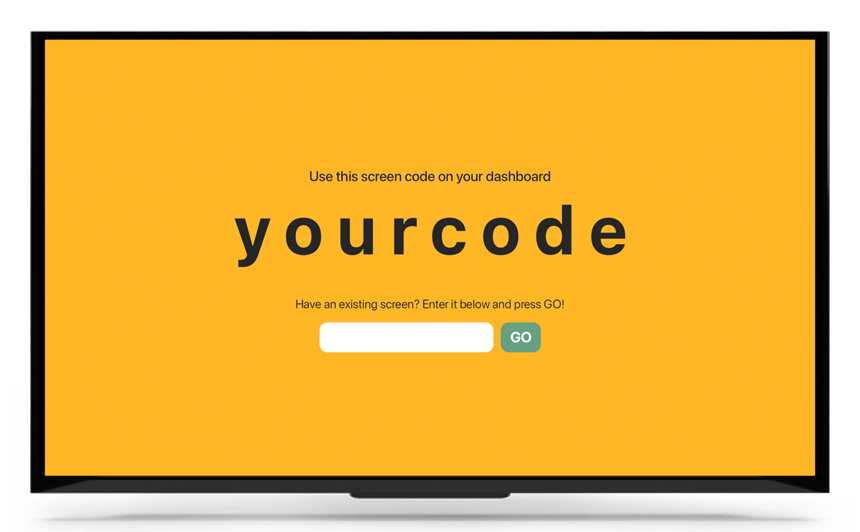
Adding a screen requires installing the PosterBooking Player app on the device, displaying the pairing code on the screen, and entering that code in the PosterBooking dashboard to register and name the endpoint.
Pairing Steps For PosterBooking Devices include:
- Install PosterBooking Player From The Appropriate App Store Or Installer
- Launch The Player To Display The Unique Pairing Code
- Open The Dashboard And Enter The Code To Register The Screen
- Assign A Friendly Name And Location For Identification
- Confirm The Device Shows “Online” And Receives A Test Asset
Table: Device → Install Path → Notes (Illustrative)
| Device | Install Path | Notes |
|---|---|---|
| Fire TV / Android TV | App store search for PosterBooking | Allow auto-start and sleep exceptions |
| Android TV Box | APK or store | Grant storage and network permissions |
| Windows | Download installer | Set auto-login and kiosk app |
| Linux | Package/script | Create systemd service for resilience |
What Player Settings Should Be Confirmed Before Going Live?
Before launch, confirm orientation, resolution, sleep and CEC behavior, time synchronization, cache/storage allowance, preferred network path (Ethernet over Wi-Fi), and autoplay on boot to minimize surprises during operation.
Player Settings Checklist For PosterBooking Launches include:
- Set Orientation (Landscape Or Portrait) And Native Resolution
- Disable Unwanted Sleep/Power-Saving And Conflicting CEC Actions
- Enable NTP Time Sync And Verify Time Zone Alignment
- Allocate Cache Space And Confirm Local Storage Health
- Prefer Ethernet And Validate IP/DNS Reachability
- Enable Auto-Start On Boot And Watchdog/Auto-Restart
How to Upload, Organize, and Quality-Check Content in PosterBooking
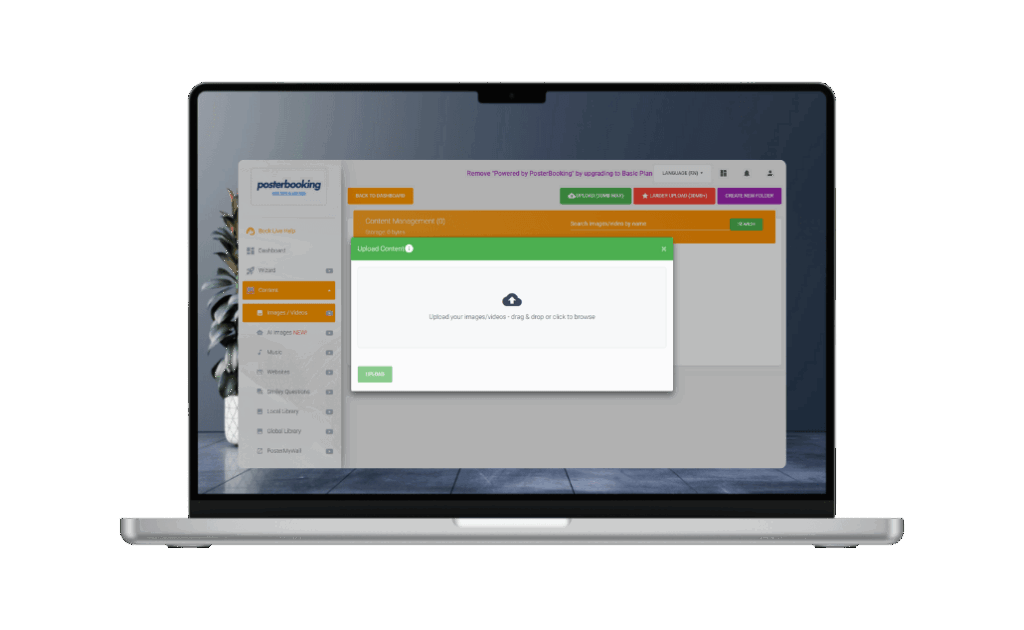
Content management works best with supported formats, images, MP4/H.264 video, and URLs - organized into folders and tags, named consistently, and versioned to track changes, while QC ensures proper resolution, bitrate, and audio levels.
Table: Format → Recommended Preset (Resolution/Bitrate) → Max Duration (Guidance)
| Format | Recommended Preset | Max Duration |
|---|---|---|
| Image (PNG/JPG) | 4K canvas, optimized size | N/A |
| Video (MP4/H.264) | 1080p @ 10–12 Mbps or 4K @ 18–22 Mbps | 15–30 s per spot |
| URL/Web Page | Mobile-responsive; static headers | N/A |
Naming Taxonomy For PosterBooking Media Libraries include:
- Use Venue_Place_Slot_Version (E.g., HQ_Lobby_PromoA_v03)
- Encode Start/End Dates In Filenames Or Tags
- Separate Brand Masters From Localized Variants
- Maintain A “Staging” Folder For QA Before Publish
- Archive Retired Assets With Dates For Audit Trails
How to Build Playlists and Schedules (Dayparting) the Smart Way?
Effective playlists group assets by goal, set durations and order, enforce frequency caps, and apply dayparts such as breakfast, lunch, and evening; assignments can target individual screens or groups for faster operations.
Scheduling Best Practices For PosterBooking Playlists include:
- Build Goal-Themed Playlists (E.g., Menu, Promo, Info)
- Cap Frequency So One Asset Does Not Dominate The Loop
- Align Dayparts To Real Traffic And Staff Routines
- Assign Playlists To Groups For Faster Rollouts
- Test A Full Loop And Record Actual Duration On Device
Table: Playlist → Target Screens → Duration → KPI (Illustrative)
| Playlist | Target Screens | Duration | KPI |
|---|---|---|---|
| Breakfast Menu | Café screens | 90 s loop | Average ticket size |
| Lobby Info | Lobby screens | 120 s loop | QR scans |
| Promo Highlights | Window screens | 60 s loop | Offer redemptions |
How to Target Content to Locations With Tags or Groups?
Targeting should use screen groups for repeating zones (e.g., “Front-Window,” “Lobby”) and tags for rapid ad-hoc assignments, reducing duplication and preventing mismatches.
Grouping Rules For PosterBooking Deployments include:
- Create Groups That Reflect Physical Zones Or Functions
- Apply Tags For Campaigns, Languages, Or Temporary Events
- Assign Playlists To Groups First, Then Adjust Exceptions
- Audit Group Memberships Monthly For Accuracy
- Use Consistent Naming For Groups And Tags Across Sites
How to Add Live Content Without Custom Development?
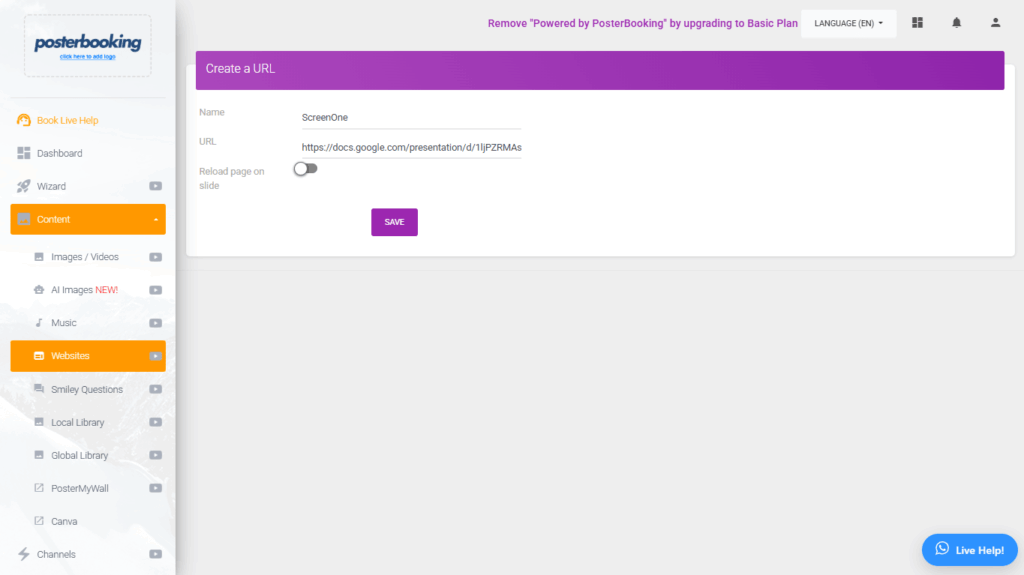
Live content can be added by using URLs and embeds for dashboards, calendar ICS feeds for events, Google Sheets or RSS for simple data, and documented fallbacks when sources fail so loops remain stable.
Table: Source → Integration Method → Refresh Cadence → Fallback
| Source | Method | Cadence | Fallback |
|---|---|---|---|
| Dashboard | Public or embedded URL | 1–5 minutes | Static image of latest snapshot |
| Calendar (ICS) | Calendar feed URL | Hourly | Generic events tile |
| Google Sheets | Published CSV/URL | 5–15 minutes | Cached CSV copy |
| RSS News | Feed URL | 15 minutes | House announcements |
Low-Code Widget Ideas For PosterBooking Screens include:
- Show Daily Specials With A Linked Google Sheet
- Embed A Public Calendar For Events And Closures
- Present A KPI Dashboard With Auto-Refresh
- Display A Weather Card For Local Context
- Run A Countdown For Product Launches Or Holidays
How to Keep Content Accessible and Readable?
Accessibility is maintained by respecting minimum text sizes by distance, meeting contrast ratios, supplying captions, moderating motion, and offering language variants for key audiences.
Table: Distance → Minimum Text Size (Guidance)
| Closest Viewing Distance | Minimum Cap Height (Pixels On 1080p) |
|---|---|
| 1–2 m | 24–30 px |
| 2–3 m | 32–40 px |
| 3–4 m | 40–56 px |
| 4–6 m | 56–72 px |
Accessibility Checklist For PosterBooking Content include:
- Use High-Contrast Color Pairs Meeting WCAG Ratios
- Provide Captions For Any Spoken Or Essential Audio
- Limit Flashing Or Rapid Motion Elements In Loops
- Offer Language Variants For Major Audience Segments
- Keep CTAs Short, Specific, And Legible At Distance
How to Commission and Launch the First Loop With PosterBooking?
Commissioning confirms playback, network, power-cycle recovery, offline caching, and remote screenshots before launch so operations start cleanly.
Commissioning Checklist For PosterBooking Launches include:
- Play Through A Full Loop On Each Screen Without Stutter
- Power-Cycle Displays And Devices To Confirm Auto-Start
- Disable Unwanted Sleep And Conflicting CEC Actions
- Disconnect Network Briefly To Confirm Offline Cache
- Capture Remote Screenshots And Store In A Launch Ticket
Table: Test → Steps → Pass Criteria (Illustrative)
| Test | Steps | Pass Criteria |
|---|---|---|
| Playback | Run loop for 15 minutes | No stutter or black frames |
| Reboot | Power cycle device/display | Auto-start to current playlist |
| Offline Cache | Pull network for 5 minutes | Continuous playback; proofs queued |
| Screenshot | Trigger from dashboard | Current frame visible per screen |
What Is the Rollback and Fallback Plan if Something Breaks?
A practical plan includes local fallback media, a manual reboot path, a short contact tree, and an incident log to capture fixes for future reuse.
Rollback SOP For PosterBooking DIY Networks include:
- Store A Local “Fallback Loop” On Each Device
- Script A Remote Reboot Or Provide PDU Access
- Keep A Short Contact Tree For Escalations By Venue
- Log Incidents With Time, Symptoms, And Screenshots
- Review Root Causes And Update Checklists Quarterly
Table: Failure → Immediate Action → Owner (Illustrative)
| Failure | Immediate Action | Owner |
|---|---|---|
| Device offline | Power cycle via PDU, check network | Site lead |
| Black screen | Change input; reseat HDMI | Site lead |
| Playlist not updating | Force sync; check schedule | Content owner |
How to Operate, Monitor, and Maintain a DIY Network?
Operations rely on dashboard health indicators, alerts, remote screenshots, periodic content refreshes, cleaning schedules, and a predictable update cadence for both player and content.
Table: Weekly/Monthly/Quarterly Tasks (Illustrative)
| Interval | Tasks |
|---|---|
| Weekly | Review device status; verify screenshots |
| Monthly | Refresh hero assets; install minor updates |
| Quarterly | Clean vents and screens; re-torque mounts; audit groups/tags |
Maintenance SOP For PosterBooking Deployments include:
- Review Device Health And Screenshots On A Weekly Rhythm
- Refresh Playlists And Retire Outdated Assets Monthly
- Clean Vents, Filters, And Glass Quarterly
- Re-Torque Mounts And Inspect Cables Quarterly
- Stage Player OS And App Updates With Rollback Plan
How to Measure Success and Optimize Content?
Success is measured with proxy metrics such as QR scans and short-link clicks, estimated time-in-view by location, before/after sales deltas for promos, and lightweight A/B tests on headlines, imagery, or sequence.
Table: KPI → Collection Method → Caveats
| KPI | Method | Caveats |
|---|---|---|
| QR scans | Track per-screen codes | Placement and glare affect scan rate |
| Short-link clicks | UTM and redirects | Mobile adoption varies by venue |
| Offer redemptions | POS coupon codes | Staff training affects capture |
| Time-in-view (proxy) | Observations/sensors | Sampling error |
Ten Quick Experiments For PosterBooking Content include:
- Swap Headline Verb From Passive To Active
- Increase Cap Height By 20% On Key Slides
- Replace Light-On-Light With High-Contrast Pairs
- Shorten Loop By Removing Low-Performers
- Reorder Assets So The Best Performer Leads
- Test Dark Theme Against Bright Theme In Windows
- Add Subtle Motion To Draw Peripheral Attention
- Introduce A Localized Variant For Top Language
- Insert A Countdown For Urgency Near Deadlines
- Add A QR CTA With A Clear, Specific Benefit
How to Troubleshoot Common PosterBooking DIY Issues Fast?
Rapid troubleshooting isolates device, cable, display, or schedule causes using pairing checks, HDMI/EDID tests, bitrate and Wi-Fi validations, orientation settings, audio toggles, and schedule eligibility audits.
Table: Symptom → Likely Cause → Fix
| Symptom | Likely Cause | Fix |
|---|---|---|
| Device will not pair | Clock off; blocked network | Sync time; allow required ports; retry pairing |
| Black screen | Wrong input; EDID/HDCP issue | Set correct input; try new HDMI; power cycle |
| Stutter or drop frames | Bitrate too high; weak Wi-Fi | Re-encode lower bitrate; switch to Ethernet |
| Wrong orientation | Panel or app setting mismatch | Set portrait/landscape consistently |
| No audio | Muted device/display; cable | Unmute outputs; check cable; test tone |
| Scheduled item missing | Daypart or tag mismatch | Verify schedule window and tagging |
Logs And Screenshots To Capture During Troubleshooting include:
- Capture Device Status And Last Check-In Time
- Save Remote Screenshots Showing The Symptom
- Export Playlist And Schedule Assignments
- Record Bitrate/Resolution Of Problem Assets
- Note HDMI Input, EDID, And Cable Part Number
How to Keep Things Secure and Compliant as the Network Scales?
Security and compliance rely on strong passwords and two-factor authentication, role-based access, clear content rights, privacy-aware practices (no PII on public screens), and reminders about safe mounting and power isolation.
Security Checklist For PosterBooking DIY Networks include:
- Enforce Strong Passwords And Two-Factor Authentication
- Assign Roles With Least-Privilege Access To Playlists And Devices
- Use Licensed Fonts, Stock, And Music With Clear Rights
- Avoid Displaying PII Or Sensitive Dashboards In Public Areas
- Place Screens And Cables To Minimize Tamper Opportunities
Table: Risk → Mitigation → Owner (Illustrative)
| Risk | Mitigation | Owner |
|---|---|---|
| Shared admin account | Unique accounts; 2FA | Workspace admin |
| Unauthorized content | Roles; approvals | Content lead |
| Device tampering | Secure mounts; cable concealment | Installer |
How Much Will This DIY Build Cost, and How to Budget It?
Costs combine one-time CapEx (display, mount, device, cabling, tools) and ongoing OpEx (internet, power, content time), with realistic ranges scaling from one to ten screens depending on size and brightness.
Table: Itemized Budget → Low / Medium / High (Illustrative)
| Item | Low | Medium | High |
|---|---|---|---|
| Display (43–55″) | $ | $$ | $$$ |
| Playback Device | $ | $$ | $$ |
| Mount/Stand | $ | $ | $$ |
| Surge + UPS | $ | $ | $$ |
| Cabling/Concealment | $ | $ | $ |
| Tools/Consumables | $ | $ | $ |
Calculator Inputs For PosterBooking DIY Costing include:
- Enter Display Count, Size, And Brightness Tier
- Enter Device Model And Quantity
- Enter Mount Type And Installation Labor Hours
- Enter Energy Rate, On-Mode Watts, And Hours/Day
- Enter Content Production Hours Per Month
Cost-Saving Tips For PosterBooking DIY Projects include:
- Standardize Sizes And Device Models Across Screens
- Prefer Ethernet Over Wi-Fi To Reduce Support Calls
- Reuse Templates And Automate Date/Price Fields
- Add AR Films Or Re-Aim Lighting Before Overspec Brightness
- Schedule Sleep/Dim During Closed Hours To Save Energy
When Should Hardware Be Upgraded or More Screens Added?
Upgrades or additional screens are warranted when glare or brightness gaps persist, traffic grows beyond current placements, content becomes more complex with live dashboards or 4K video, or new zones and dayparts appear.
Upgrade Signals For PosterBooking DIY Networks include:
- Observe Persistent Glare Or Poor Contrast In Daylight
- Note Crowding Near A Single Screen Or Blocked Sightlines
- Add Data-Heavy Dashboards That Stutter On Lightweight Devices
- Launch New Dayparts Or Services That Need Dedicated Loops
- Expand To New Areas That Lack Clear Line-Of-Sight
Table: Trigger → Recommended Upgrade (Illustrative)
| Trigger | Recommended Upgrade |
|---|---|
| Window glare | High-bright panel with AR glass |
| Stutter on dashboards | Mini-PC with SSD and Ethernet |
| Long viewing distance | Larger screen or LED panel |
| Multi-zone venue | Additional screens with groups/tags |
What FAQs Do DIY Builders Ask About PosterBooking?
Clear answers accelerate decisions and reduce trial-and-error during the first deployment.
FAQ For PosterBooking DIY include:
Which devices are easiest to start with?
Fire TV Stick or Android TV box for simple loops; Windows or Linux mini-PC for dashboards.
Can playback run offline?
Yes; cached content continues and sends proofs when connectivity returns.
What bitrate should be used for 1080p/4K?
1080p at ~10–12 Mbps; 4K at ~18–22 Mbps with H.264.
How is dayparting scheduled?
Create time windows (e.g., breakfast, lunch) and assign playlists to those dayparts.
Can a live dashboard or website be shown?
Yes; add the URL; ensure a public or embedded view and test auto-refresh.
How is portrait rotation handled?
Set portrait in the device and in PosterBooking layouts; validate safe zones.
How can a frozen player be rebooted remotely?
Use a smart PDU or device management tool; enable auto-start on boot.
Bottom Line: PosterBooking enables an approachable, professional DIY signage stack by pairing commodity devices with a lightweight CMS workflow - when hardware is right-sized, content is designed for distance and daypart, and commissioning follows a short, repeatable checklist, small networks operate with the consistency of larger enterprise deployments.