
How to Set up Tim Hortons Digital Menu Board
Discover how Tim Hortons runs flexible digital menus at scale and how your business can replicate their exact setup using PosterBooking without spending a dime.



Why Tim Hortons Transitioned to Digital Menu Boards
With high foot traffic and a dynamic menu, Tim Hortons needed more than static signage. Digital menus brought instant updates, smarter upsells, and consistent branding, all possible for your business too.
Print Costs Were Too High
Updating paper menus across 30,000+ stores was expensive and slow.
Instant Menu Changes
They needed to launch promotions and change prices instantly.
Region-Specific Menus
Different items in different countries all updated automatically.
Behind Tim Horton's Use of Digital Menu Boards
Tim Hortons manages digital screens at every key touchpoint. counters, menu boards, and drive-thrus, all controlled from one central system, enabling instant updates and smooth nationwide rollouts.
Screens at Every Counter and Drive-Thru
Customers see menus on digital screens no matter where they order.
Promotions & Videos
Visual ads and upsells appear on-screen to boost sales.
Global and Local Control
Head office controls global items; local stores add regional menus.
Dynamic Content Switching
Menus change automatically by time, breakfast, lunch, dinner.
Seamless Ordering Flow
Customers move smoothly from menu to order, no confusion.
Kiosk & Menu Sync
Self-order kiosks show the exact same content as menu boards.
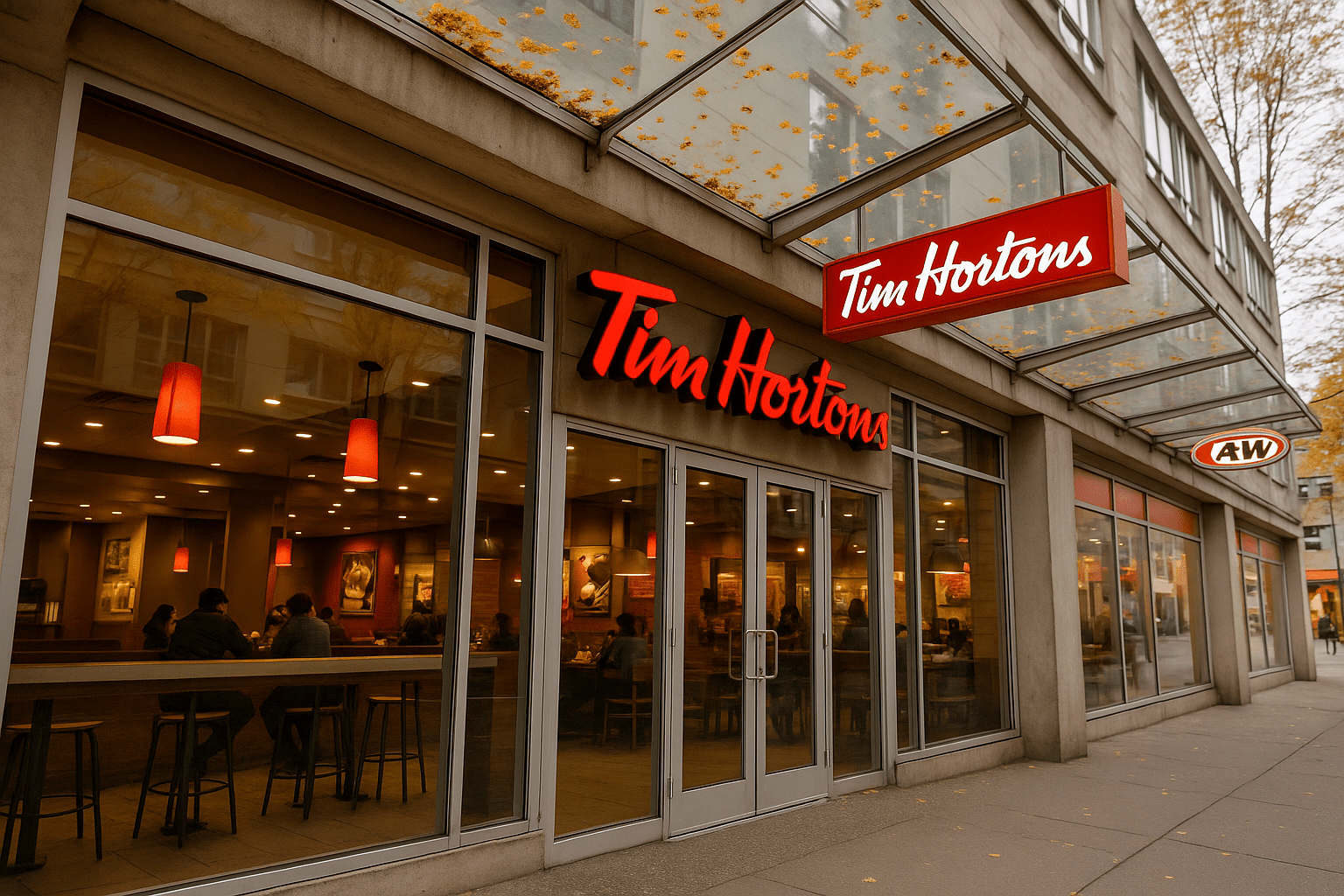
How Tim Hortons Uses Digital Menu Boards in Restaurants
How Tim Hortons uses digital signage to automate customer experience and how you can replicate their approach
- Step 1: Menus Are Designed at Head Office
- Step 2: Screens Are Installed in Each Location
- Step 3: Each Screen Is Linked to a Cloud Dashboard
- Step 4: Menu Files Are Uploaded and Scheduled
- Step 5: Promotions and Seasonal Offers Are Added Instantly
- Step 6: Everything Syncs Across Stores Automatically
- Step 7: Staff Only Need to Turn the Screens On
How to Set Up a Tim Hortons-Style Digital Menu in Minutes
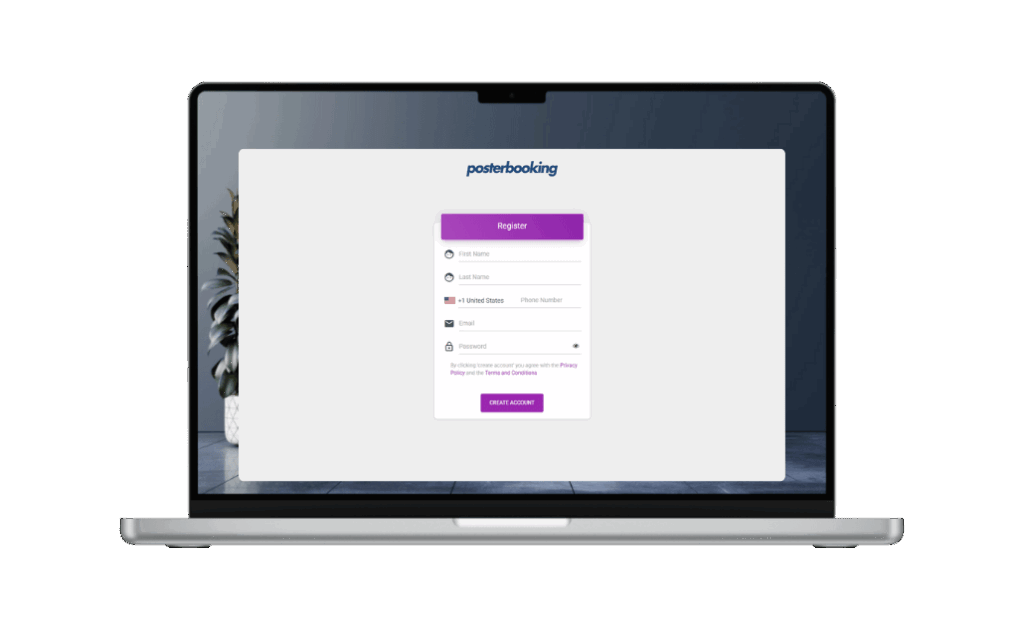
Step 1
Create a Free Account
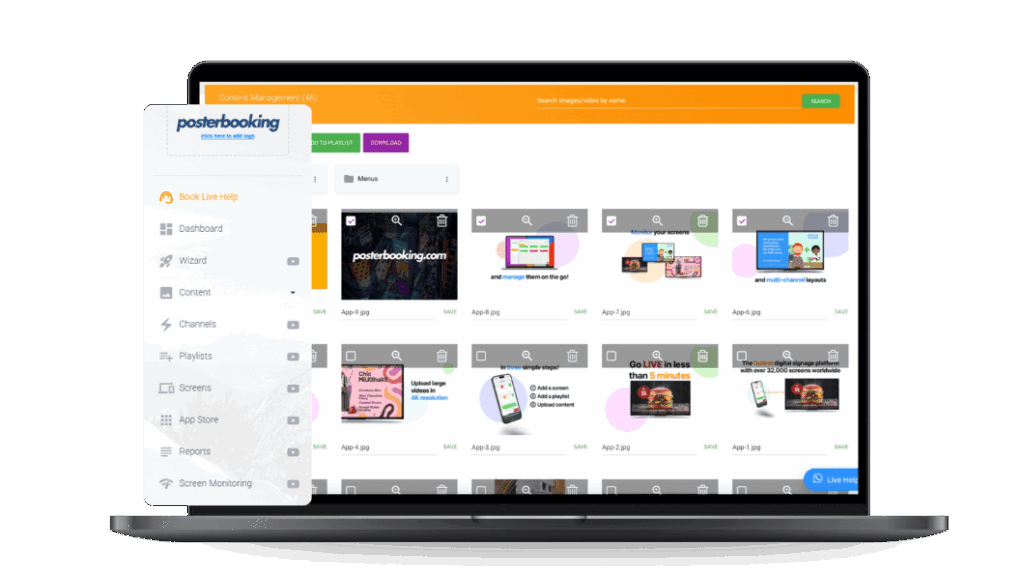
Sign up on a cloud-based digital signage platform. It takes 1 minute.
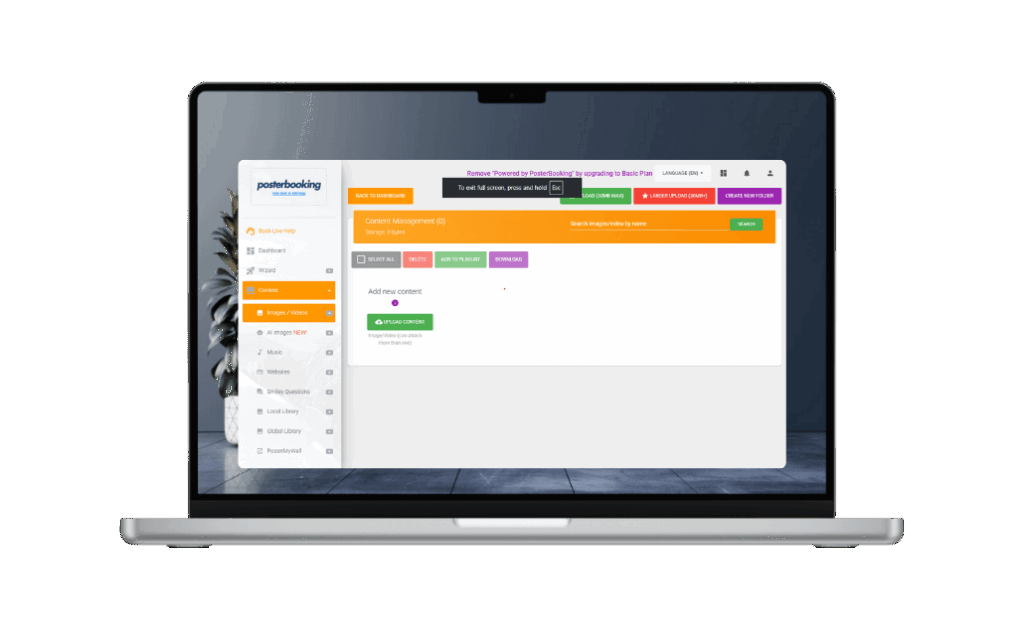
Step 2
Connect a Screen
Plug a device into your screen and install the signage app. Use Smart TVs, FireStick, Android box whatever you already have.
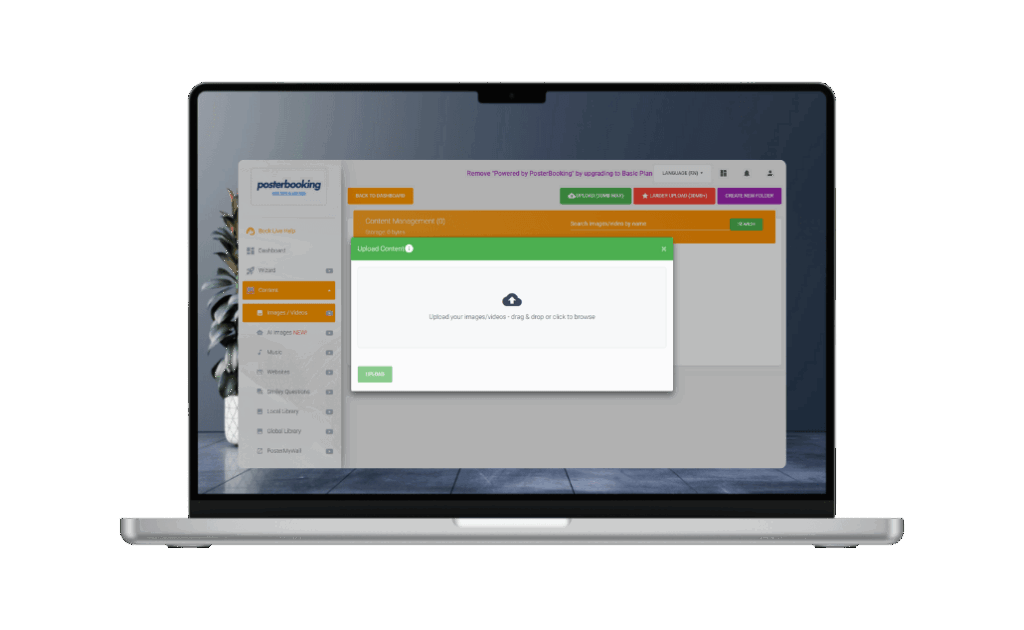
Step 3
Upload Your Menu
Upload images or videos of your breakfast, lunch, and dinner menus. You can use JPEG, PNG, or MP4.
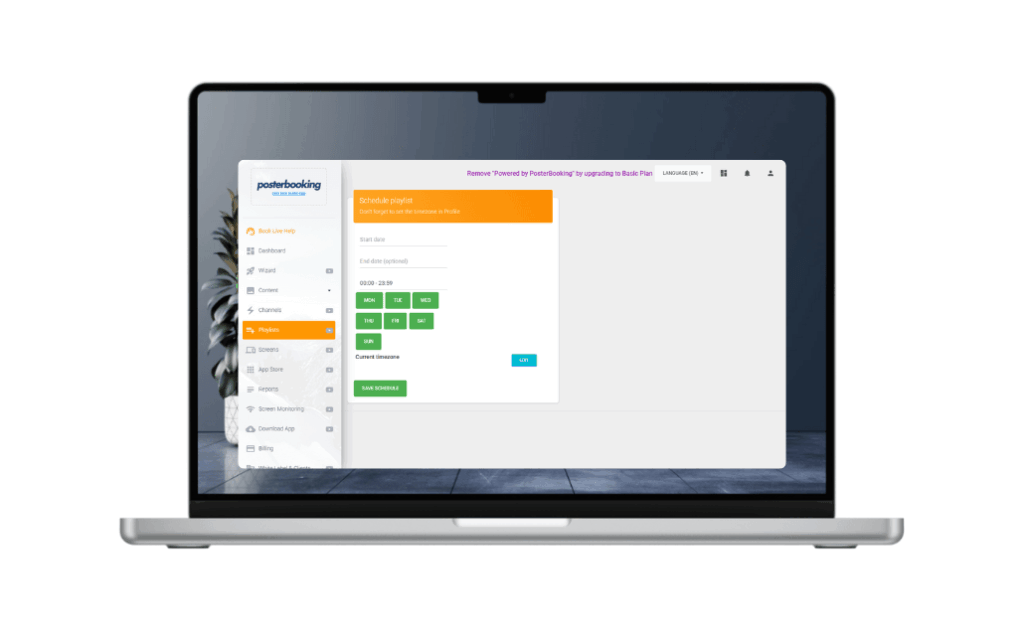
Step 4
Schedule Menus by Time of Day
Set which menu shows at what time.
Step 5
Add Promotions or Special Offers
Insert seasonal campaigns, flash promos, or upsells and schedule them ahead of time.
Step 5
Sync for Multiple Screens or Stores
Add more screens to your dashboard and control them all from one place. Whether it’s 1 restaurant or 50, it scales.
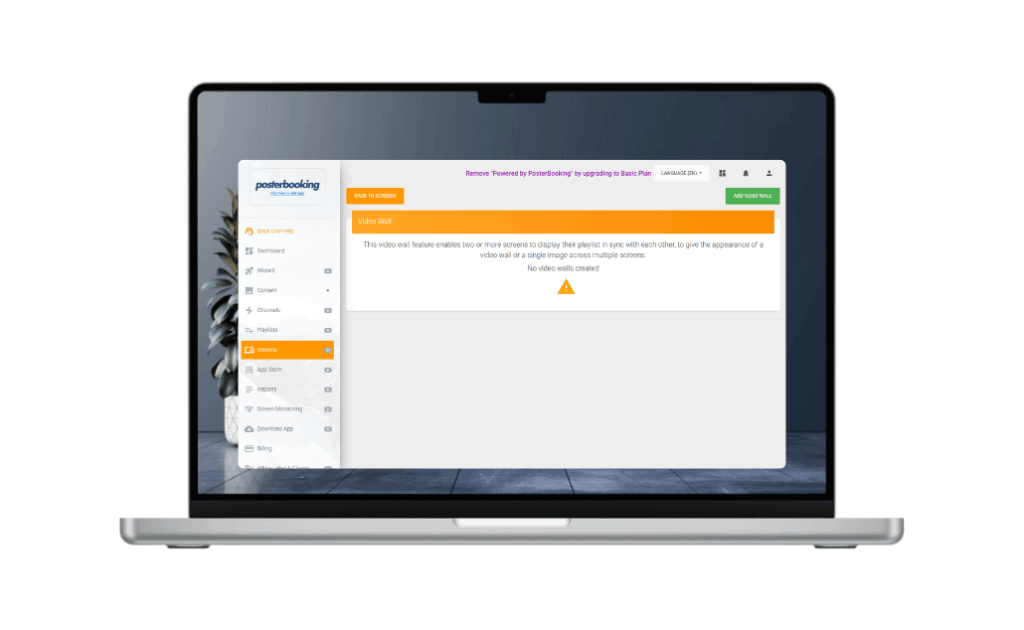
How to Keep Your Digital Menu Running Like Tim Hortons
Just like Tim Hortons, you don’t need a tech crew at every location. Learn how to keep your digital menus running seamlessly.
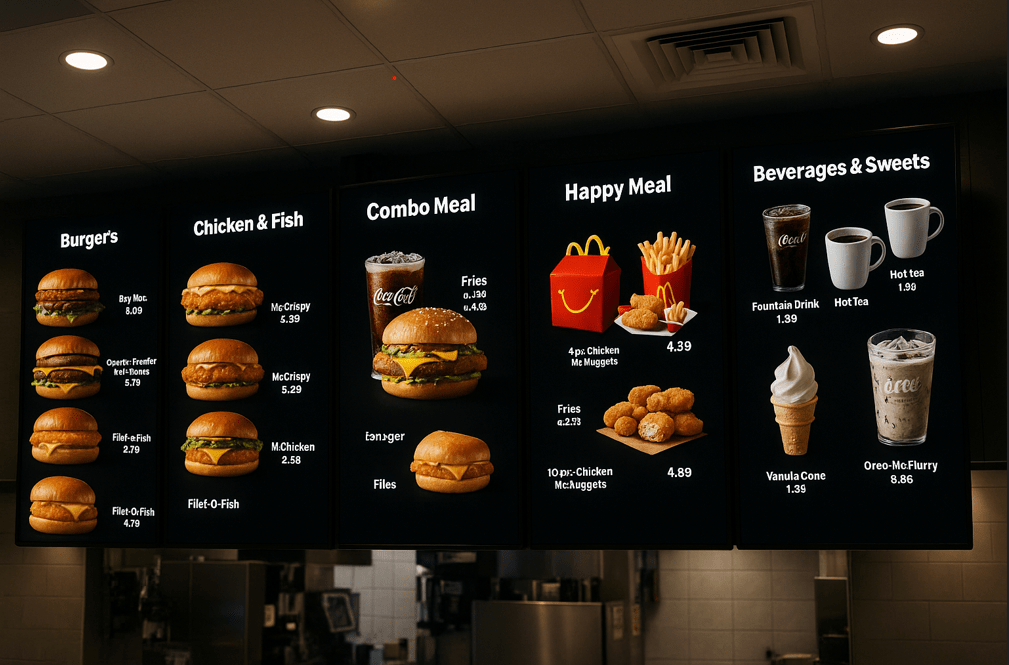
Keep Menus Updated Weekly or Monthly
Update prices, remove out-of-stock items, or add new ones.
Takes just a few clicks from your dashboard*.*
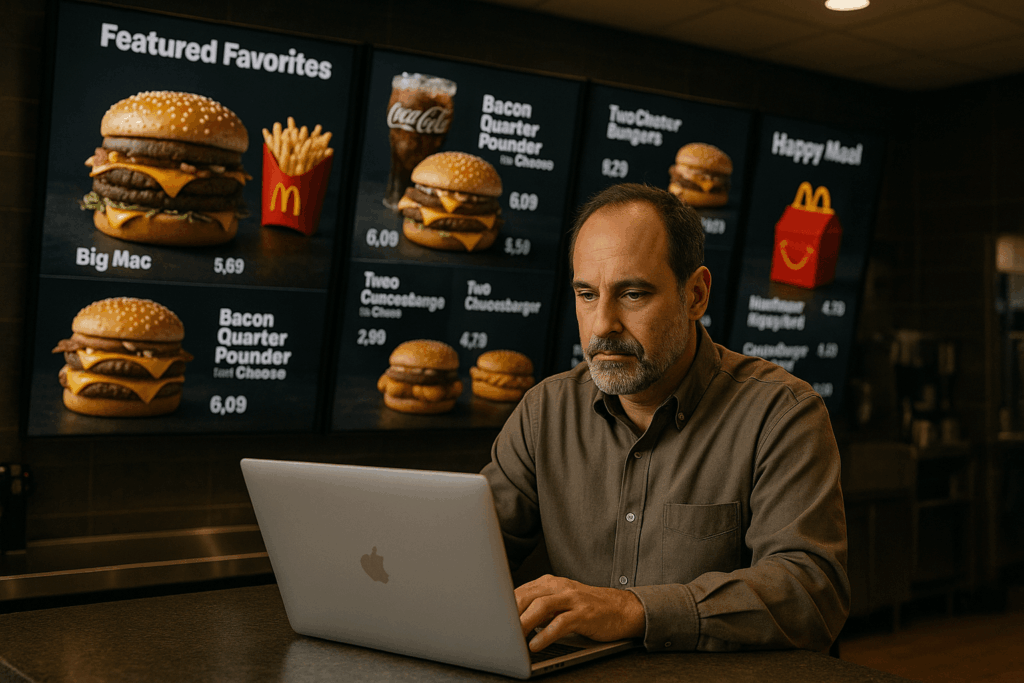
Schedule Promotions in Advance
Plan out seasonal offers or time-sensitive deals weeks ahead.
No need to log in every day.
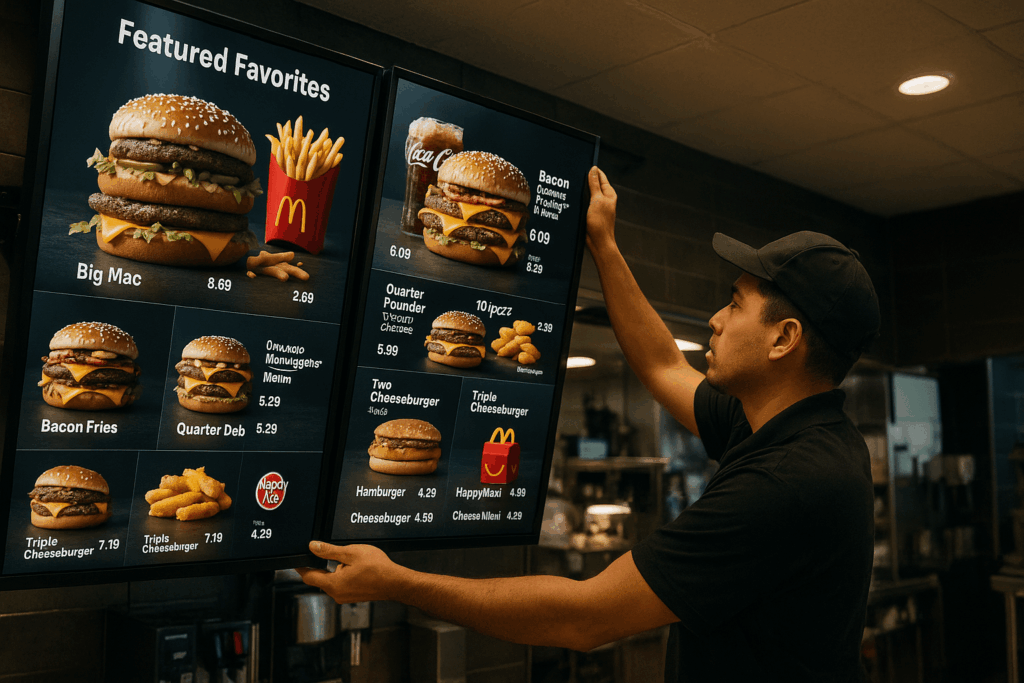
Replace Outdated Content Regularly
Refresh visuals to avoid screen fatigue.
Modern-looking menus increase perceived food quality.
Copy Tim Hortons Digital Menu System
Build a smarter, simpler, and more profitable menu setup using cloud-based digital signage.
See How Other Top Brands use Digital Signage
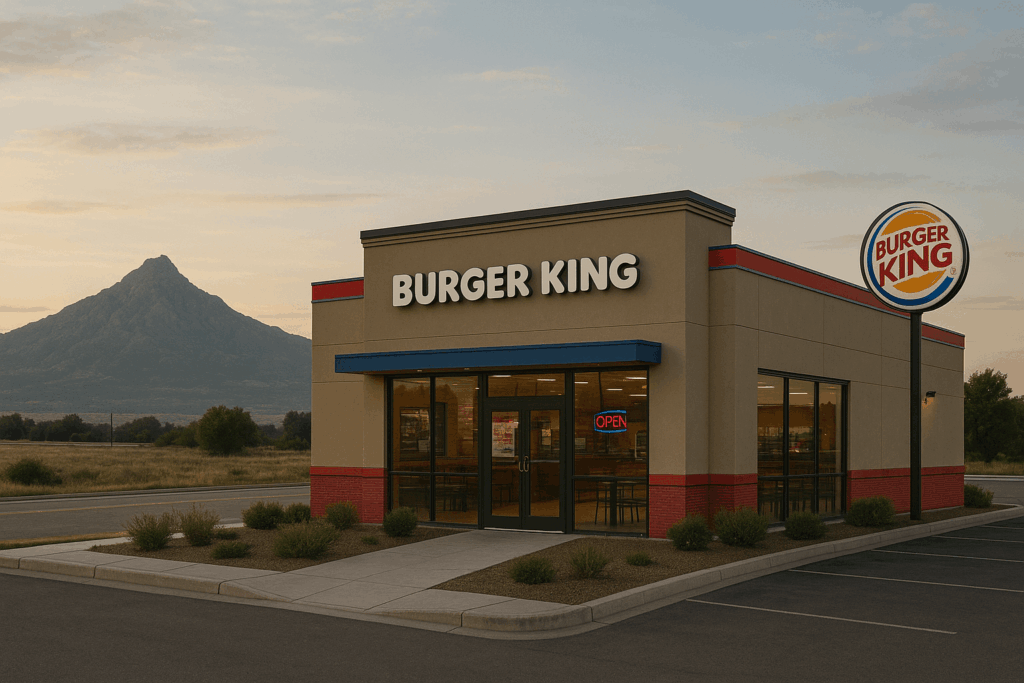
Burger King
Explore how Burger King runs fast, flexible menus using digital signage and how you can too, at no cost.
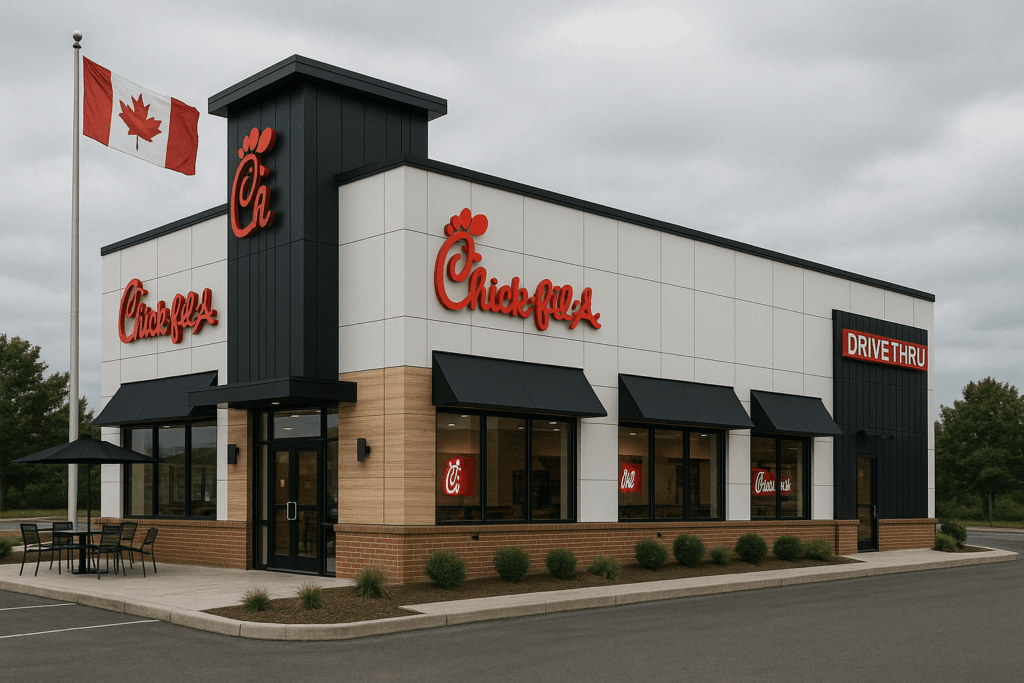
Chick-Fil-A
Chick-fil-A keeps lines moving and menus updated using smart digital signage. Learn how your restaurant can do the same, for free.
Frequently Asked Questions
Do I need to buy any special hardware?
Not at all. You can use any standard TV screen and plug in a FireStick, Android Box, or even use a Smart TV with a web browser. No expensive signage hardware needed.
What kind of content can I show on the screens?
You can upload menus, videos, images, slideshows, and promotions anything in JPG, PNG, or MP4 format. Your content auto-plays and switches based on your schedule.
Can I manage multiple screens or locations?
Yes. Whether you have 1 screen or 100, everything is managed from a single online dashboard. You can group screens, set user permissions, and schedule content per location.
I don’t have a tech team. Can I really do this myself?
Absolutely. The setup is beginner-friendly. Just plug in, connect, upload, and schedule. Most users go live in under 15 minutes, no technical skills required.
Can I schedule different menus for breakfast, lunch, and dinner?
Yes. You can set your menus to switch automatically based on time of day, breakfast in the morning, lunch in the afternoon, and dinner in the evening, with no manual switching.
Is this really free to start? What's the catch?
Yes, your first 10 screens are completely free, no credit card needed. If you want more screens or advanced features later, you can upgrade anytime.
Display signage live in less than 2 minutes
Seconds to sign up. Seconds to add a screen. Seconds to add content and go live!